Step 1
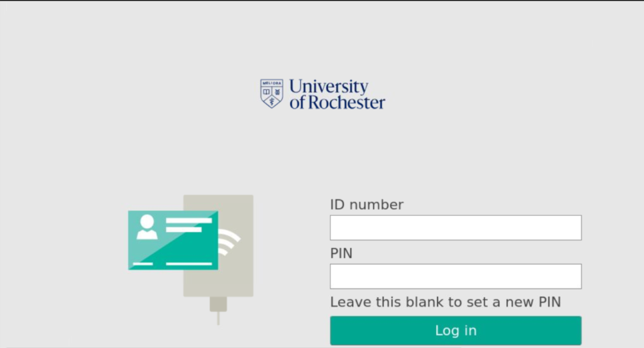
When you get to the printer to release a job, you will need to swipe with your URochester ID badge or Rocky Bucks card, or enter the Visitor Print & Copy Card number and PIN.
Step 2
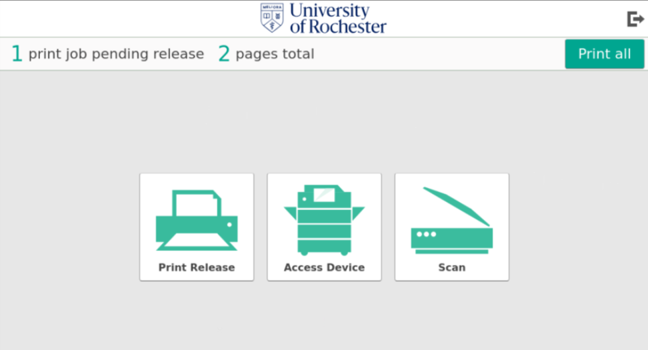
Once logged in, you will be presented with the option to print, scan, or access the device. To release documents, select Print Release. Or, to immediately print all documents in your queue without changing any options, select the Print all button near the top right corner.
Step 3
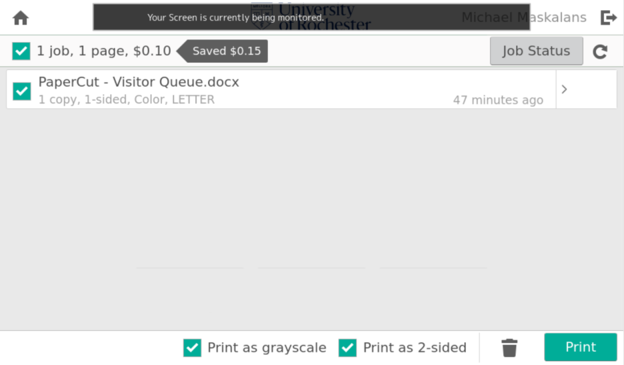
Select the job or jobs to be printed and select the Print button. If you wish to make changes, the arrow on the right end of the job’s row will open an options menu to adjust number of copies, duplex mode, and color/greyscale.
- Duplex and greyscale conversion options show at the bottom of the screen for jobs sent through Secure-Print, too. Be certain to deselect grayscale for color output.
Step 4
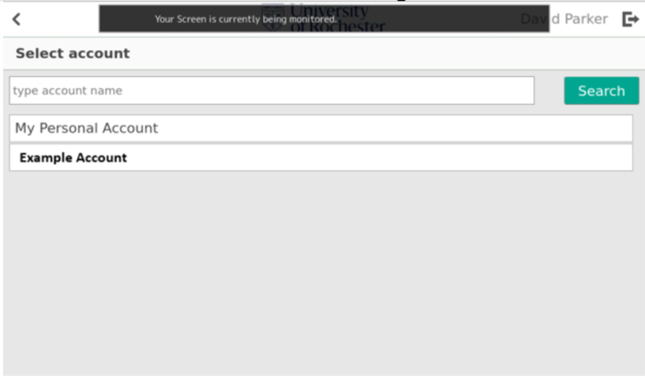
Most users will see an account selection confirmation after choosing Print. For most students, this will always be My Personal Account. For users with access to bill to an FAO, select the applicable account from your list of options.
Step 5
From either screen, select Print to print your job.