Overview
Use this reference to update your preferred FIRST name. This reference applies to faculty, staff, and students. This can be accessed from both the student and worker profile.
Changing My Preferred First Name
-
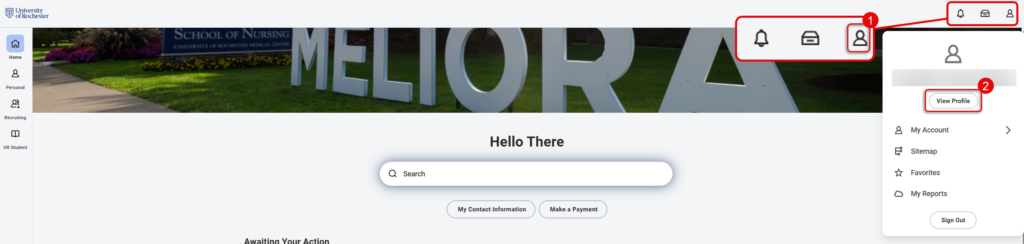
- Navigate to the Home page of UR Student, then select the Profile icon. This will be either a silhouette or profile picture.
- Select View Profile.
- Within the navigation bar on the left, selected the Actions button under your name.
- From the related actions pop up window, hover over Personal Data using your mouse to show a second window.
- While hovering over Personal Data, select Change My Preferred Name.

-
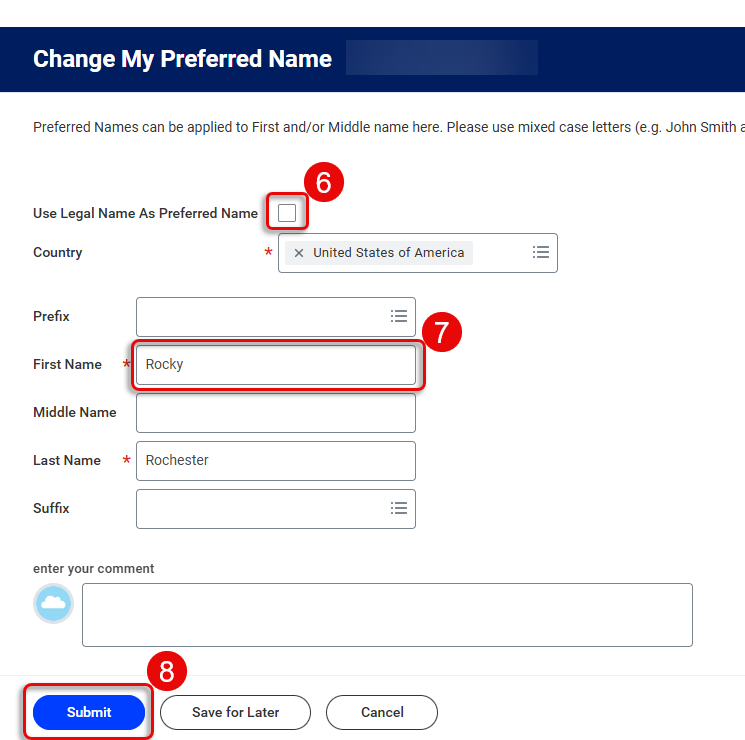
- Within the Change My Preferred Name window, unselect Use Legal Name As Preferred Name.
- Edit your name in the First Name field as you would like it to appear.
- Select Submit.
- Your name update will be reflected within the View Profile Screen atop the navigation area.
TIP: Updates will also appear in the following areas:- Instructor names will appear updated on course sections and can be accessed via the Find Course Section URSTU 1201 report.
- Advisor names will appear updated on students’ Important Contacts Support Network found on the Academics dashboard.
- Student names will appear updated anywhere where preferred name is displayed (e.g. advisee lists and course rosters).