Overview
Use this reference to request permission to register for a course that is requires instructor permission.
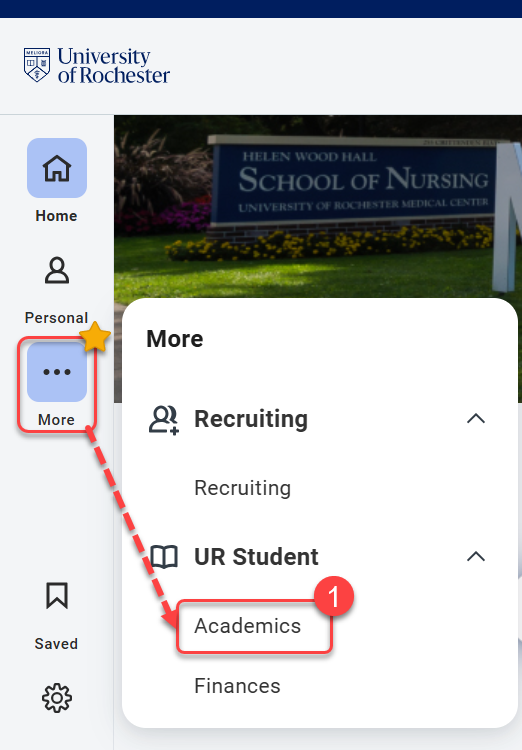
Example of Academics Start
- When the academic registration window is open for your school, log into UR Student, then navigate to the Academics app under UR Student in the global menu.
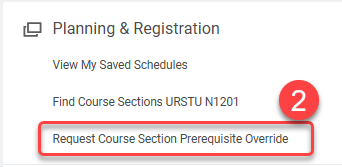
TIP: If you cannot see UR Student in the global menu, click the More icon. - Under Planning and Registration, select Request Course Section Prerequisite Override.
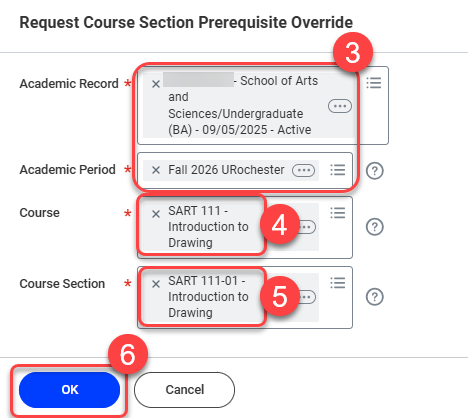
- Enter Academic Record and Academic Period.
- Enter Course (if no course shows up then there are no course sections that require permission).
- Enter Course Section (if no course section shows up then this course does not require permission).
- Select OK to continue.
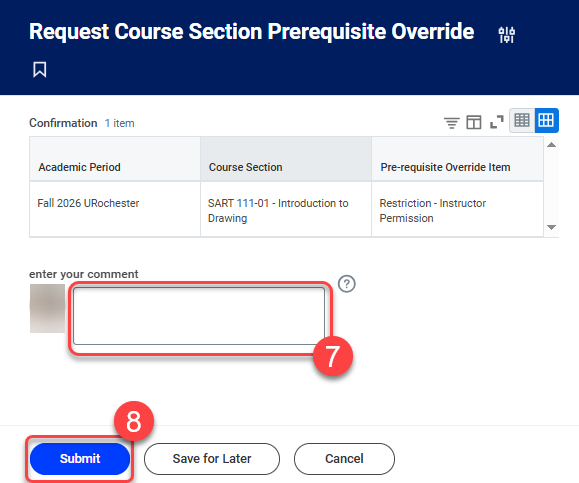
- Enter Comments (include all relevant information you want the instructor to know about your request).
- Select Submit.
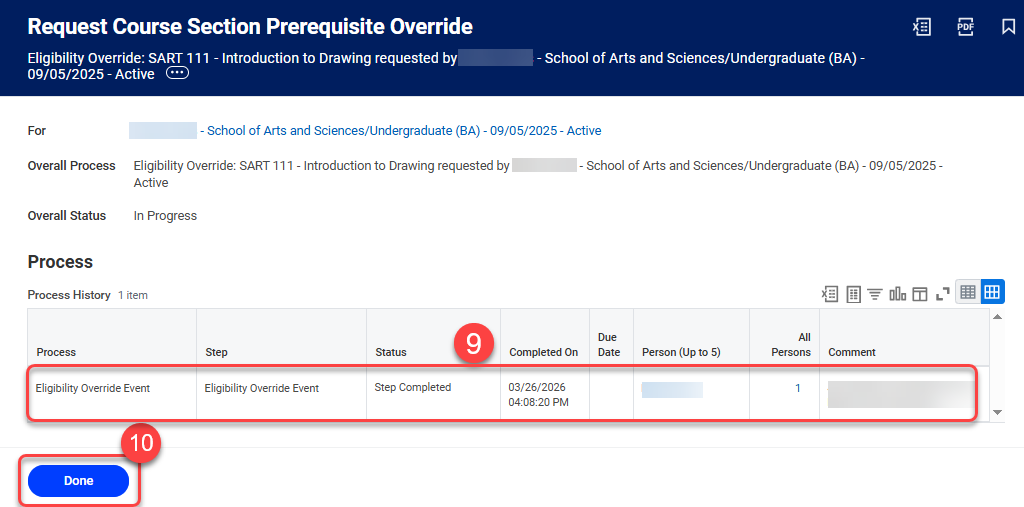
- Review all information pertaining to your Request.
- Select Done to complete the process. Your request is sent to the instructor for review.
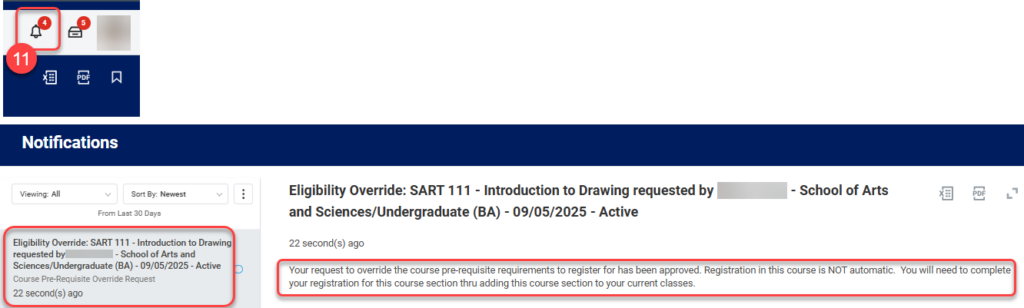
- Check your Notifications in UR Student for the approval from the instructor to be able to register for the course.
- Go into UR Student and register for this course section.