Page Contents
- Overview
- View Final Grades
- View Interim Grades (for undergraduates in School of Arts & Science, Hajim, and Simon)
Overview
Follow steps below on how to view final grades. Also shown are steps to view interim grades for undergraduates in the School of Arts & Science, Hajim, and Simon.
View Final Grades
- Log into UR Student, then navigate to the Academics app under UR Student in the global menu.
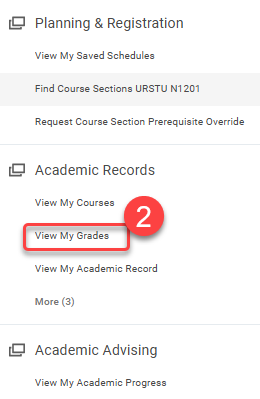
TIP: If you cannot see UR Student in the global menu, click the More icon. - In the Academic Records section (right side of screen) select View My Grades.
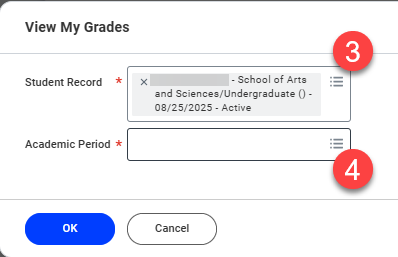
- On the View My Grades screen, the Academic Record field should automatically show your current, active record. You can select it if not.
- Select the appropriate Academic Period for which you want to view your grades.
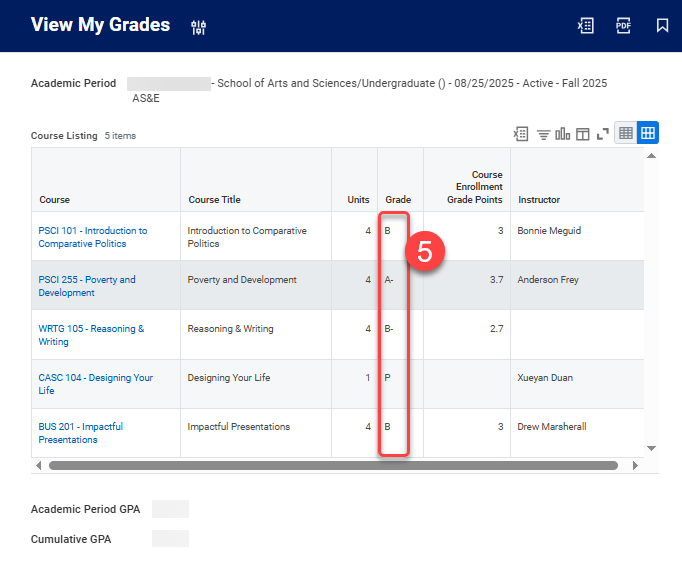
IMPORTANT: You will only see academic periods in the drop down if you have graded coursework available (e.g., only if your instructor has graded your course). - All completed courses will display, with grades, if appropriate.
View Interim Grades (for undergraduates in School of Arts & Science, Hajim, and Simon)
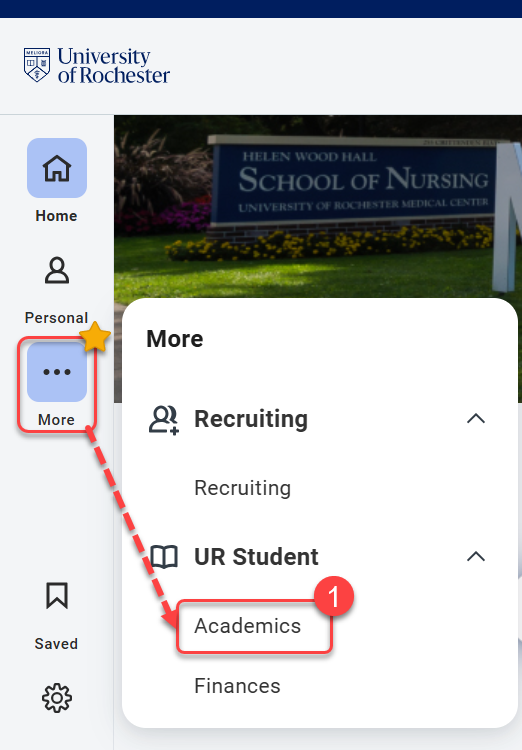
- Log into UR Student, then navigate to the Academics app under UR Student in the global menu.
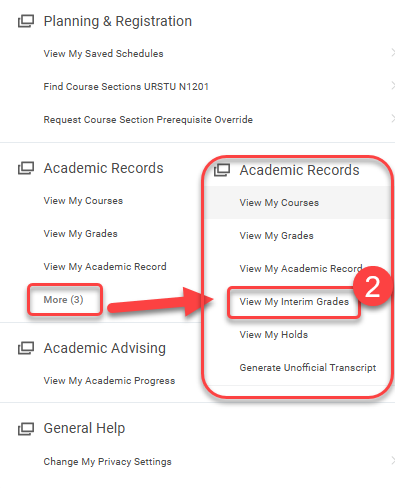
TIP: If you cannot see UR Student in the global menu, click the More icon. - In the Academic Records section (right side of screen) select More then View My Interim Grades.
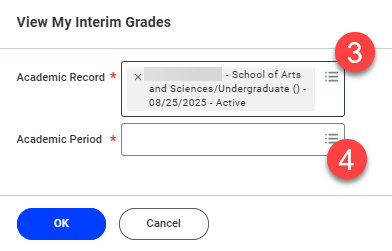
- On the View My Interim Grades screen, the Academic Record field should automatically show your current, active record. You can select it if not.
- Select the appropriate Academic Period for which you want to view your interim grades.IMPORTANT: You will only see academic periods in the drop down if you have interim grades available (e.g., only if your instructor has assigned an interim grade.)
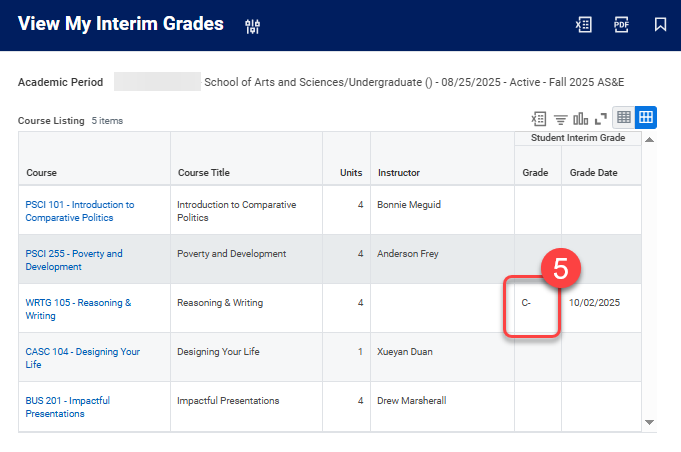
- Interim Grades appear in the Grade column if an interim grade has been assigned by the instructor.