Regarding Blackboard Original Courses and Organizations
The Blackboard Ultra view is here to stay! As you may be aware, the University migrated all academic term-based courses to Ultra starting in Spring 2025. However, many non-academic term-related Blackboard shells still use the original Blackboard view.
Blackboard is deprecating the Original view as of December 31, 2026.
- On January 1, 2027, all Blackboard Original content will be converted to read-only with no ability to change content or enroll anyone. Students in these courses will not be able to make submissions.
- On January 1, 2028, all Blackboard Original content will all be converted to Ultra, which may eliminate or alter some content due to incompatibilities between Original and Ultra.
If you need long-term access to anything in Blackboard Original format, we strongly encourage you to gather it before the end of the year. You can do so either by
- putting it through a manual conversion process to a new Ultra Organization or Course
- downloading the content
Both of those options will require you to invest your time and effort, as there is no automated option or an option that can be executed by someone other than you. Hence, it is a good idea to start planning now if you need to do so.
If you have a Blackboard shell in Original view that is still in use and need to migrate to Ultra, please request assistance with a migration to Blackboard Ultra by submitting a help desk ticket via email to UnivITHelp@rochester.edu.
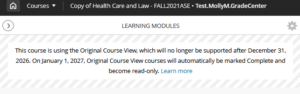
If you are seeing this banner in your course, you will need to move to Ultra before the end of the 2026 calendar year.
Workshops and Resources for Ultra are available
Frequently Asked Questions
- How do I know if I have an “Original” course/organization?
- How do I save my Grade Center records?
- How do I save my Grade Center History records?
- How do I save the content from my course?
- How do I create a course archive (specific to Blackboard)?
How do I know if I have an “Original” course/organization?
If your course or organization is still in Original and needs migration, it will appear in your course list with the words “Original Course View” as shown below.
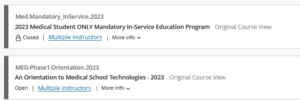
Instructors will see the following message in their course banner, indicating that the course is nearing “retirement”.
Note that student activity cannot be migrated directly, so you will want to plan a migration time when students start new work in the new shell.
How do I save my Grade Center records?
From the left hand Course Management Menu
- Grade Center
- Full Grade Center
- Work Offline –> Download
- Select – Full grade Center
- Choose a Delimiter type
- Either should work and open in Excel
- If you choose one and it does not work well for you, choose the other and try again
- Submit
- Click Download button
How do I save my Grade Center History?
From the left hand Course Management Menu
- Grade Center
- Full Grade Center
- Reports -> View Grade History
- Change Entries from the Past to ALL and hit Go
- Choose Download.
- Choose a Delimiter type
- Either should work and open in Excel
- If you choose one and it does not work well for you, choose the other and try again
- Click Download button
How do I save the content from my course?
From the left hand Course Management Menu
- Content Collection -> COURSE.ID
- Click the box to select all files
- Download Package
This ZIP file will contain the individual files that are in your course folder. Note that sometimes you will need to download these in smaller groups as the ZIP file will get too large to contain everything. Verify that the file contains all of the files from your course (you will not get an error message) and select subsets of files in Step 2 above to limit the size of the download.
How do I create a course archive?
- Packages and Utilities -> Export/Archive
- Export Package
- Choose Files to include
- Copy links and include copies of the files in the course default directory
- Copy links and include copies of the files outside the course default directory
- Click Select All for Course Materials
- Click Submit
- Refresh the page
- Click the link to download the ZIP file
This is a file that can be imported into a Blackboard course shell. Note that importing an original course into an Ultra shell may not be advisable.
- Packages and Utilities -> Export/Archive
- Export Package
- Click Include Grade Center History
- Choose Files to include
- Copy links and include copies of the files in the course default directory
- Copy links and include copies of the files outside the course default directory
- Click Submit
- Refresh the page
- Click the link to download the ZIP file
This is a file that can only be imported by a Blackboard administrator.