Step 1
If you are currently connected to the Cisco AnyConnect VPN, or any other VPN client, please disconnect before continuing.
Step 2
Duo authentication is required, and by default it will send a push notification. Ensure you are enrolled in Duo and have a smartphone configured for Duo push notifications before you begin.
Enroll in Duo two-factor authentication, which is required for VPN access. If you have already enrolled in Duo, skip to the next step
Step 3
Open a web browser and connect to https://portal.rochester.edu
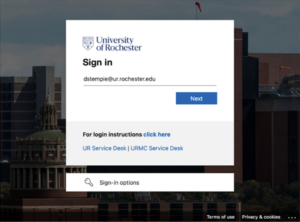
When prompted, enter your Entra ID and click Next.
Hint: Your Entra ID is your main ID that you use to log into services like Workday or MyURHR with @ur.rochester.edu attached to the end of it. Example:
Workday Username = jdoe4
Entra ID = jdoe4@ur.rochester.edu
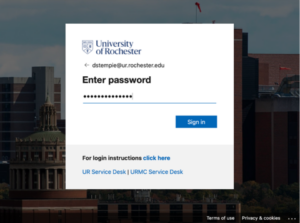
Enter your password and click Sign In.
Step 4
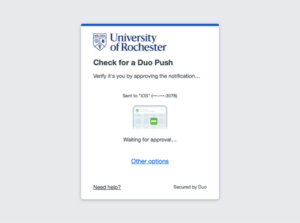
Complete the Duo authentication (“push” notification to your smartphone).
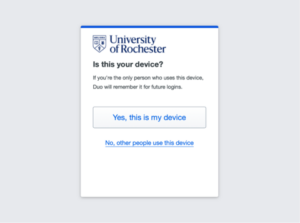
Assuming the device you are using is yours to use exclusively, you may select “Yes, this is my device”. Otherwise, select “No, other people use this device“.
Step 5
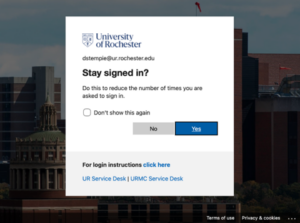
Select “Don’t show this again” and click Yes to continue.
Step 6
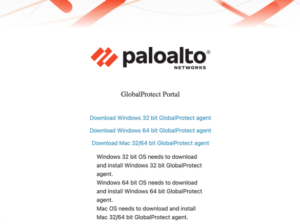
Download the version of GlobalProtect relevant to the computer you are using.
Install the software you just downloaded.
You will be prompted to configure additional security settings as follows.
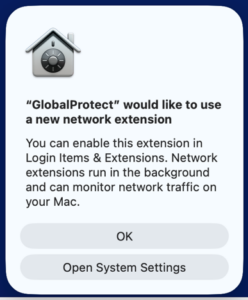
Click OK to continue.
You are now ready to use the GlobalProtect client.