Step 1
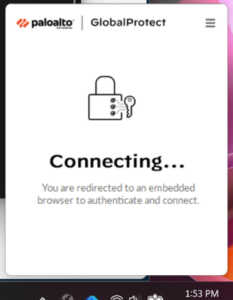
GlobalProtect should automatically launch after installation. If it does not open, go to your taskbar system tray on the right and click the gray globe icon to open the application.
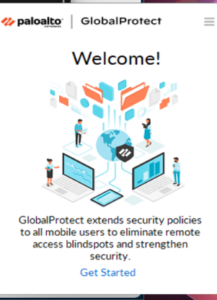
Click the Get Started button if this is the first time using the GlobalProtect client. Otherwise, you will see the following window:
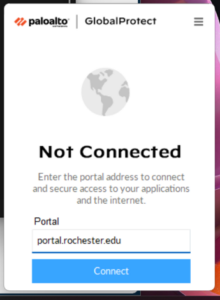
The portal field may be automatically filled in. If not, enter portal.rochester.edu.
Click Connect
Step 2
You will see a login window like the following.
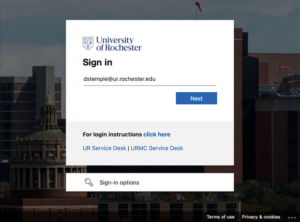
When prompted, enter your Entra ID and click Next.
Hint: Your Entra ID is your main ID that you use to log into services like Workday or MyURHR with @ur.rochester.edu attached to the end of it. Example:
Workday Username = jdoe4
EntraID = jdoe4@ur.rochester.edu
Step 3
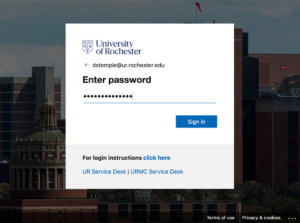
Enter your password and click Sign In.
Step 4
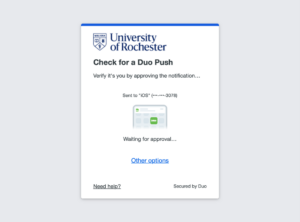
Complete the Duo authentication (“push” notification to your smartphone).
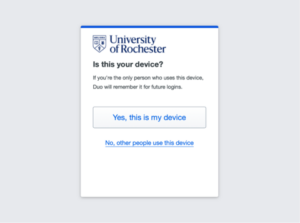
Assuming the device you are using is yours to use exclusively, you may select “Yes, this is my device”. Otherwise, select “No, other people use this device”.
Step 5
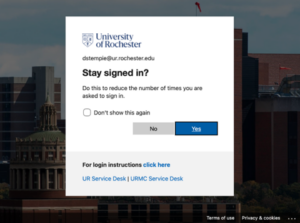
Select “Don’t show this again” and click Yes to continue.
Step 6
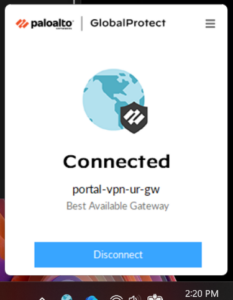
Once GlobalProtect has completed the system checks required for full access to the network, you will see this message:
If you get a notification that you haven’t passed the required checks, see the following section on Obtaining Support.