Overview
UR Student allows faculty from select schools to change final grades. Follow these instructions on how to change final grades.
Note: Not all schools allow grade changes. Faculty from schools that do not allow this will not be able to access, or see pertinent change grade options. For more information on how to process a grade change, please contact your Registrar’s office.
Change Final Grade (For Select Schools)
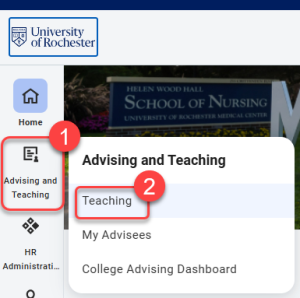
- Log into UR Student, then navigate to the Advising and Teaching app in the global menu
- Select Teaching in the submenu.
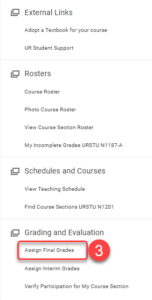
- Select Assign Final Grades from the Grading and Evaluation section in the quick link bar on the far right.
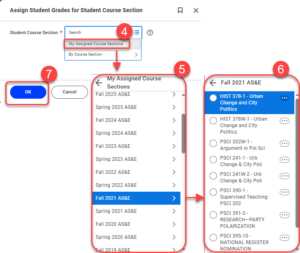
- Select into course section search box and select My Assigned Course Sections from the dropdown.
- Select the appropriate previously graded term from the list.
- Select the appropriate course section in which you wish to change the grade.
- Select OK.
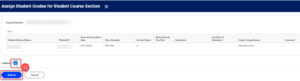
- Check the Change Grade box for the appropriate student.
NOTE: If the grade is currently an I (incomplete) and has a grade due date in effect, then the Revised Grade Due Date should be changed once the Change Grade box is selected. - Select the new grade in the Revised Grade dropdown.
- Scroll to the right to choose a change reason from the Grade Change Reason field dropdown list (required).
NOTE: If choosing “Other”, enter a reason why the grade needs to change within the Comment field. This will assist the evaluator when the grade is routed for approval.
TIP: You may need to reduce the magnification (zoom out) the browser screen to see the report’s horizontal scroll bar. An alternative is to use the outside vertical scroll bar to move the entire screen view down, then access the report’s horizontal scroll bar to the right. - Select Continue. Save for Later will allow you to save changes before they are submitted for approval.
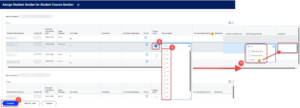
- Review your changes, then check Confirm, and select Submit.