Cybercriminals are using fake CAPTCHA and verification pages to trick people into running malicious commands on their computers. This technique is known as ClickFix. Unlike a typical malware scam, the attack may not ask you to download a suspicious file. Instead, it tries to convince you to run the attacker’s command yourself.
What do these attacks look like?
These attacks may happen through a phishing email, advertisement, search result, redirect, or compromised legitimate website. There are already many versions, some look like they are from an official source. A page may claim that you must verify you are human, fix a browser problem, view content, or complete a security check. It may then tell you to press Windows + R, paste text, and press Enter. Other versions may tell you to open PowerShell, Command Prompt, Windows Terminal, or macOS Terminal.
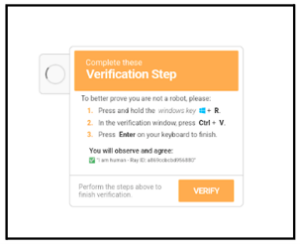
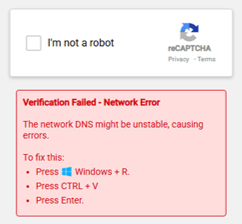
Do not follow such instructions! Opening a command-line tool is not a normal part of CAPTCHA verification.
In some attacks, the page copies text to your clipboard and then gives step-by-step instructions to paste and run it. That text may actually be a command designed to retrieve or execute malware.
The warning sign to remember
If a verification prompt asks you to leave the browser, paste a command, or run code, stop and report it.
A real CAPTCHA stays in the browser and may ask you to check a box, select images, complete a puzzle, or confirm something within the existing webpage itself.
What to do
If you did not follow the instructions:
- Close the page.
- Do not paste or run anything.
- Report the suspicious site or message to the Univ IT Help Desk (585-275-2000, univithelp@rochester.edu) or ISD Service Desk (585-275-3200).
If you did follow the instructions:
- Contact the UnivIT Help Desk (585-275-2000, univithelp@rochester.edu) or ISD Service Desk (585-275-3200) immediately.
- Share that you encountered a suspicious CAPTCHA or verification page,
- Whether you opened Windows Run or a command-line application,
- Whether you pasted anything
- Whether you pressed “Enter”
- The website (if known), and
- Approximately when it happened.
- Do not try to investigate or remove possible malware yourself.
REMEMBER: Simply seeing the page does not necessarily mean your computer has been compromised. The main concern is whether you pasted or executed anything.