Step-by-Step Instructions to Initialize Your Account
Please follow the instructions below to initialize your account. A short video tutorial is also available:.
Step 1
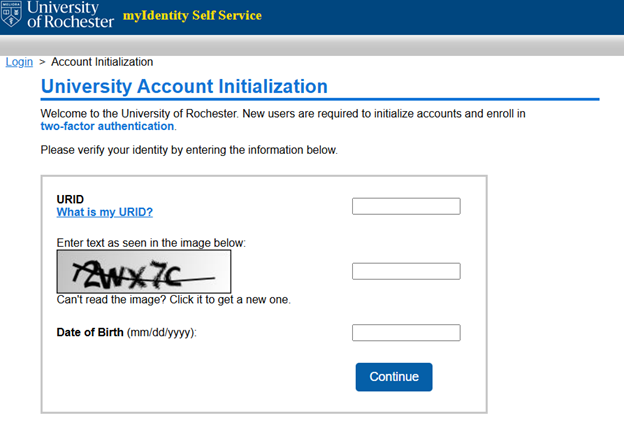
Go to https://myidentity.rochester.edu/newuser. Enter your URID, the CAPTCHA challenge, and your date of birth (MM/DD/YYYY format). Click Continue.
Step 2
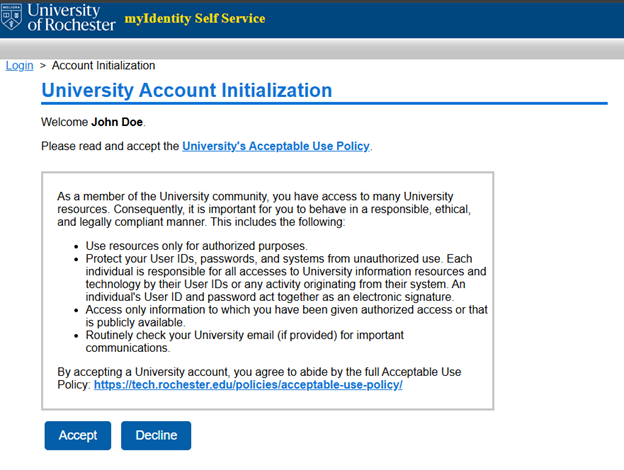
Read the University Acceptable Use Policy and click Accept to continue. If you decline, you cannot proceed and will be returned to the screen in Step 1.
Step 3
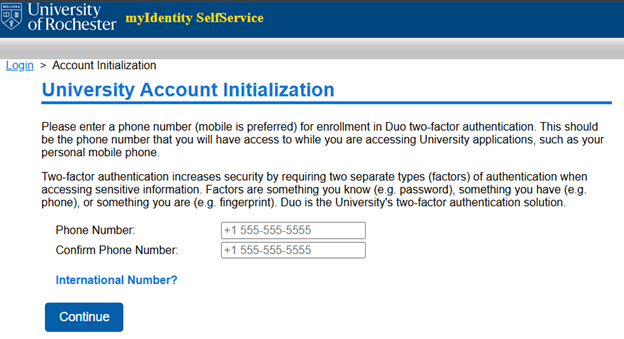
Duo is the University’s two-factor authentication solution. Enter the phone number for the device you want to enroll in Duo, and click Continue.
Step 4
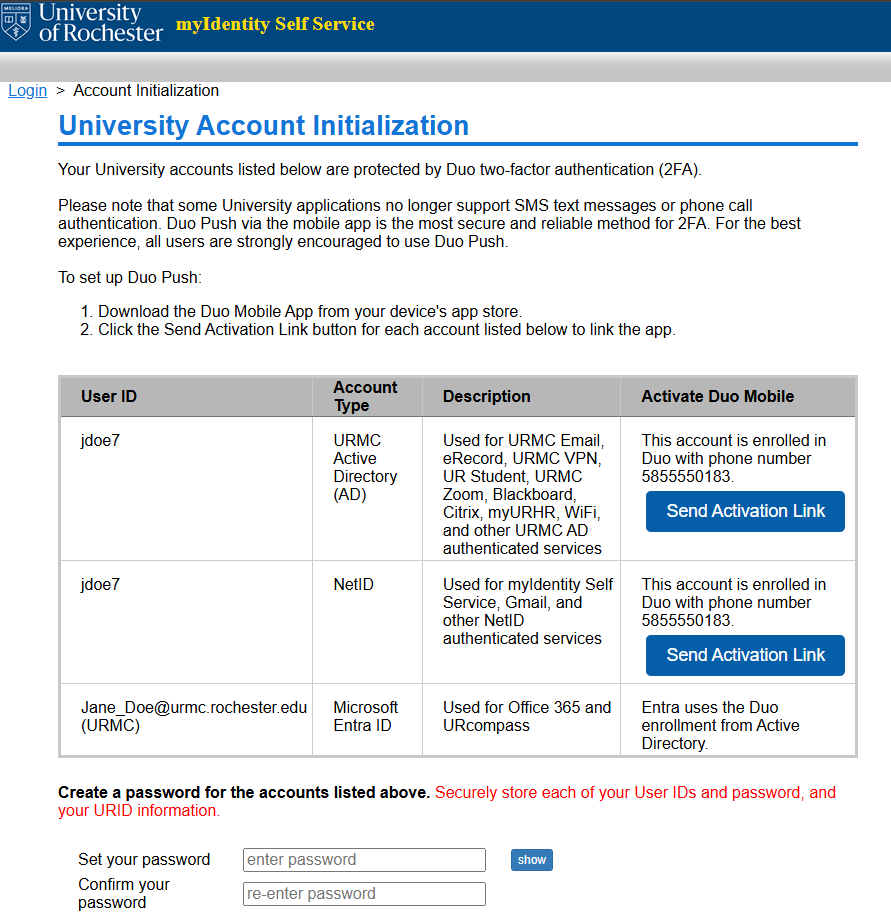
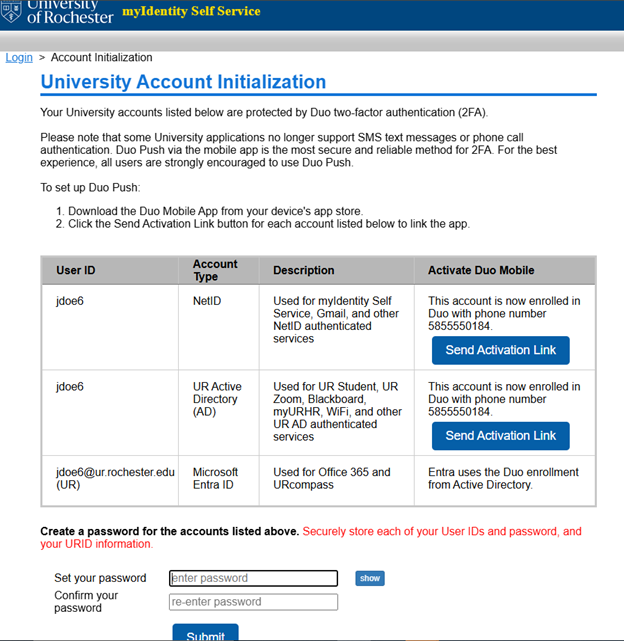
At this point, before taking any other action, you will need to install Duo. The steps you will need to take appear on the page.
The account names, account types, and activation links to receive “Push” notifications via the Duo mobile app will be displayed. Duo will default to “phone call” if you choose to skip setting up “Push” notifications at this time.
You are also asked to enter a new password for the accounts that are listed. The rules for the password are listed underneath, and will be marked with checkmarks as they are met.
After entering and confirming the password, click Submit.
URochester Medicine / Affiliate users will see the following:
URochester / Campus Users will see the following:
Step 5
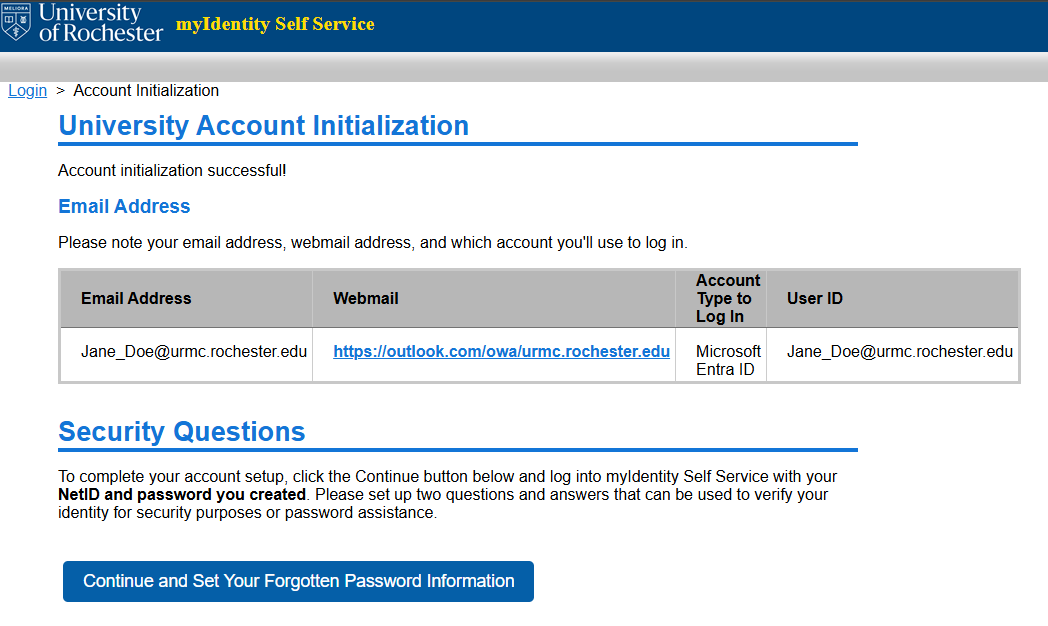
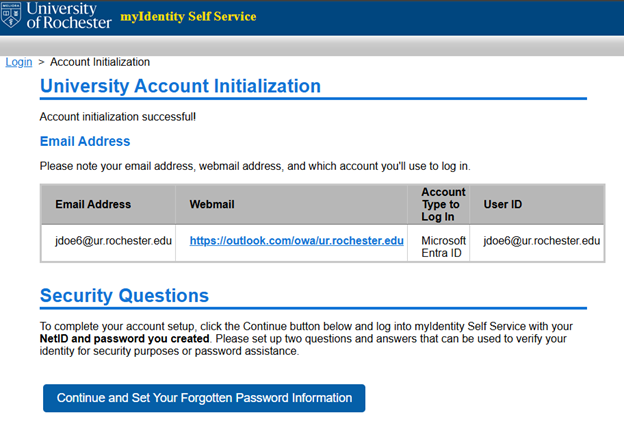
At this point, account initialization is complete.
Users with a URochester Medicine email will see the following:
Users with a URochester email will see the following:
Users with a Gmail account will see the following:
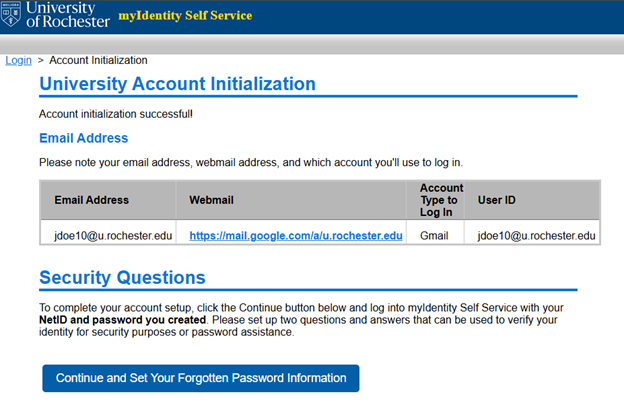
By clicking Continue and Set Your Forgotten Password Information, you will be brought to the myIdentity Self Service Portal.
TROUBLESHOOTING: Typical Login Issues
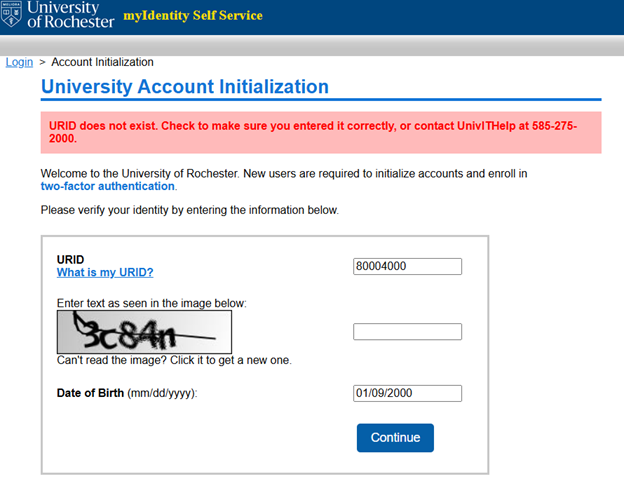
URID Not Found
If the URID you have entered at login can not be found, then you will be prompted to either correct it or contact the University Helpdesk.
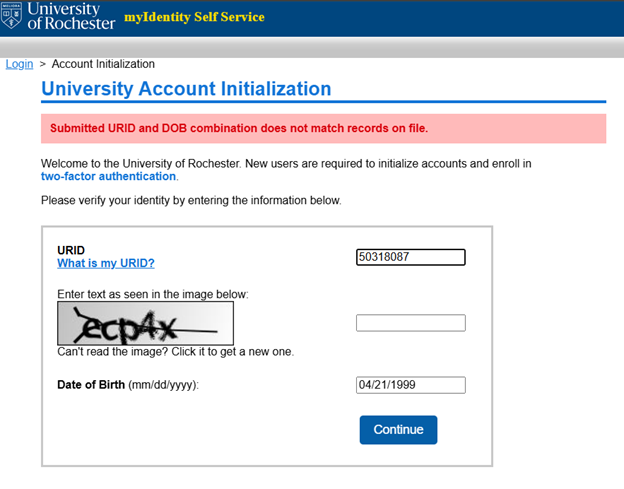
URID/DOB Do Not Match
If the Date of Birth that you have entered at login does not match the birthdate currently associated with the entered URID, then you will be prompted to correct the Date of Birth.
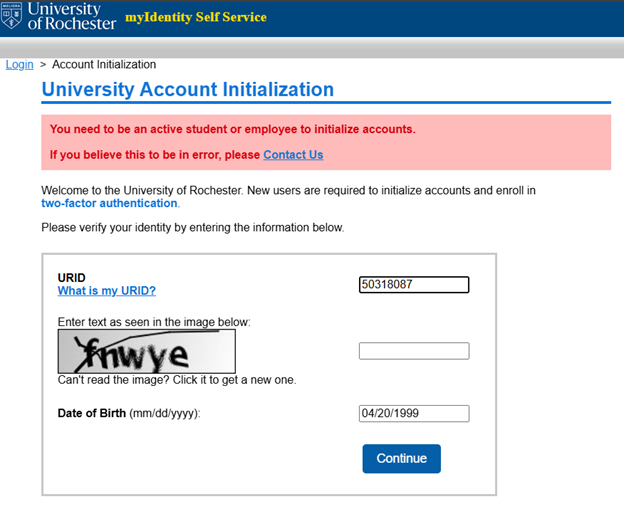
No Active Status
If the URID and Date of Birth are correct, but you are either a future employee or otherwise have no active status at the University, you will be informed of the issue and provided a link to a page with contact information for both the medical and non-medical helpdesks.
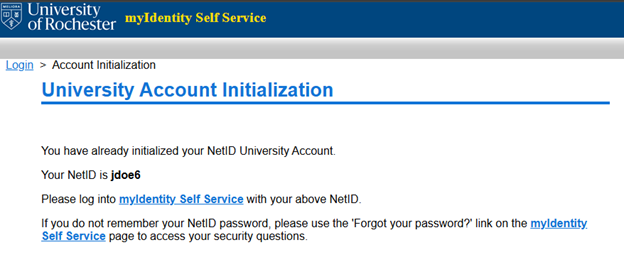
Account Already Initialized
If the URID and Date of Birth are correct, but the user has already gone through the initialization process, then you will be informed of the NetID and provided a link to myIdentity Self-Service.