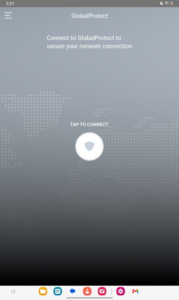
Step 1
On the Play Store app, search for and install the application GlobalProtect.
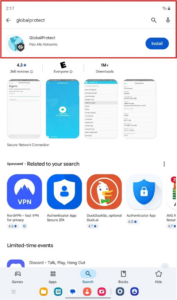
Step 2
In your Applications library, launch the GlobalProtect app
Step 3
Review the privacy information and press OK.
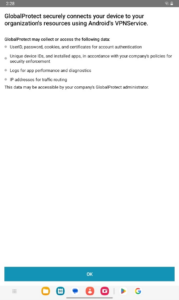
Step 4
If you wish to receive notifications from the GlobalProtect client press Allow; otherwise, press Don’t Allow.
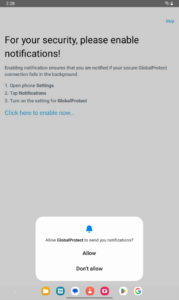
Step 5
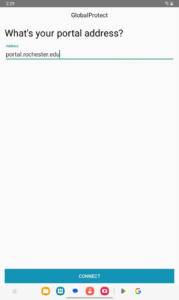
If this is the first time launching the GlobalProtect client, you will be prompted to enter a portal address. Enter portal.rochester.edu and click connect.
Step 6
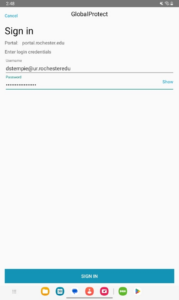
When prompted, enter your Entra ID and click Next.
Hint: Your Entra ID is your main ID that you use to log into Workday or myURHR with @ur.rochester.edu attached to the end of it. Example:
Workday Username = jdoe4
Entra ID = jdoe4@ur.rochester.edu .
Step7
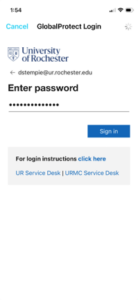
Enter your password and press Sign In.
Step 8
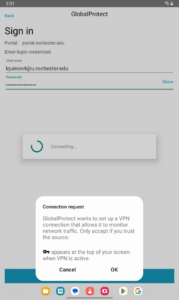
Depending on your android device, you may see a “Connection request” pop-up. Press OK to proceed.
Step 9
Approve the Duo authentication.
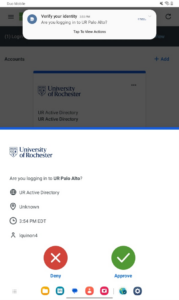
Step 10
After approving the Duo authentication switch back to the GlobalProtect app.
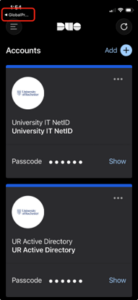
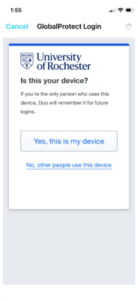
Step 11
Press Yes, this is my device
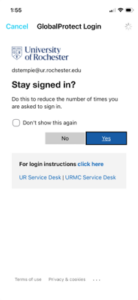
Step 12
When prompted to Stay signed in? press Yes.
Step 13
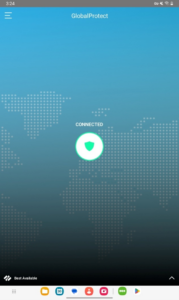
You are now connected to GlobalProtect. You may use other applications at this time. When you are done, you may re-open the GlobalProtect client on your device and Tap to Disconnect.
Note: Your device will remain connected to GlobalProtect for the duration of the connect window even when your phone goes to sleep.
Step 14
To reconnect to GlobalProtect in the future, open the GlobalProtect app on your device and Tap to Connect