Overview
Follow these instructions for applying student holds.
Applying Student Holds
- Log into UR Student, then navigate to the the student for which you wish to apply a hold.
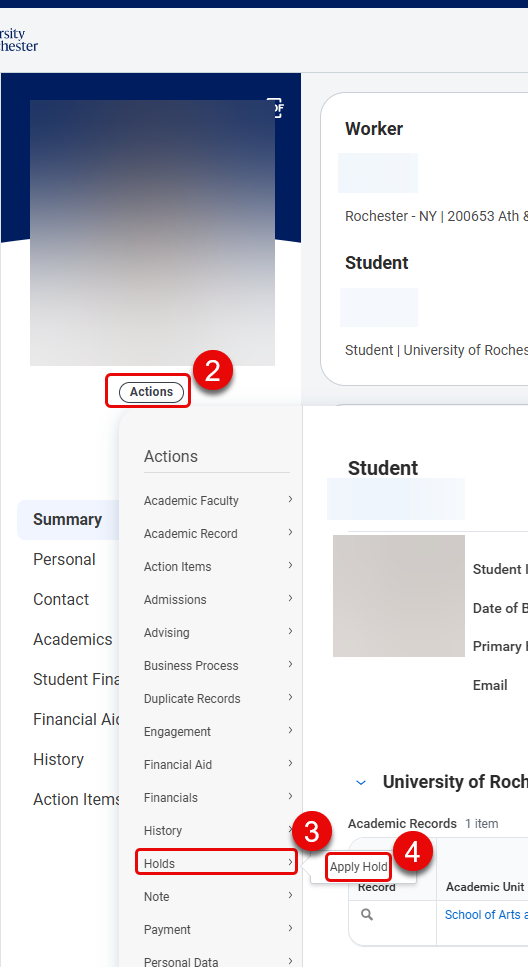
- Select Actions under the profile image.
- Select Holds.
- Select Apply Hold.
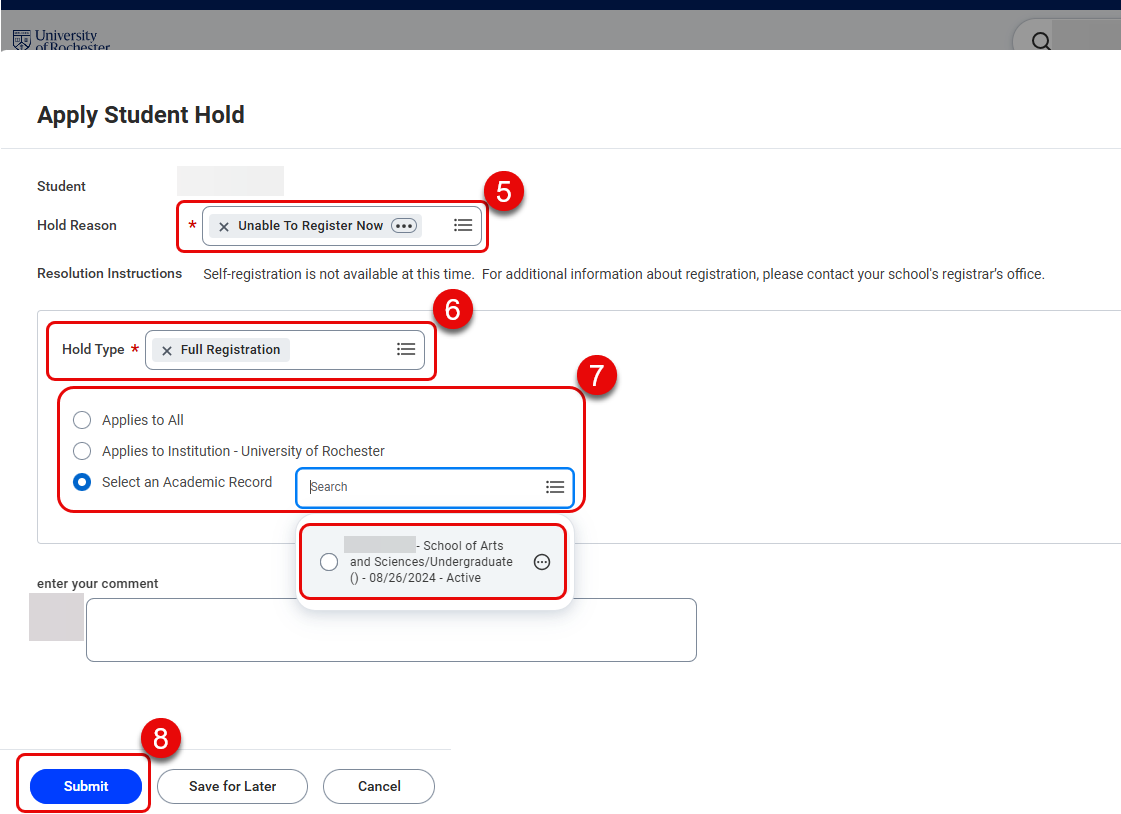
- Identify a Hold Reason.
- Select a Hold Type.
IMPORTANT: The Hold Type will default or be selectable only after a Hold Reason has been entered.
TIP: The hold may have both a Description and Resolution Instructions that will appear to the student instructing them on how to resolve the hold.
- Select whether to the hold Applies to All academic records for the student or if one Academic Record should be impacted, select the Academic Record in the drop down box.
- Select Submit.