Page Contents
Overview
Use this reference when you need to create your first payment election in the system and to remove a payment election for any reason.
Add Payment Elections
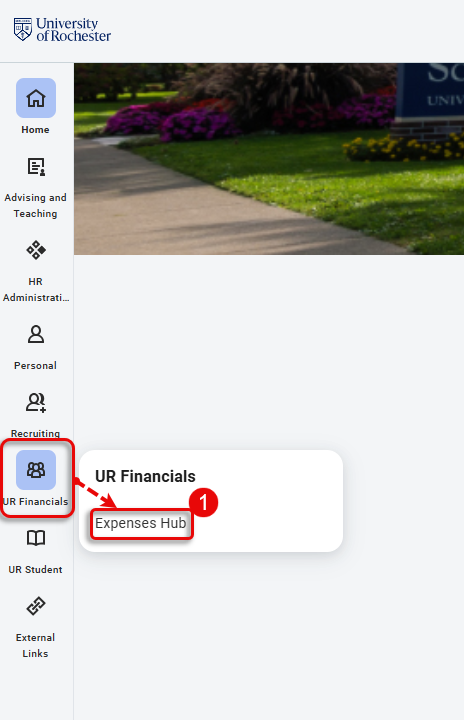
- Navigate to the Global Menu area, then select Expense Hub under UR Financials.TIP: If you do not see UR Financials in the Global Menu, click the “More” icon.
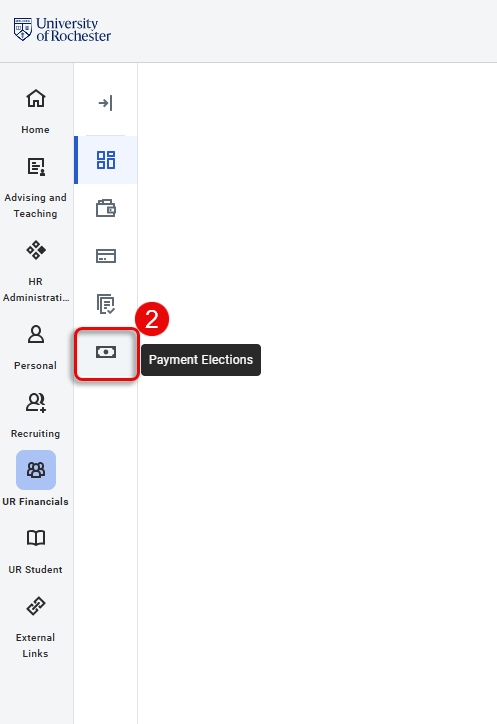
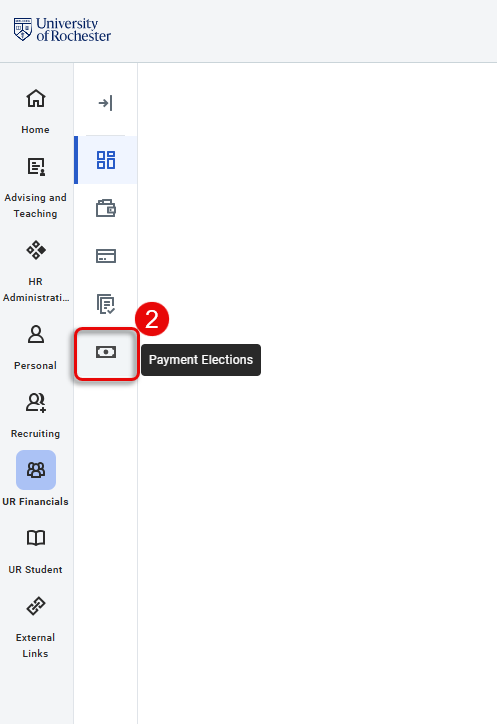
- Select Payment Elections from the Navigation Pane on the left
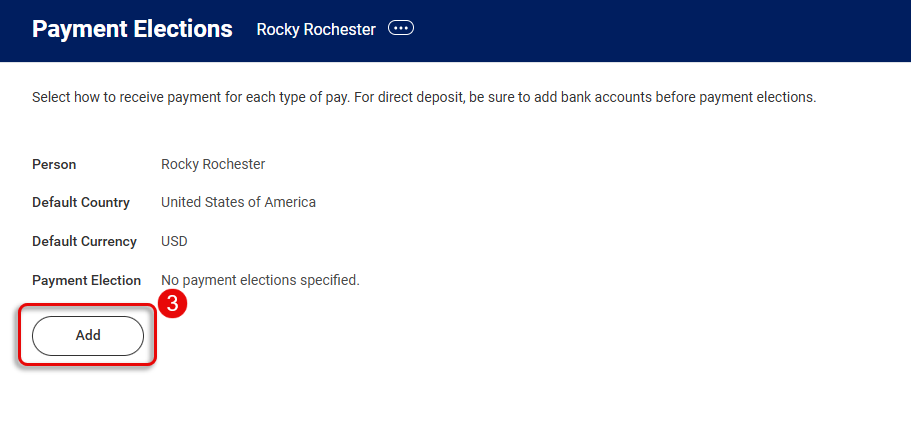
- Select Add to add an account
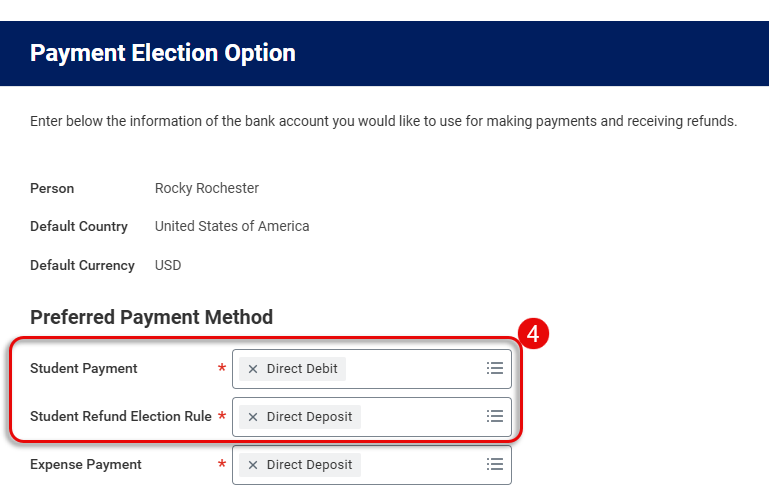
- Expense Payment Method is automatically selected for Direct Deposit. Should you see other payment methods, they are only visible if you are taking or have taken coursework at UR and have a student record. They can be deleted after initial set up.
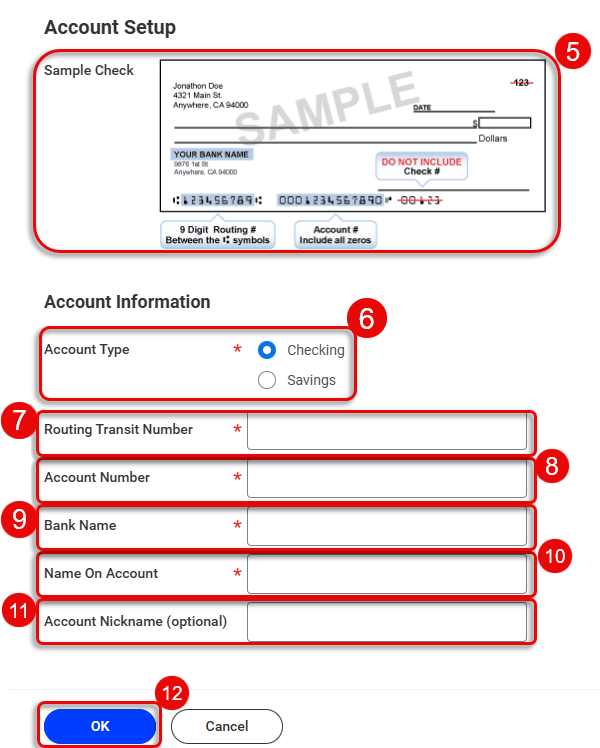
- Review Account Setup information.
- Select the Account Type.
- Enter a 9-digit Routing Transit Number.
- Enter your bank Account Number, including all zeros.
- Enter the Bank Name.
- Enter the Name on Account.
- Enter Account Nickname (optional).
- Select OK.
Delete Student Rules
There may come a time when you need to update your payment elections either due to adding a new bank account or to switch from Direct Debit to Check. The following steps outline that process.
- Navigate to the Global Menu area, then select Expense Hub under UR Financials.
TIP: If you do not see UR Financials in the Global Menu, click the “More” icon. - Select Payment Elections from the Navigation Pane on the left
- Under the Payment Elections table, select Edit next to Pay Type to remove.
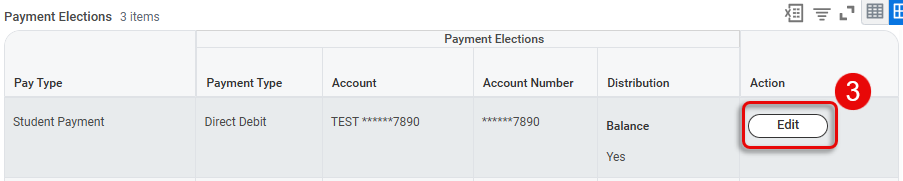
- Select the Delete icon for the rule you want to delete.
- Select OK.
- You’ll be redirected to the Payment Elections page where more edits can be made.
- Repeat steps 1 through 5 as needed.
IMPORTANT: Once a payment election is added. UR Student will not allow for deletion of all Pay Types. One Pay Type must remain.