Page Contents
- Overview
- How to Read Academic Progress
- Reading Academic Progress
- Viewing Academic Information in Degree Progress
- Viewing Overrides in Degree Progress
Overview
Undergraduate students from Arts, Science and Engineering and Eastman School of Music can view their academic progress for Majors, Minors and Clusters within UR Student. See steps below for details. This information is updated when you register for classes or when grades are completed.
How to Read Academic Progress
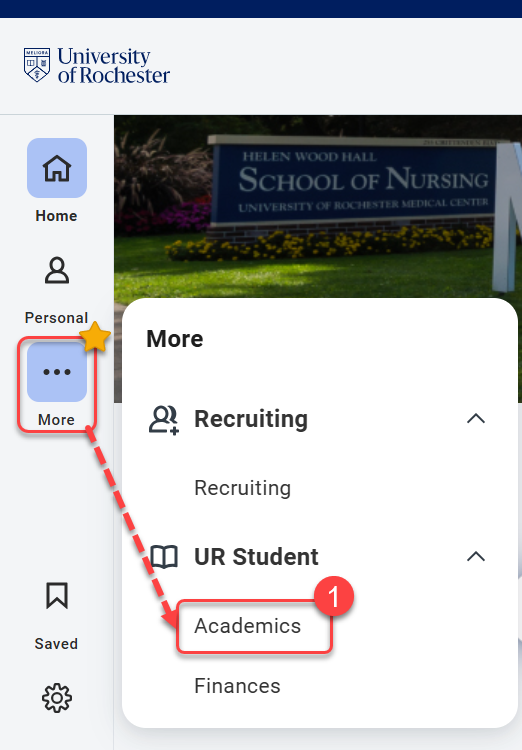
- Log into UR Student, then navigate to the Academics app under UR Student in the global menu.
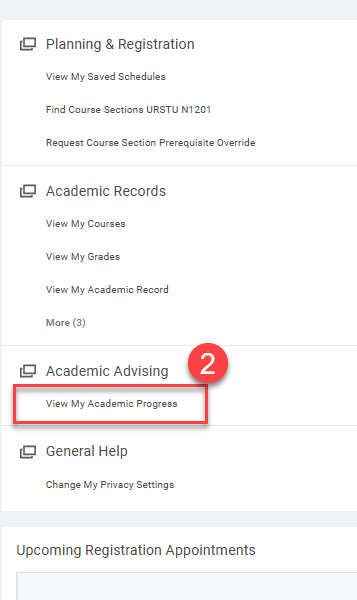
TIP: If you cannot see UR Student in the global menu, click the More icon. - Select View My Academic Progress under Academic Advising (right of the screen).
- When you see the pop-up screen with your name, select OK at the bottom of the screen.
- Continue to below to learn how to read your View Academic Progress Screen.

Reading Academic Progress
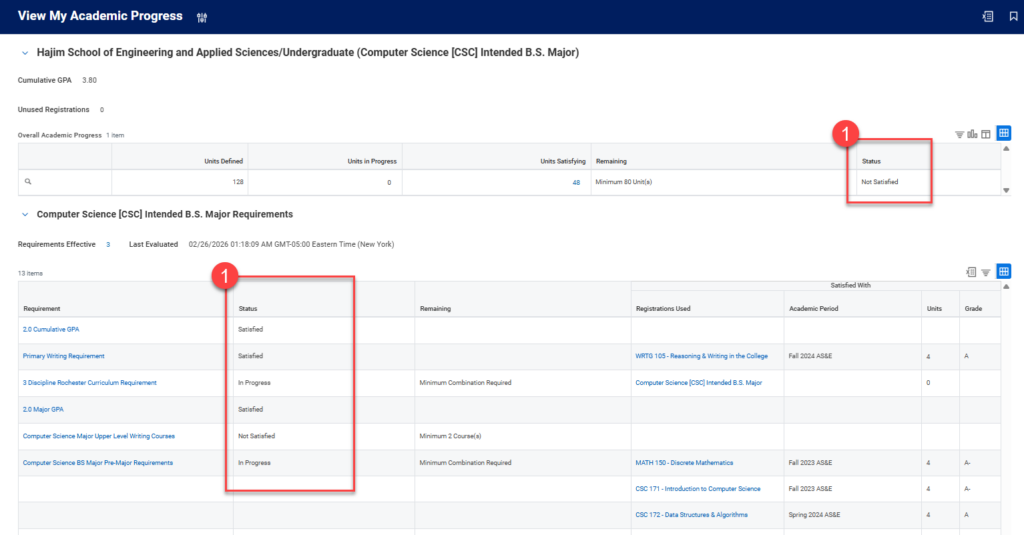
Academic Progress indicates if you have completed an academic requirement or not.
- Within the Academic Progress screen, view the Status column highlighted below to determine if you have completed the academic requirement (satisfied). Status options are either Satisfied, In Progress or Not Satisfied.
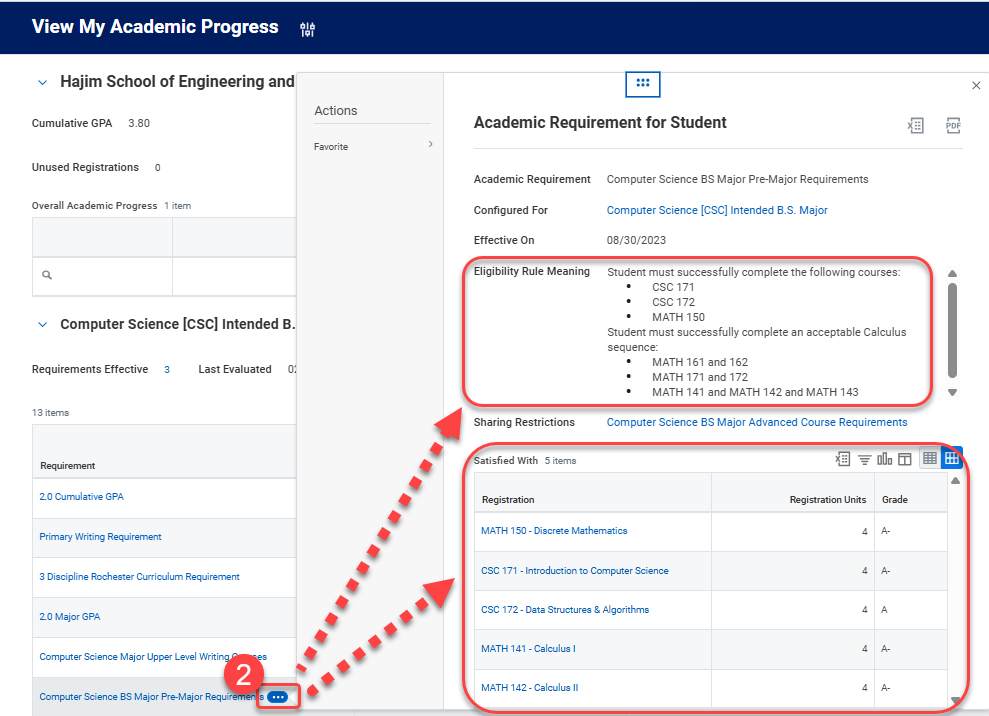
- Select the ellipsis to the right of the academic requirement to see which courses satisfy the requirement. This view also allows you to see what courses are being counted in the requirement.
TIP: Questions about an academic requirement for your major/minor/cluster should be directed to that academic department. Questions about the overall degree requirements can be directed to CCAS or the AS&E Registrars office.
Viewing Academic Information in Degree Progress
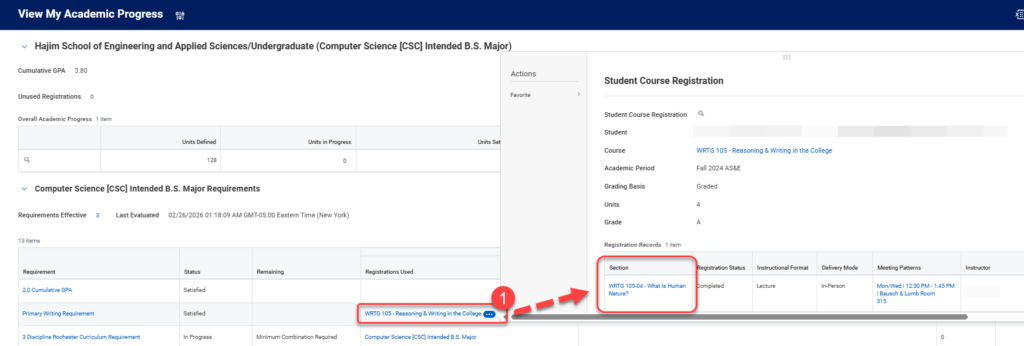
Degree progress shows the course title which may not be the title of the course as you took it.
- Select the ellipsis located after the course title to view the course section title and further details on the course.
- Select the number next to the Unused Registration section to show course(s) in a grid.
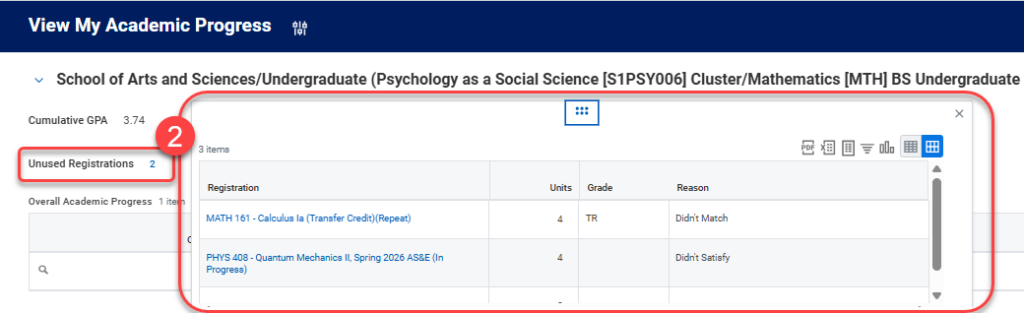
IMPORTANT: There may be courses you have taken that do not fulfill a requirement for your degree and are in excess (not used for a requirement or repeated). You can find these courses in the Unused Registration section.
Viewing Overrides in Degree Progress
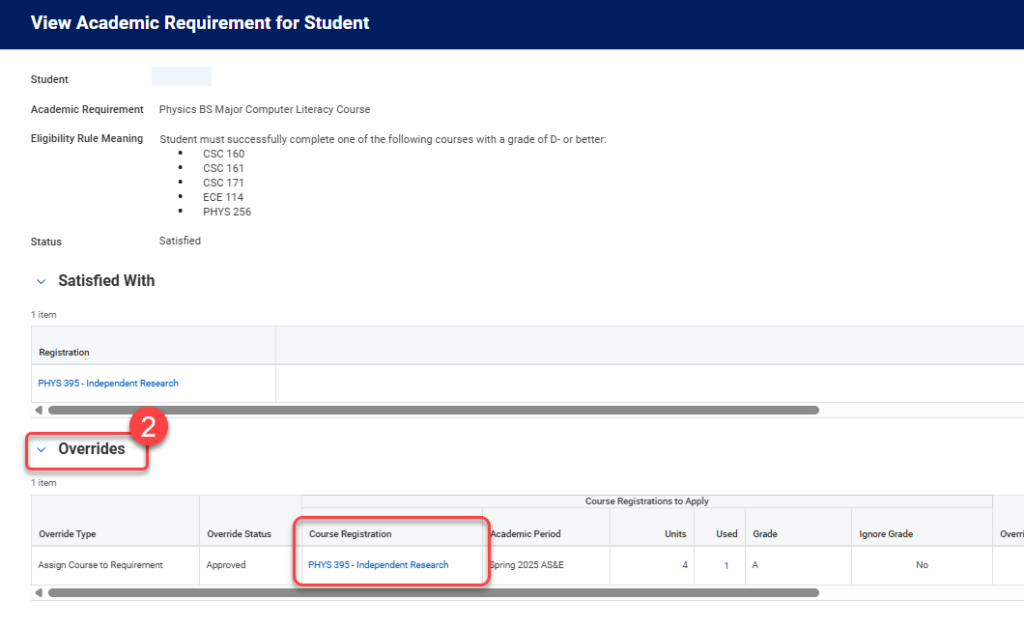
A school or department may make an exception for a student to one of the academic requirements within their program. In UR Student, the Academic Requirement will then have an override placed on it. For example, a student that is earning 2 degrees is required to take 136 credit hours instead of 128 credit hours. You can view an academic override by looking at the academic requirement.
- Select the blue hyperlink and look to view courses that are being used to satisfy the requirement within the Requirement section.
- At the bottom of the list you will see the Overrides being used.

TIP: If you need assistance in viewing and understanding your AS&E Registrar’s office. Academic Progress, please contact your major advisor, CCAS or the Registrar’s Office.