Page Contents
Overview
You may want someone other than yourself to be able to access your UR Student account. Perhaps a parent, guardian, partner or someone else will be making payments and tracking your financials while you are attending University of Rochester. Adding someone as a contact is the first step to adding a third party delegate. Follow these steps to add a contact as a third party delegate to your student account.
Add a Third Party Delegate (Friends & Family)
-
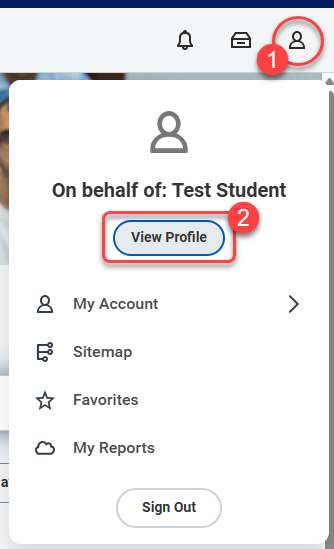
- Select your profile icon or picture (upper right corner).
- Select View Profile.
-
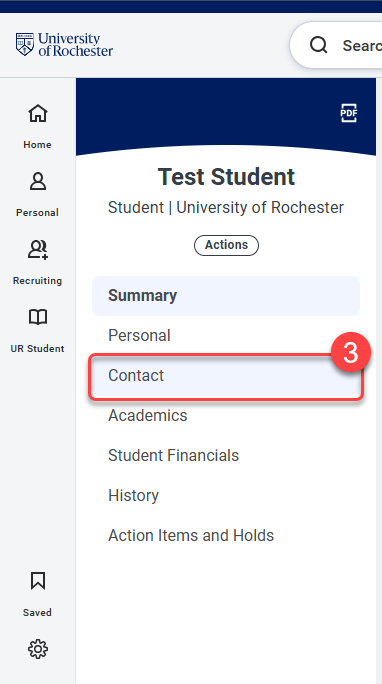
- Select Contact (left column under your name).
-
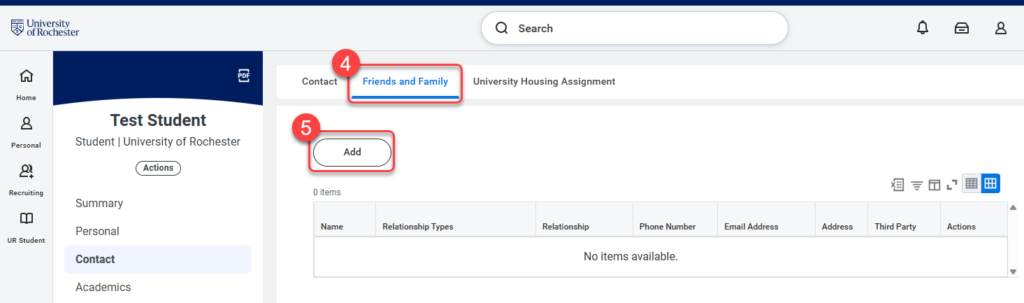
- Select the Friends and Family tab.
- Select Add.
-
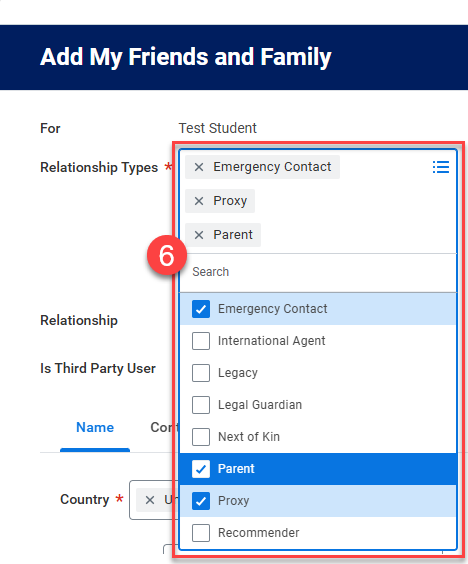
- On the Add My Friends and Family screen, click into the Relationship Types field, then select the appropriate description(s).TIP: One person can have multiple relationship types.
-
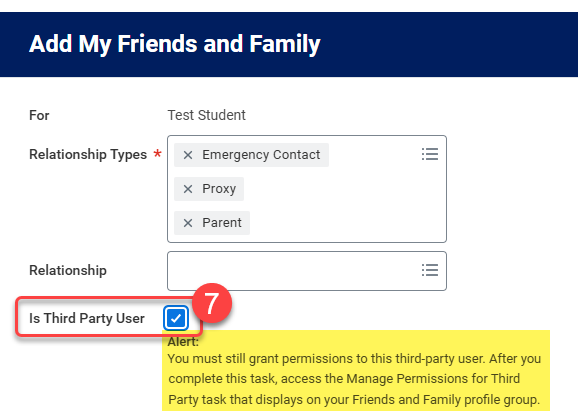
- Check the Is Third Party User? checkbox.IMPORTANT: An alert will display with further instructions to ensure your third party user can access task you wish for them to conduct on your behalf. The alert reads: “You must still grant permissions to this third-party user. After you complete this task, access the Manage Permissions for Third Party task that displays on your Friends and Family profile group.”
-
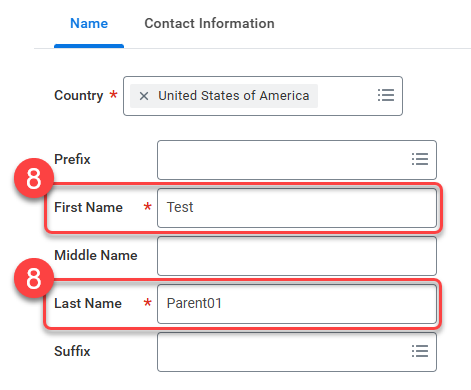
- Enter the required fields of First Name and Last Name.
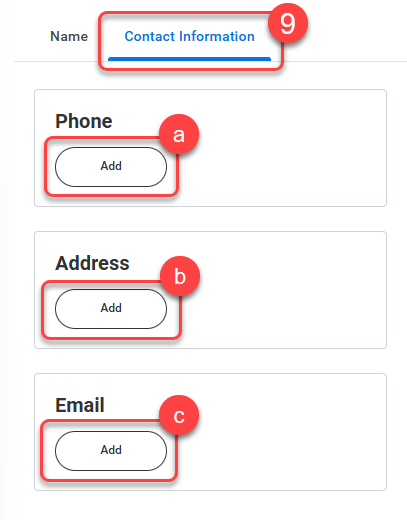
- Select the Contact Information tab, then click Add next to and complete the information in each of the following sections:
-
- Phone
- Address
IMPORTANT: You must enter an email for a third party delegate and should be unique to each party. Verify the email address is entered correctly. This is the method to which confirmation is sent allowing your Third Party to complete their access.
TIPS:
1. Recommend to your Third Party to check their spam email folder for the confirmation email.
2. The Third Party Delegate will be required to set up multifactor authentication within the first three logins or access will be denied. Please refer to the Bursar’s Third Party website for more information. -
- Select OK and then Done.
Manage Permissions for My Third Party
In order to provide your Third Party the ability to manage tasks on your behalf, you must grant them permissions to do so. The following steps outline how to manage your Third Party’s permissions. You may update these permissions at any time.
-
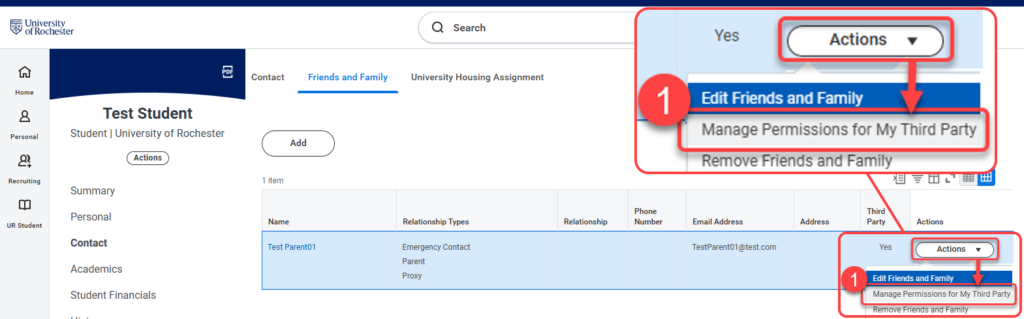
- From the Third Party contact on your Friends and Family tab that you wish to grant permissions, select the Actions drop-down, then select Manage Permissions for My Third Party.
-
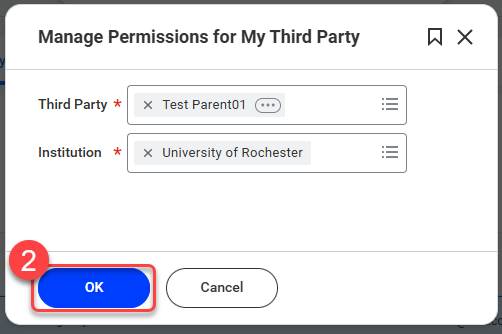
- Confirm you are managing permissions for the appropriate Third Party contact, then select OK.
-
- There are four tasks available for Third Parties which are listed by name with descriptions. You can choose to allow for any combination of tasks for your Third Party Proxy by checking the box next to Allowed for the tasks you wish to provide to them.
- Make a Payment: This task gives access to make a payment on the student’s behalf.
- There are four tasks available for Third Parties which are listed by name with descriptions. You can choose to allow for any combination of tasks for your Third Party Proxy by checking the box next to Allowed for the tasks you wish to provide to them.

-
-
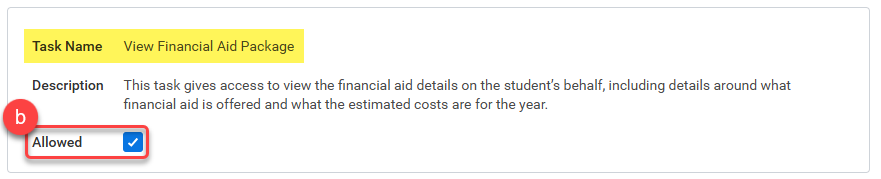
- View Financial Aid Package: This task gives access to view the financial aid details on the student’s behalf, including details around what financial aid is offered and what the estimated costs are for the year.
-
-
-
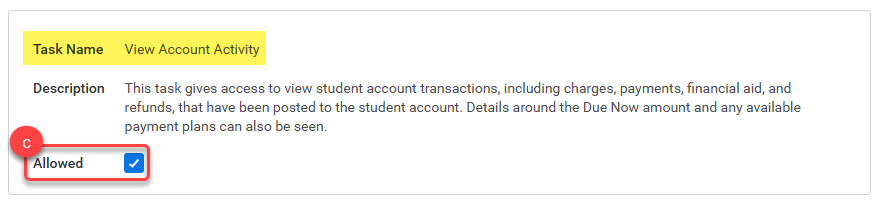
- View Account Activity: This task gives access to view student account transactions, including charges, payments, financial aid, and refunds, that have been posted to the student account. Details around the Due Now amount and any available payment plans can also be seen.
-
-
-
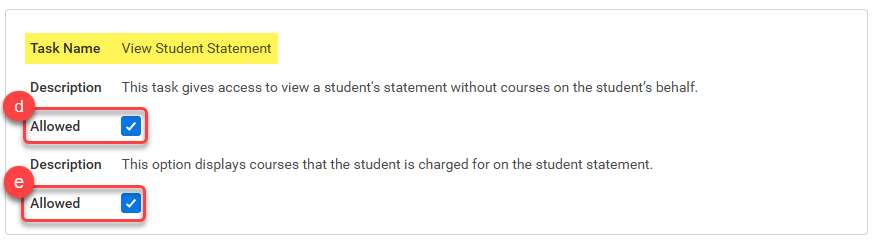
- View Student Statement: This task gives access to view a student’s statement without courses on the student’s behalf.
- View Student Statement: This option displays courses that the student is charged for on the student statement.
-
-
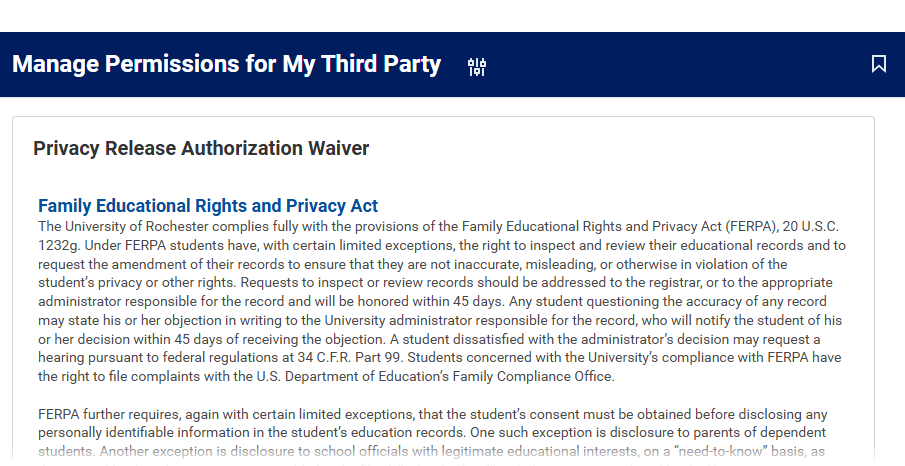
- Review the Family Educational Rights and Privacy Act Privacy Release Authorization Waiver.
-
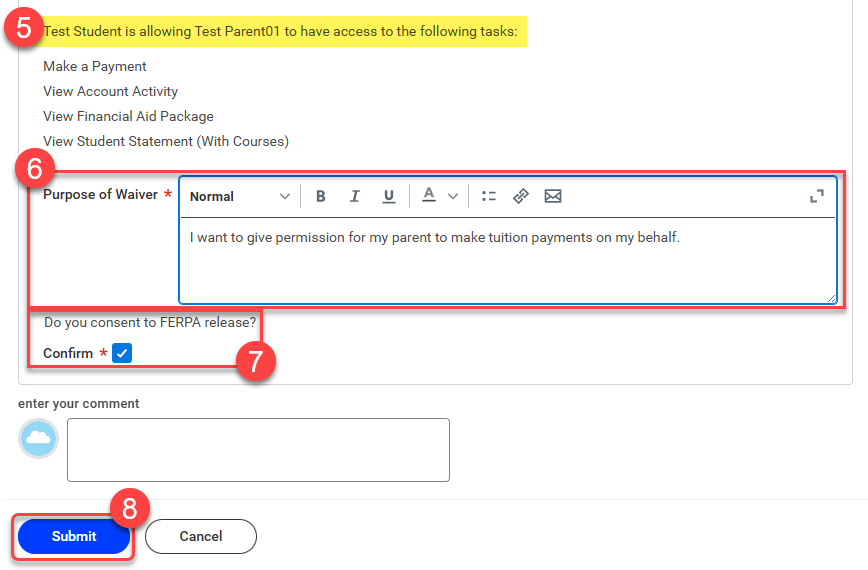
- Confirm the tasks listed are those you want your named Third Party proxy to have access to.
- Enter a Purpose of Waiver statement. For example, “I want to give permission for my parent to make payments on my behalf.”
- Select the Confirm checkbox.
- Select Submit.
-
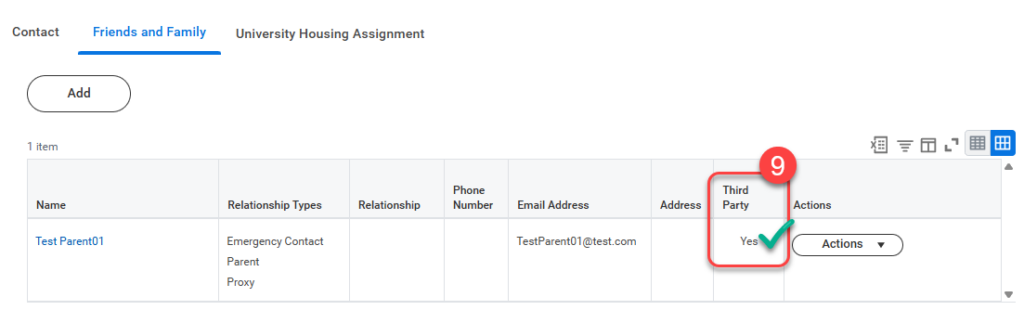
- Upon submission, you will be redirected to the Friends and Family tab. Confirm that “Yes” appears under the Third Party column for your selected contact.