Overview
UR Student allows you to grade your classes. Follow these instructions on how to assign final grades.
Assigning Final Grades
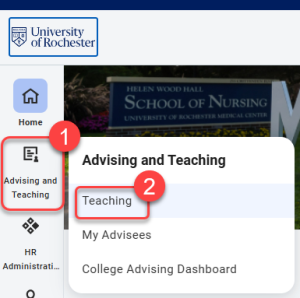
- Log into UR Student, then navigate to the Advising and Teaching app in the global menu
- Select Teaching in the submenu.
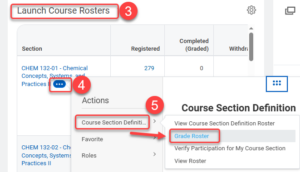
- Find the course section to be graded in the Launch Course Rosters window.
- Roll over the course section and select the related actions ellipse.
- Naviagate to Course Section Definition then to Grade Roster in the related actions menu.
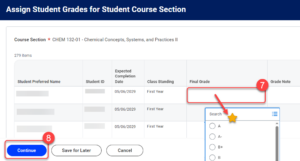
- Within the Assign Student Grades for Student Course Section view, scroll down to see all registered students listed in alpha order by last name.
- Select within the Final Grade column field and select the grade from the list provided for each student (listing comes from the grading basis set for the course section.)
NOTE: If the grading list does not appear, the grading window is closed. Communication will be required with the appropriate Dean’s Office and Registrar. - When all final grades are entered, select Continue to proceed or use Save for Later to finish later, or Cancel to exit without saving.
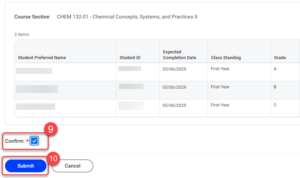
- Review final grades then select the checkbox next to Confirm.
- Select Submit to send grades. Grades will be accepted during standard periods for posting.
TIP: If grades are submitted by a delegated grader or teaching assistant, they must be approved by an instructor or instructor before being officially posted.
NOTE: Grades can be changed by returning to this location while grading period is OPEN. Use the Change Grade and Grade Note columns where needed.
NOTE: Grade changes for older course sections in which the grading period is CLOSED, follow the instructions on the Change Final Grades in UR Student QRC