Page Contents
- Overview
- Log Into UR Student and Complete Onboarding
- View Your Academic Dashboard and Onboarding Status
Overview
You will receive the Student Onboarding email within your personal or University account detailing steps to prepare you for logging into UR Student. As your next step, use this reference to complete all onboarding tasks required prior to registration.
Log Into UR Student and Complete Onboarding
- Log into UR Student using your Active Directory account and password.
- Click on the My Tasks icon, left of your profile picture. An indicator will show your number of action items.
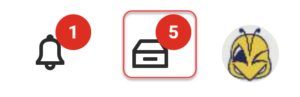
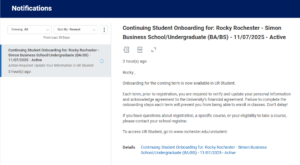
NOTE: A copy of your Student Onboarding email can be found by clicking the Notifications (Bell) next to My Tasks.
- Click an item, listed within the All Items pane, to address.
- View and follow the specific instructions shown for that item. Each onboarding item will have different actions to take.
- Choose Edit to change your information, Add to add information, Save for Later to save progress without submitting, or Cancel to discard any changes. Review any checkboxes that may be present.
- When the item is complete, click Submit or Approve.
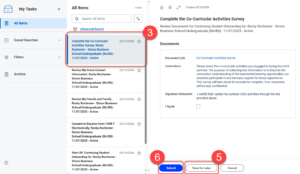
- All items listed are required to be completed prior to registering for classes.
Examples of Onboarding tasks: Review My Home Contact Information, Review My Friends and Family, Student Financial Responsibility Agreement (once a year), Consent to receive 1098T electronically, etc.
Tip: Next, you can begin to build a schedule to use to register for classes during open registration.
View Your Academic Dashboard and Onboarding Status
- Click on the top left University logo to return to the home page.

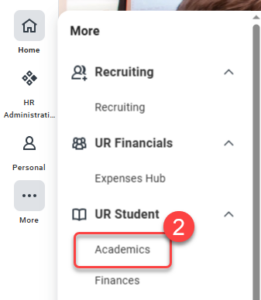
- Navigate to the sidebar on the left, hover over UR Student, then click the Academics app under UR Student. If UR Student is not visible, click the More icon.
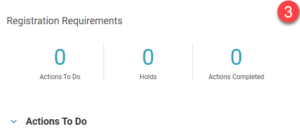
- View the Registration Requirements to confirm completion of all Onboarding tasks and Holds. Each action item requires completion to register for classes. Ensure that there are 0 holds before registration.
IMPORTANT: If you have any holds, view the holds and follow the Resolution Instructions to resolve all holds before registration.