Overview
Follow these steps to locate a course section in UR Student.
Find Course Sections
- Log into UR Student using your Active Directory account and password.
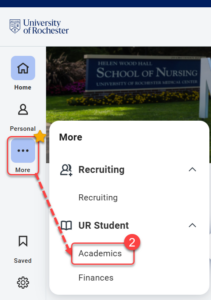
- Navigate to the sidebar on the left, hover over UR Student, then click the Academics app under UR Student.
TIP: If you cannot see UR Student in the global menu, click the More icon.
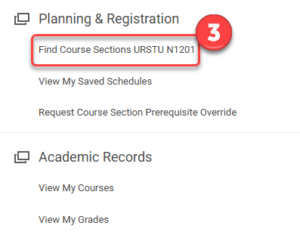
- Under Planning & Registration, select Find Course Sections URSTU N1201.
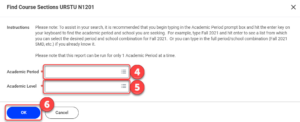
- Select within the Academic Period field and type the term you looking for (i.e. Fall 2020). Select the period that corresponds to the desired academic unit.
TIP: Remember to look for courses listed under non-URochester academic periods (e.g. MBI 220 is found on the Fall 2020 SMD Graduate Education academic period). - Select an Academic Level.
- Select OK.
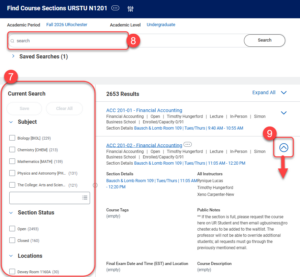
- Use the faceted search on the left to narrow your search OR
- Enter the course name/abbreviation in the search box at the top.
- Selecting the “carrot” arrow icon on the course sections expands for additional details about the course section including instructors and course descriptions.
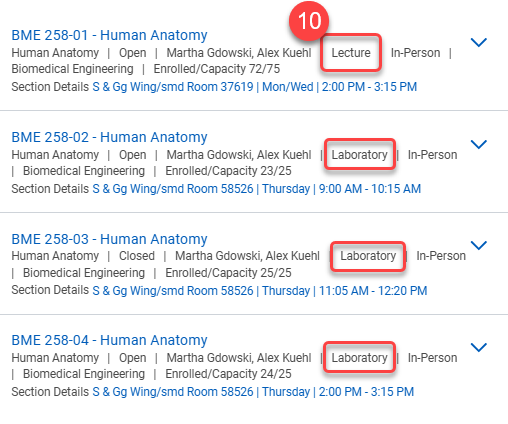
- If needed, remember to look for required labs/discussions/workshops required with a lecture courses in the sections descriptions.
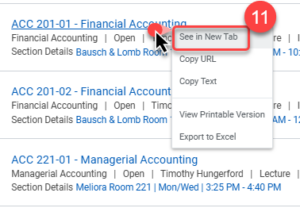
- Use the right select option while hovering on the course section name and choose See in New Tab to see a full view of all the course section details including additional options to add to a saved schedule or register when available.