Page Contents
Overview
Use these instructions to learn how to add or edit a personal email address or phone number on your Home Contact Information data.
Add or Edit Email
- Log into UR Student, using your Active Directory account and password.
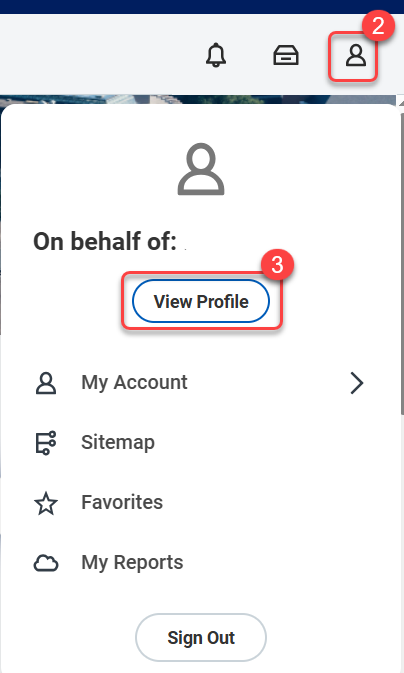
- Select the Profile (photo or icon).
- Select View Profile.
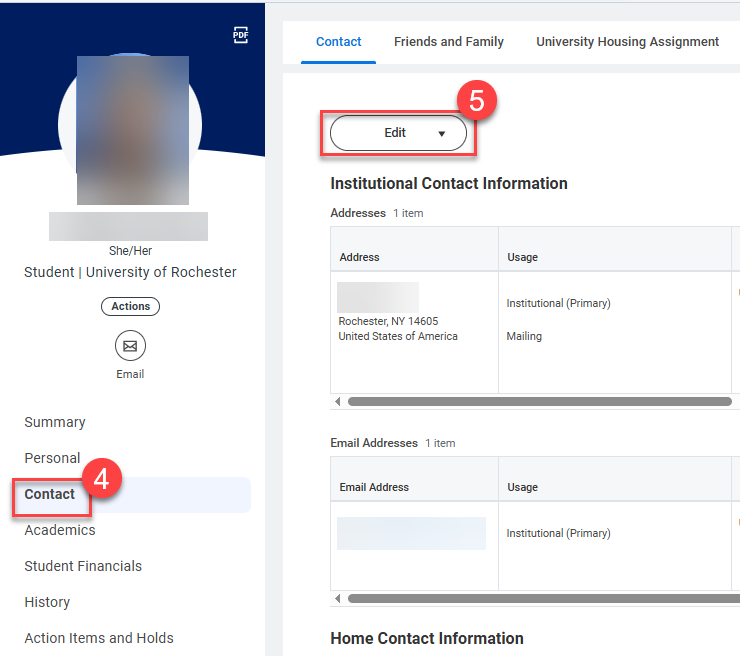
- From the Profile page select Contact from the left menu.
- To add a new email, select the Edit button, then select Change Home Contact Information from the dropdown.
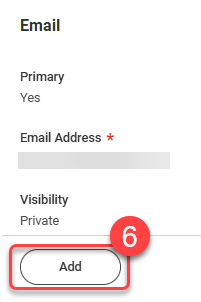
- From the Change Home Contact Information page, scroll down to the Email section and select Add.
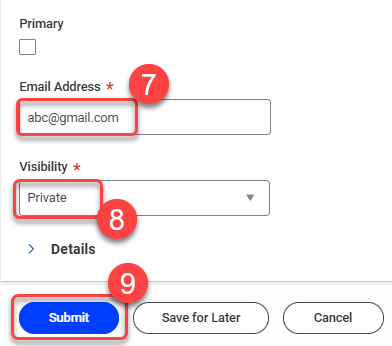
- Enter or edit your personal email address.
IMPORTANT: Do NOT use a University of Rochester email as your Home Contact email.
- Select Public or Private in the Visibility dropdown. Public will display the email to anyone in UR Student, and Private will restrict access to only authorized users.
- Select Submit.
Add or Edit Phone Number
To add or edit a Phone Number, follow Steps 1 through 5 in the Add or Edit Email section above, then follow the steps below.
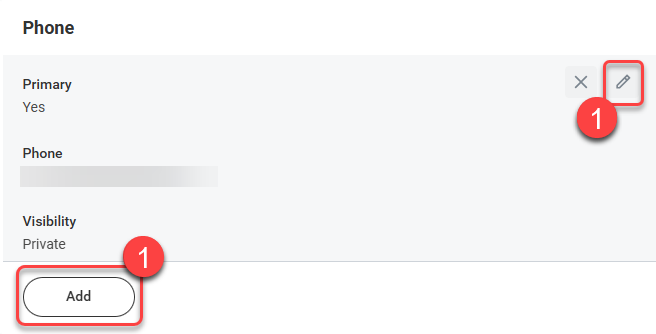
- From the Change Home Contact Information page, scroll down to the Phone section, then select Add if you want to add another phone number, or use the Edit icon to edit an existing phone number.
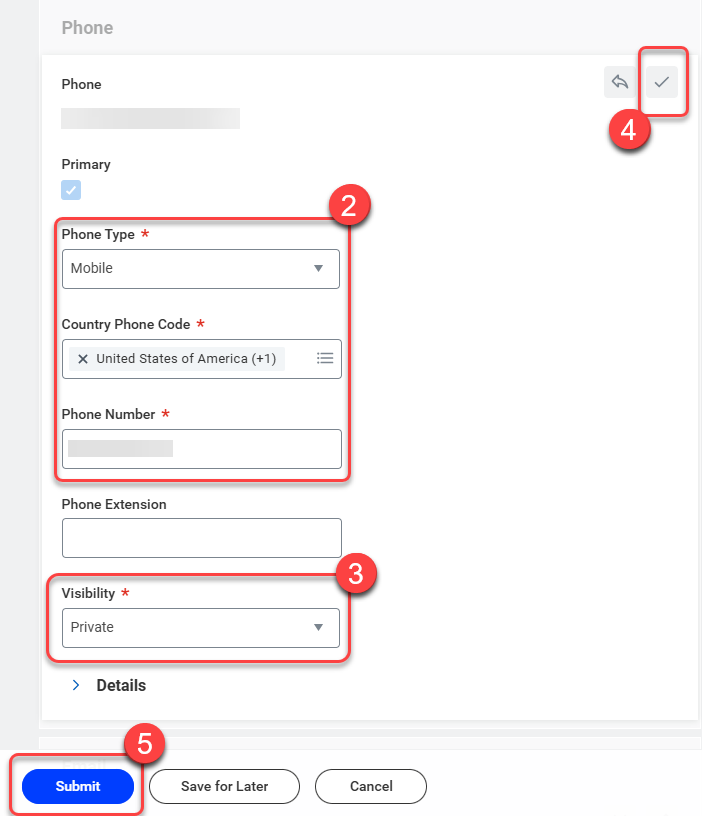
- Select the Phone Type and Country Phone Code, then type the Phone Number.
- Select Public or Private in the Visibility dropdown.
IMPORTANT: The Public setting will display to anyone in UR Student and the Private setting will restrict access to only authorized users.
- Select the check icon to Save the changes to your phone number(s).
- Select Submit to save all changes to Home Contact Information.