Overview
Use this reference when preparing to register for a course section DURING open registration. Follow these steps to find and register for a course section.
Find Course Sections
- Log into UR Student using your Active Directory account and password.
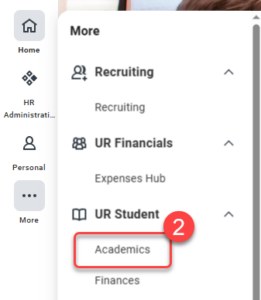
- Navigate to the sidebar on the left, hover over UR Student, then click the Academics app under UR Student. If UR Student is not visible, click the More icon.
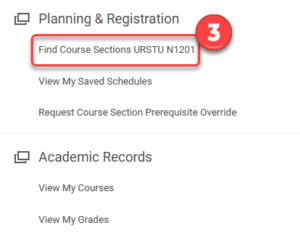
- Under Planning & Registration, click Find Course Sections.
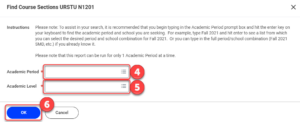
- Click within the Academic Period field and type the term you are looking for (i.e. Fall 2020). Select the period that corresponds to the desired academic unit.
- Select an Academic Level.
- Click OK.
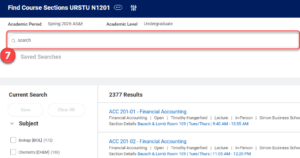
- Enter the course section name/abbreviation in search.
- Click on the course section name link that best fits your schedule.
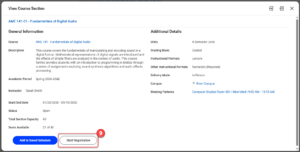
- From the View Course Section pop up, click Start Registration.
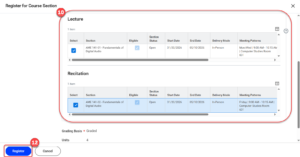
- Select alternate section offerings (e.g. lab, lecture, recitation, etc.).
- Adjust the Grading Basis if needed.
- Click Register.
- View the completed course section registration under the Successful Registrations grid, or click View Registered Courses for the complete view of course section registrations. Click on the “X” for each pop up to return to your Find Course Sections search.