Overview
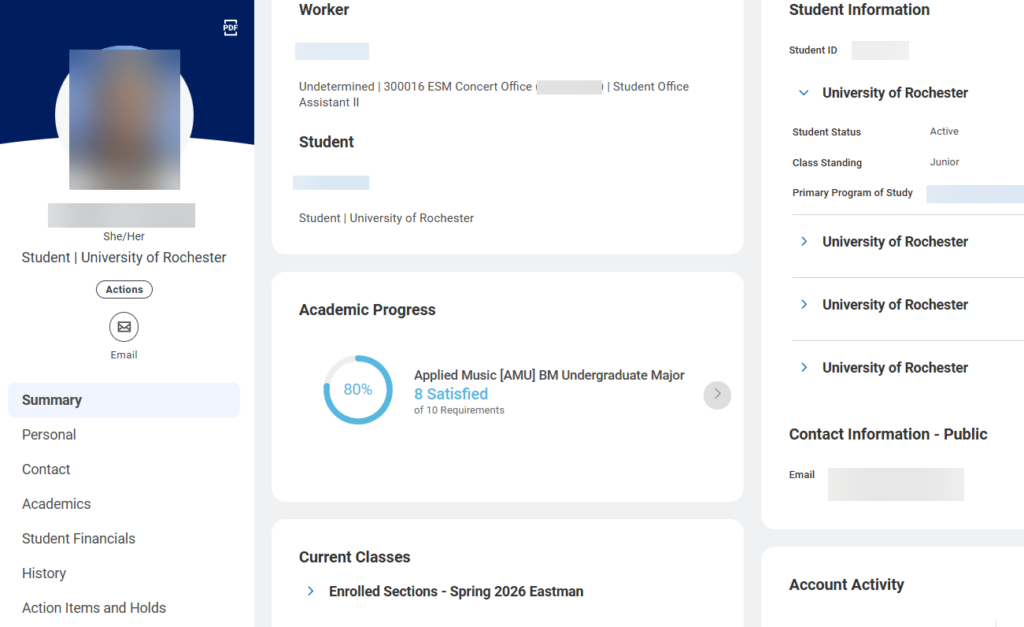
Some students have both a Worker and a Student profile available to them in UR Student. If you access your profile, and you do NOT see Personal, Contact, Academics, and Student Financials on the left bar, you need to switch to your Student profile.
Switch to your Student Profile
- Log into UR Student using your Active Directory account and password.
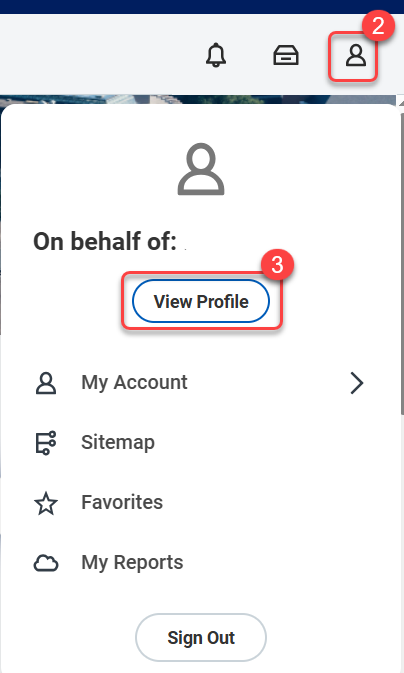
- Select the Profile photo or icon.
- Select View Profile.
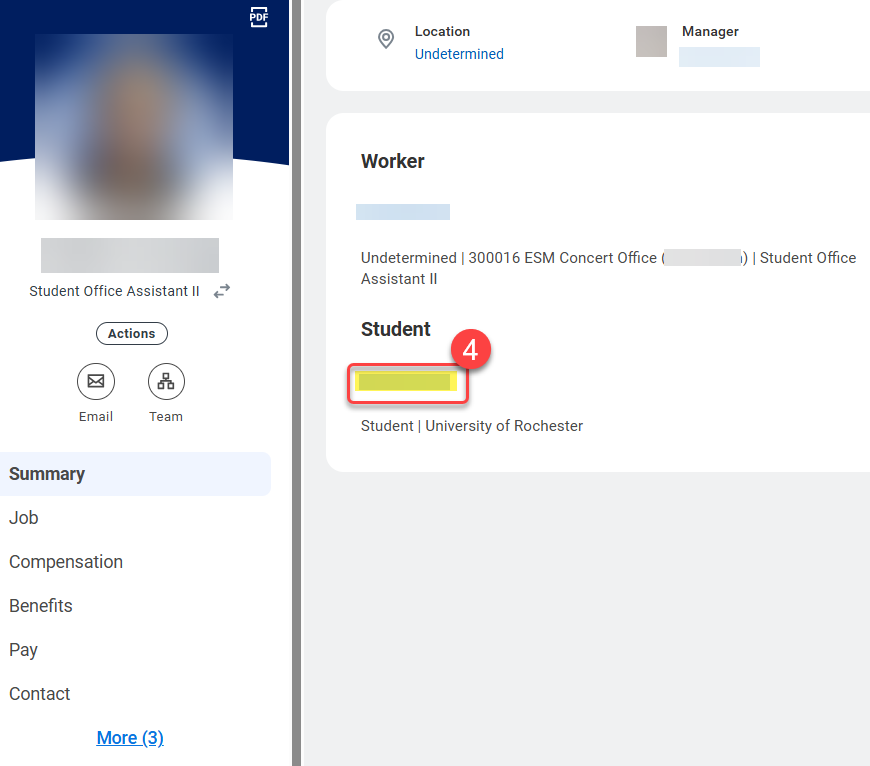
- From the Profile page, if you do not see Personal, Contact, Academics and Student Financials down the left menu, you need to switch to your Student profile. Select your name under the Student heading.
- Your Student profile will now be visible.
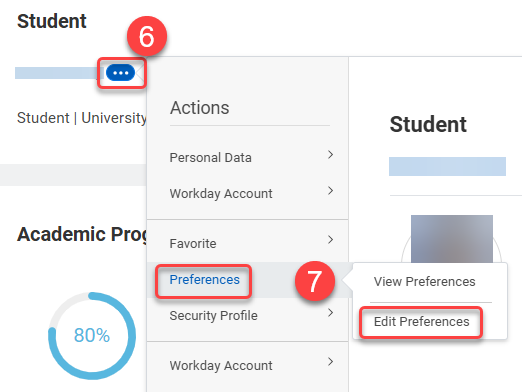
- To set your Student profile to the default profile, roll the cursor over your name under the word Student until you see an ellipse next to your name. This is the Related Actions button.
- Select the ellipse and roll your cursor over Preferences, then select Edit Preferences on the sub-menu.
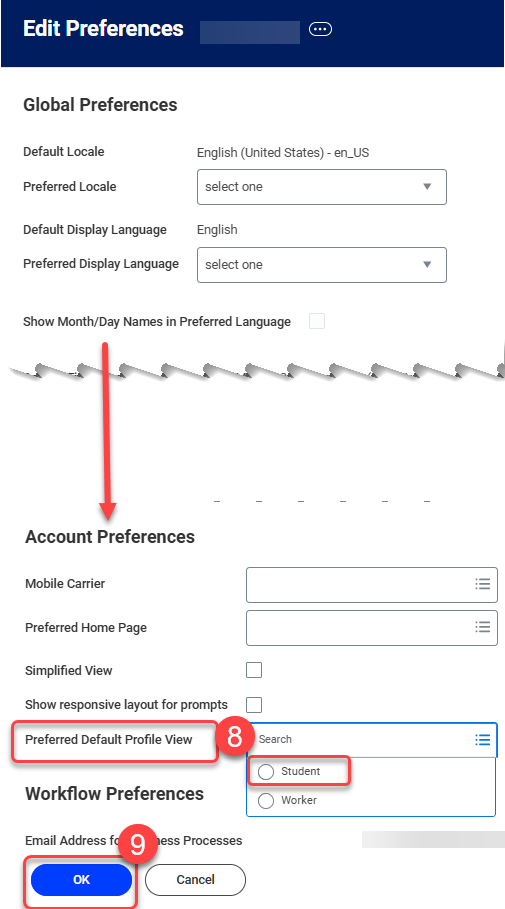
- On the Edit Preferences menu, look under the Account Preferences header, and select into the box for Preferred Default Profile View. Select the Student radio button if you wish to set your default profile view to Student.
- Select OK to save the setting.