Page Contents
Overview
Use this reference to update personal information such as Gender Identity and Pronoun at any time in UR Student.
Updating Personal Information
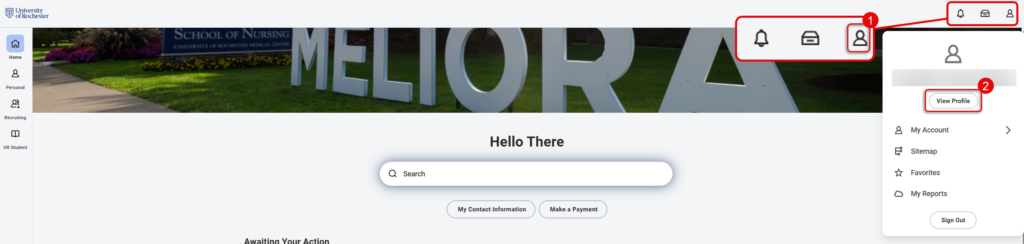
- Navigate to the Home page of UR Student, then select the Profile icon. This will be either a silhouette or profile picture.
- Select View Profile.
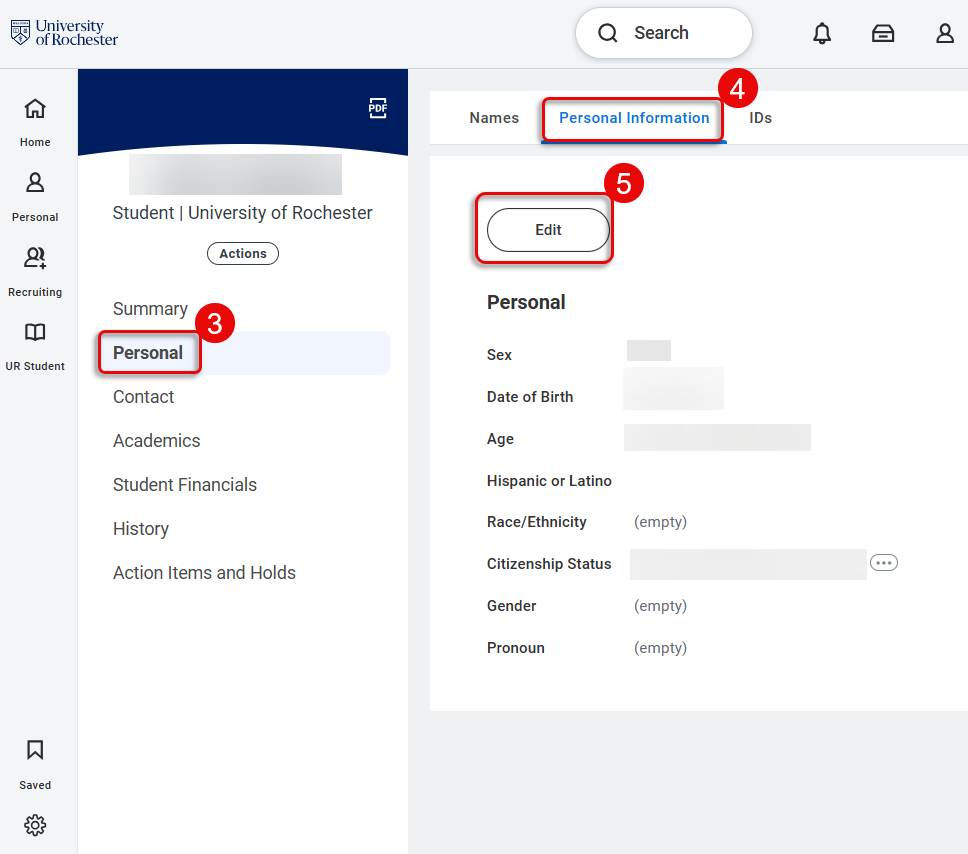
IMPORTANT: Students who are also employees and do not see the Personal, Contact, Academics or Student Financials selections can switch between profiles by referencing the Switch to your Student Profile webpage - From the Profile Page select Personal from the left menu.
- Select Personal Information from the top banner.
- Select Edit to change editable Personal Information items.
Updating Gender and Pronoun
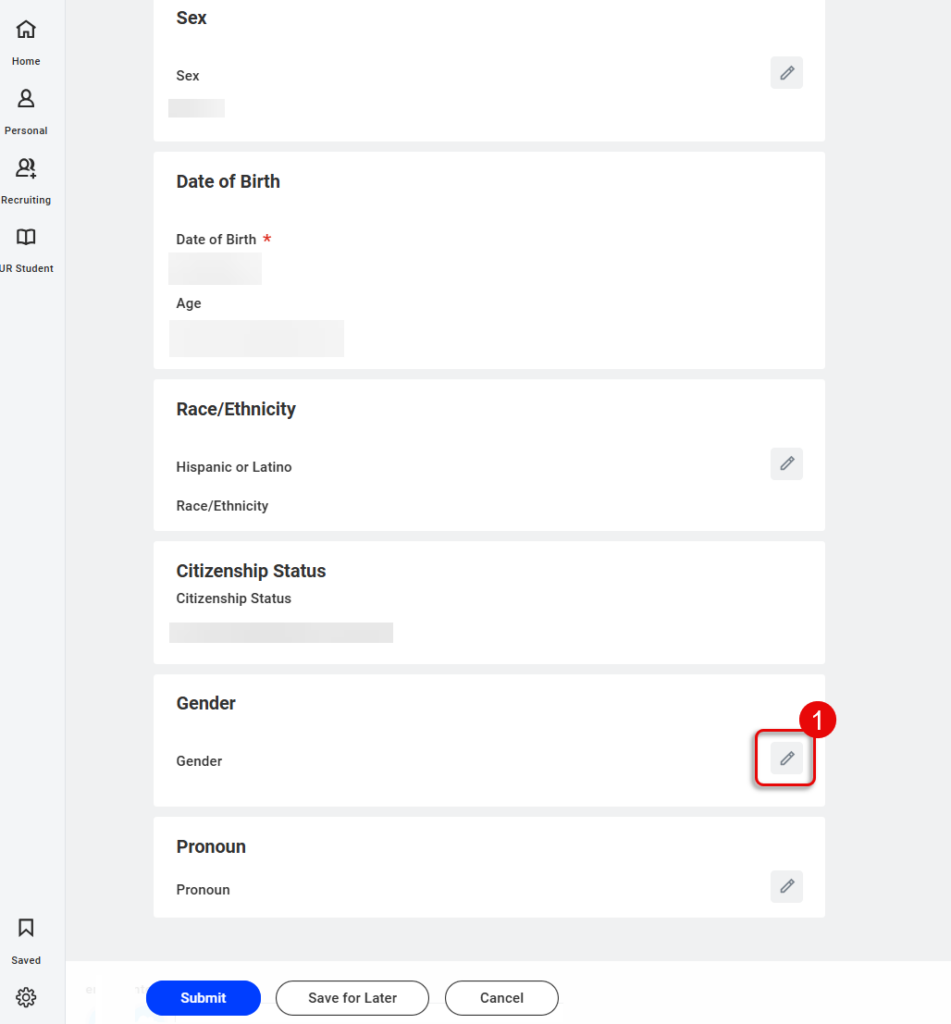
- From the previous Personal Information page, scroll down and select the Edit icon next to Gender.
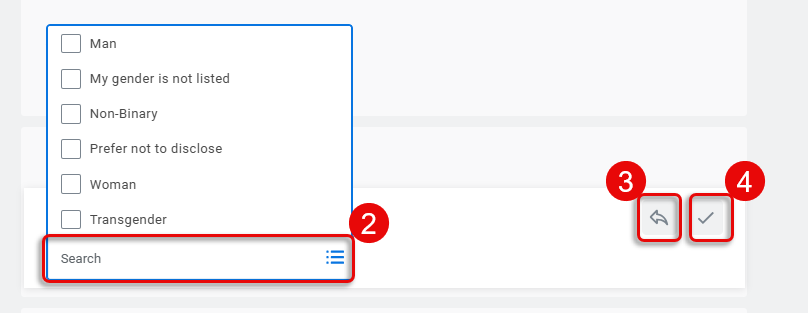
- Select the Gender search filed and choose the desired option. This can be changed at any time.
- Select the Back Arrow to undo your choice.
- Select the Checkmark to save your choice.
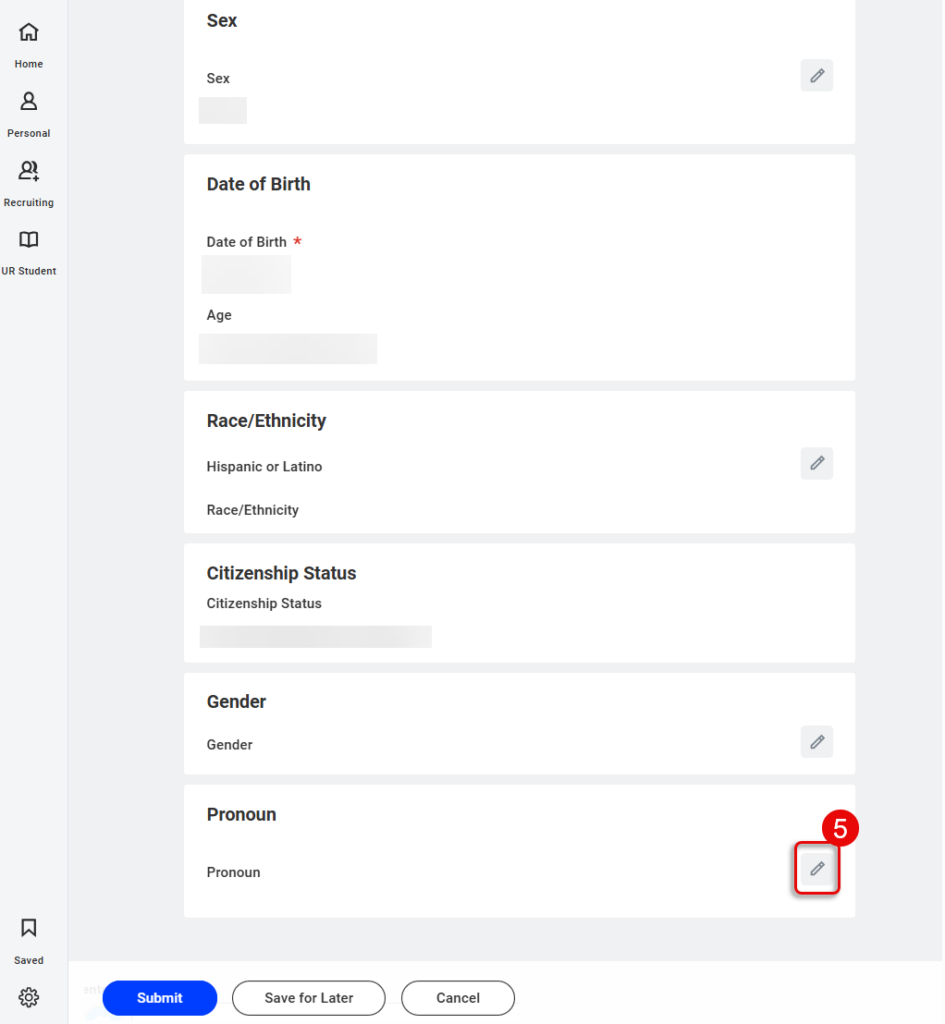
- Scroll down and select the Edit icon next to Pronoun.
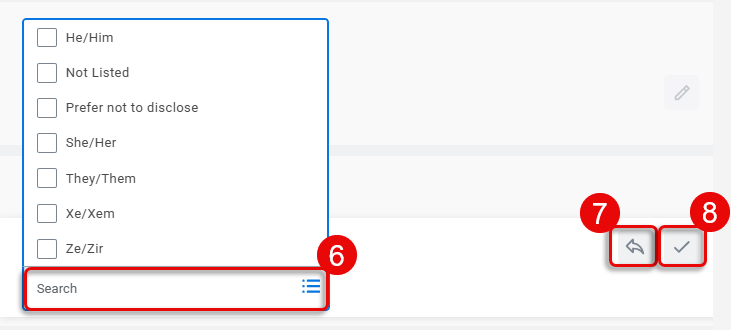
- Select the Pronoun search filed and choose the desired option. This can be changed at any time.
- Select the Back Arrow to undo your choice.
- Select the Checkmark to save your choice.
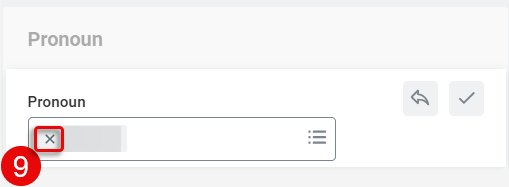
- To delete an option after selecting, select the X on the item to remove it.
TIP: Students may also update their preferred name in UR Student. Please reference the Changing Preferred Name webpage for details.