Overview
It is Best Practice to create a schedule of your courses for each term if you plan to register for more than one course. If you haven’t already done so, follow the instructions in How to Prepare a Schedule Before Open Registration. If you already created a Saved Schedule, here’s how you can view it in different ways.
View a Saved Schedule
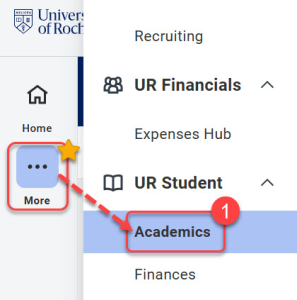
- From your UR Student Home Page, select Academics under UR Student. If you cannot find UR Student, select the More icon.
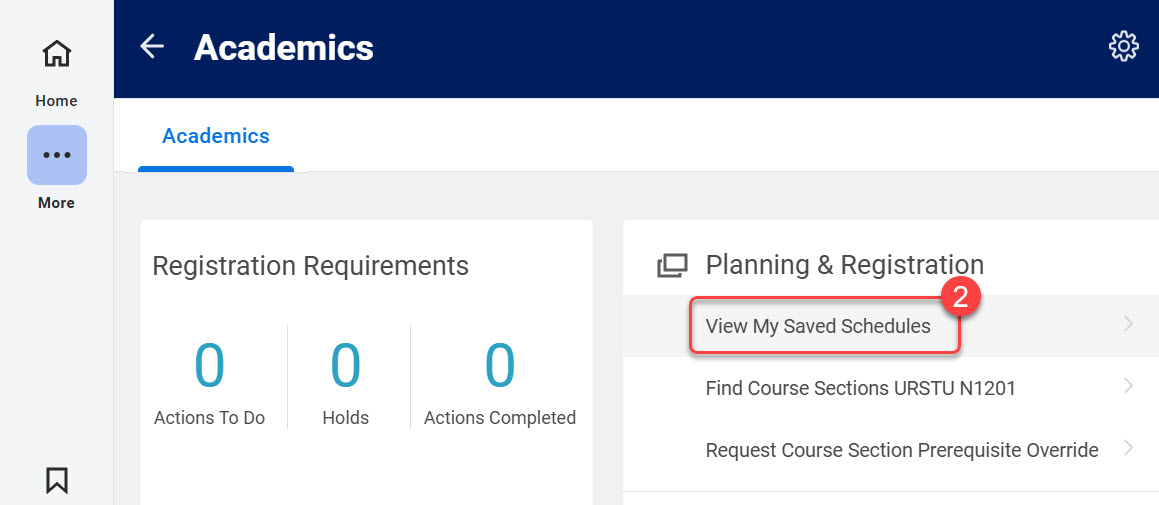
- Click View My Saved Schedule under Planning & Registration.
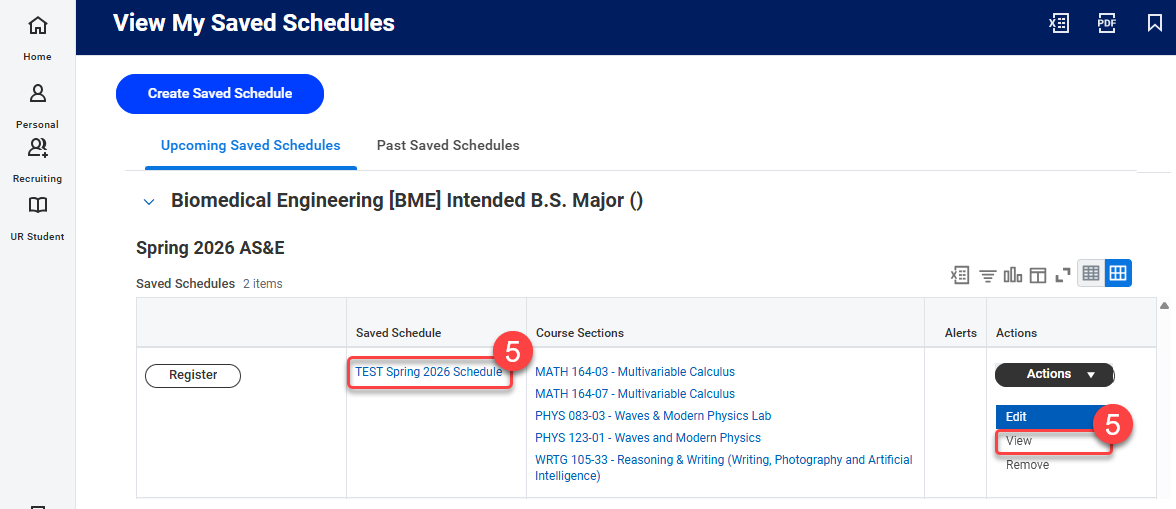
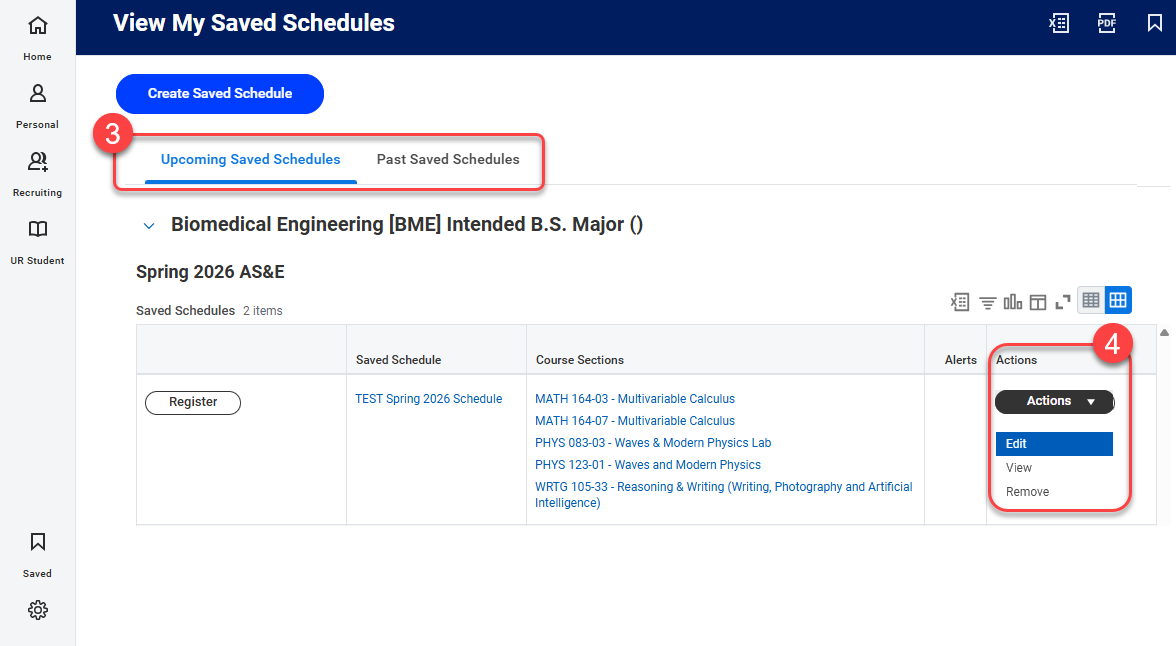
- Schedules for upcoming or current registration will be under the Upcoming Saved Schedules tab while schedules for previous academic periods will be under the Past Saved Schedules tab.
-
Select the Actions drop-down menu to Edit, View, or Remove a Saved Schedule.
Tips:- To edit the course selection in your Saved Schedule, follow the directions outlined in How to Prepare a Schedule Before Open Registration.
- If visible, select the number under the Alerts column to review any items that may prevent you from registering your entire Saved Schedule.
- Select the Saved Schedule title or select View from the drop-down menu. The table shows your scheduled courses in further detail. A row of action buttons appear above the table.
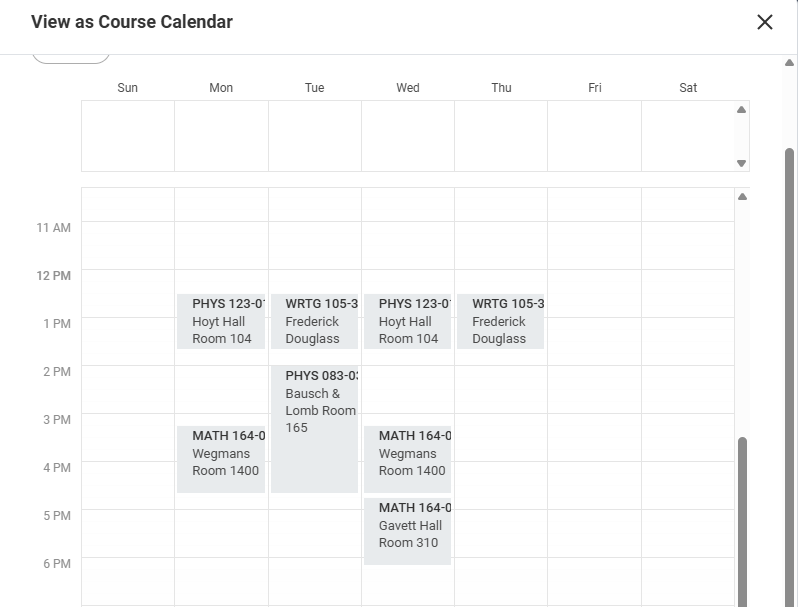
- Select Calendar View to look at your courses in a weekly view.