Overview
1098-T tax forms for the prior calendar year will be available to view and print by January 31st for all students who had qualifying transactions in that calendar year. Any third party you may have authorized will not have access to the 1098-T. If during onboarding you selected the “Go paperless for this year” option, UR will not print and mail a paper 1098-T. However, the document is available on-demand for all students by following the steps below.
View and Print Your 1098-T
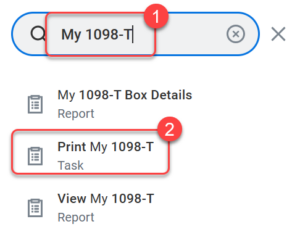
- In UR Student, type My 1098-T in the search bar.
- Select Print My 1098-T from the drop-down options.
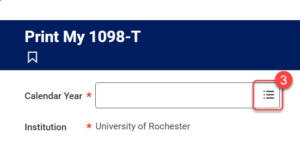
- Select the More icon to select the Calendar Year.
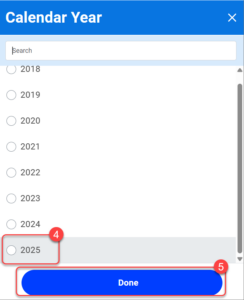
- Select the appropriate Calendar Year.
- Select Done.NOTE: UR Student only shows years in which you had eligible charges.
- Select OK.
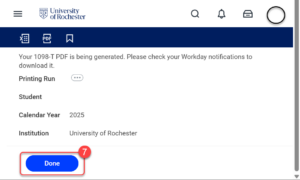
- Once your 1908-T is generated, you can download it from your Workday notifications (See the following step). Select Done.
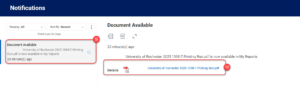
TIP: It may take a few minutes to generate your 1098-T. - Select the Notifications bell icon.
- Select the relevant message.
- To view the PDF, Select the hyperlink next to Details.
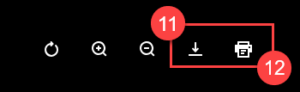
- From the PDF view, you can print the document by clicking the Printer icon, or
- You can download and save the PDF by clicking the Download button.