Page Contents
Overview
View and print course section rosters by accessing the Teaching application/dashboard and clicking on the blue link number from the Launch Course Roster panel.
View and Print Course Section Rosters
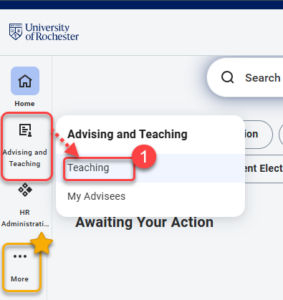
- Log into UR Student, then navigate to the Advising and Teaching app in the global menu and select Teaching.
TIP: If you cannot see UR Student in the global menu, click the More icon.
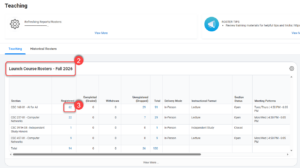
- On the Teaching tab, the two most recent term roster reports are titled, Launch Course Roster – “term”. The reports list out all the course sections you are teaching.
- To view a course roster, select the blue linked number within the Registered column associated with the appropriate course section to view the (pop up) roster report with photos.
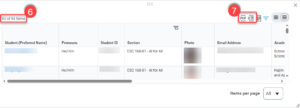
- Scroll to see Registered students and relevant information about each; including legal student name, ID, email address, photo and class year.
NOTE: The number of students registered is the same listed at the top of this pop up report as it is listed in the main report in step 3. - To print from the pop up window, select the PDF icon at the top of the report then click Download. You can also Select the Excel icon to create an Excel sheet that will list all data elements on the report except photos.
Cross Listed/Co-Located Course Sections
- Log into UR Student, then navigate to the Advising and Teaching app in the global menu and select Teaching.
TIP: If you cannot see UR Student in the global menu, click the More icon.
- On the Teaching tab, the two most recent term roster reports are titled, Launch Course Roster – “term”. The reports list out all the course sections you are teaching.
- If you teach cross listed sections, and you want to see all the students in the cross list, select the blue linked Total at the bottom of the Registered column instead of the linked number inline with a course section.
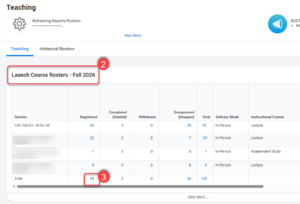
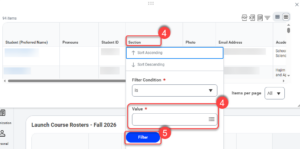
- Once the roster loads, select the Section column header, and enter the cross listed sections
- Select Filter to view course sections.
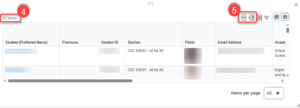
- Scroll to see Registered students and relevant information about each; including legal student name, ID, email address, photo and class year.
NOTE: The number of students registered is the same listed at the top of this pop up report as it is listed in the main report in step 3. - To print from the pop up window, select the PDF icon at the top of the report then click Download. You can also Select the Excel icon to create an Excel sheet that will list all data elements on the report except photos.