Overview
View and print photo course rosters by accessing the Teaching application/dashboard.
View and Print Photo Course Rosters
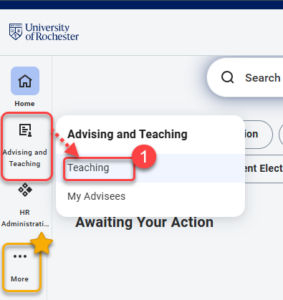
- Log into UR Student, then navigate to the Advising and Teaching app in the global menu and select Teaching.
TIP: If you cannot see UR Student in the global menu, click the More icon.
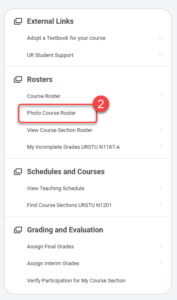
- Select Photo Course Roster from the Rosters menu on the right.
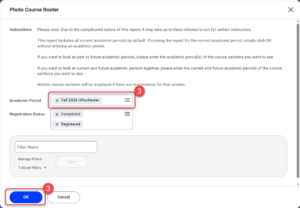
- Enter the Academic Period (e.g. Fall 2026 URochester) for which you want to generate a Photo Roster for and click OK.
- A report will display with a row for each of the students in your sections for the term. This is NOT the final roster. Select the Print button at the bottom left to generate a downloadable PDF version with larger photos.
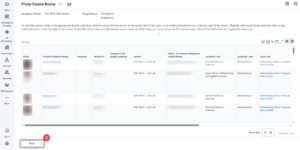
- Depending on the size of the roster, you may be asked if you want to be notified later. you can wait for the roster to appear, or you can select Notify Me Later.
- If you select Notify Me Later, the roster will appear in your Notifications, which you can access at the top right of the page. You will get a notification when it is ready and may need to refresh the page to see it.

- The Photo Course Roster will appear as a notification item. Select the PDF hyperlink to access the photo roster.
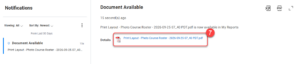
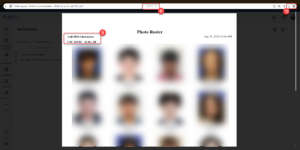
- Depending on the number of course sections and students, you will more than likely receive a Photo Course Roster that is multiple pages. From the white bar, you can navigate between the pages using the arrows at the top in the middle of the page.
- Note the academic period and the course section at the top of each page.
- You can also choose to download or print the roster using the download or printer icons at the top right of the page. You may find it more useful to print the roster and re-order the pages to fit your preference (they will appear in alphabetical order by course section (subject, course number, section number), which may cause cross listed sections with multiple course subjects to not appear on adjacent pages).