Overview
This QRC will assist in quick access to the Teaching Schedule report; a list of all the course sections an instructor is assigned in a a given academic period. For course rosters with photos, use the “View/Print Photo Course Rosters” QRC.
View Teaching Schedule
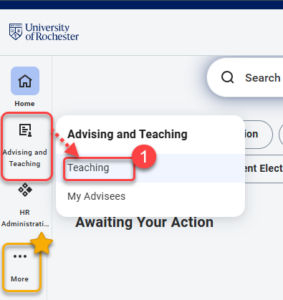
- Log into UR Student, then navigate to the Advising and Teaching app in the global menu and select Teaching.
TIP: If you cannot see UR Student in the global menu, click the More icon.
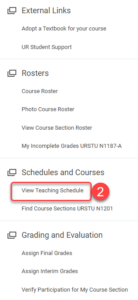
- Select View Teaching Schedule from the Schedules and Courses menu on the right.
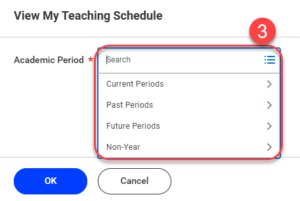
- Specify the Academic Period.
NOTE: To see your current Teaching Schedule, select Current Periods in the drop-down menu.
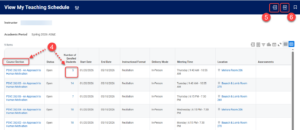
- From this view you can look at Course Section details. To drill into a roster select the blue hyperlinked number in the Number of Enrolled Students column.
- To export your Teaching Schedule as an Excel file, select the X icon in the blue bar at the top right.
- To export your Teaching Schedule as a PDF, select the PDF icon in the blue bar at the top right.