Page Contents
Overview
Use this as reference when needing to swap a course or course section during the add/drop period. Refer to your school’s respective Academic Calendar for the exact end date of the add/drop period.
NOTE: If you have a registration hold, you will NOT see the drop or swap buttons. The hold must be resolved before being able to drop or swap in UR Student. Refer to the View Holds QRC for steps on how to resolve holds.
Related links:
Swapping a Course from Registration
Follow the steps below to swap a course you are registered in, for a different course. This means swapping the course and all its corresponding course sections (e.g. lab, lecture, recitation, etc.).
To swap an individual course section within a course please follow the steps under Swapping Course Section from Registration.
- Log into UR Student using your Active Directory account and password.
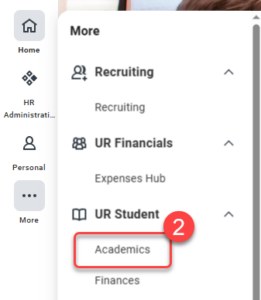
- Navigate to the sidebar on the left, hover over UR Student, then click the Academics app under UR Student. If UR Student is not visible, click the More icon.
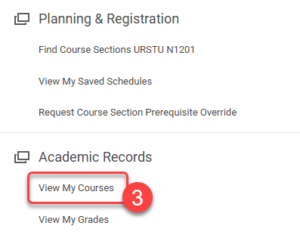
- Under Academic Records, click View My Courses.
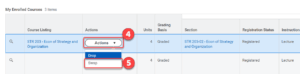
- Within the My Enrolled Courses table, click on the Actions drop down button to navigate to the Drop and Swap buttons.
Tip: Notice the Enrolled Units and Enrollment Status listed below the My Enrolled Courses table.
NOTE: If Enrolled Units are at the minimum limit to be considered full-time, the swap feature should be used to replace the course you would like to drop with another course. If you need to drop a course section that will put you below full-time status, please contact your Registrar. - Click Swap next to the course section you need to replace.
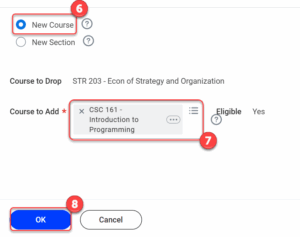
- To swap to a new course, click New Course.
- Type in the new course within Course to Add.
Tip: The ability, or “eligibility”, to swap a course is shown in the Eligible field (Yes/No). - Click OK.
- Select desired section offerings (e.g. lab, lecture, recitation, etc.).
- Set the Grading Basis if needed.
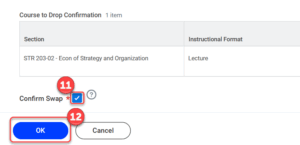
- Check the Confirm Swap box. Notice the Course to Drop field.
- Click OK and review newly registered course(s).
Swapping Course Section from Registration
Follow the steps below to swap a course section within a course. This means swapping the section ONLY (e.g. lab, lecture, recitation, etc.).
To swap a course, please follow the steps under Swapping Course from Registration.
- Log into UR Student using your Active Directory account and password.
- Navigate to the sidebar on the left, hover over UR Student, then click the Academics app under UR Student. If UR Student is not visible, click the More icon.
- Under Academic Records, click View My Courses.
- Within the My Enrolled Courses table, click on the Actions drop down button to navigate to the Drop and Swap buttons.
Tip: Notice the Enrolled Units and Enrollment Status listed below the My Enrolled Courses table.
NOTE: If Enrolled Units are at the minimum limit to be considered full-time, the swap feature should be used to replace the course you would like to drop with another course. If you need to drop a course section that will put you below full-time status, please contact your Registrar. - Click Swap next to the course section you need to replace.
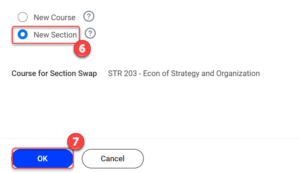
- Click New Section.
- Click OK.
- Select alternate section offerings (e.g. lab, lecture, recitation, etc.).
- Adjust the Grading Basis if needed.
- Click OK review newly registered course section(s).
NOTE: If there are NO available course section to Swap, an error will appear. This will require you to select a new Course by Swapping a Course from Registration or contact your Registrar.