Overview
Use this reference to make a payment on your UR Student account balance with a payment card. This payment can be made as a student or as a Third Party.
TIP: ACH Payments are accepted from US Checking and Savings Accounts. Refer to Set Up Student Payment Elections and ACH Refund Selections to get setup to pay from a bank account.
Make a Payment
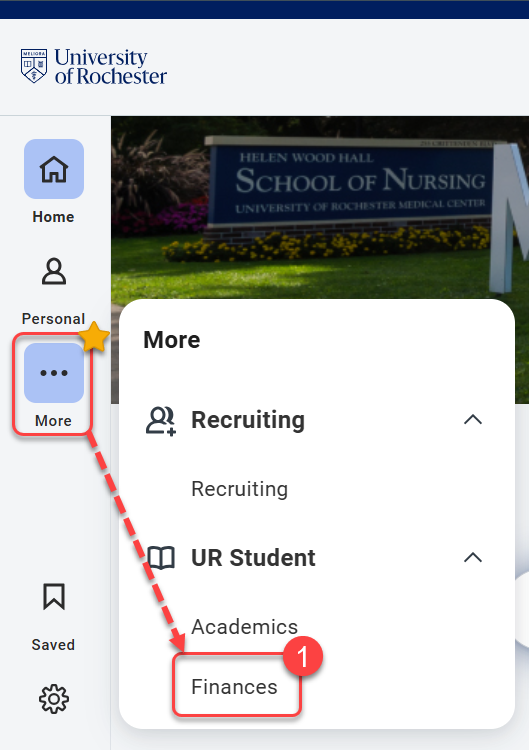
- Navigate to the Global Menu area, then click Finances under UR Student.
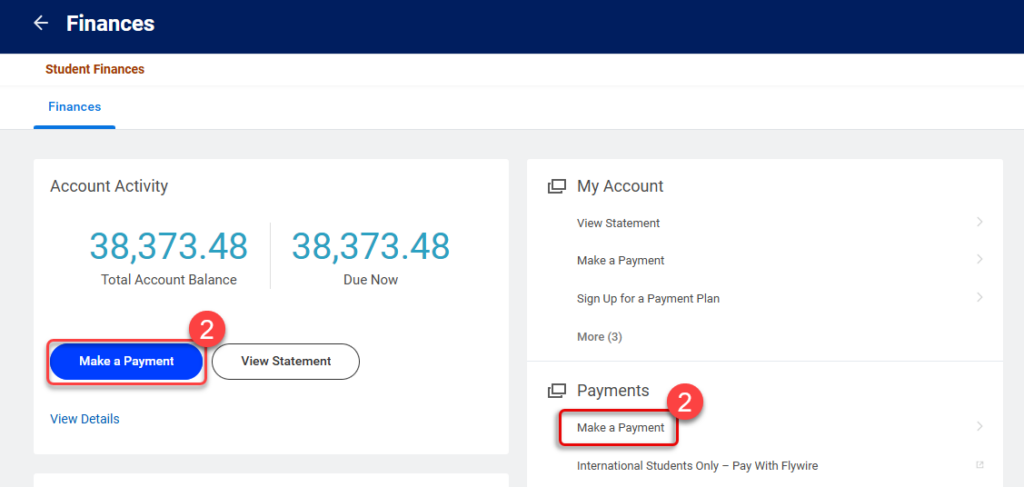
TIP:If you do not see UR Student in the Global Menu, click the “More” icon. - Under Account Activity or Payments, select Make a Payment.
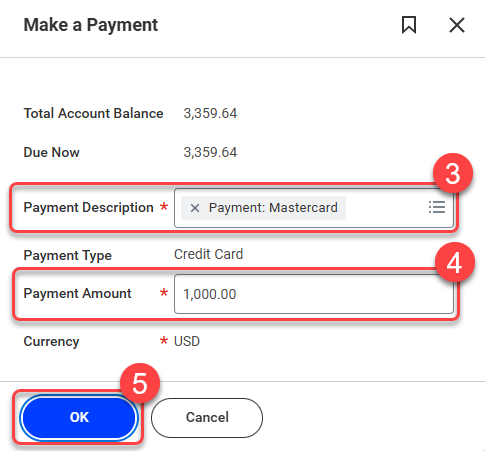
- In the Make a Payment box, select the appropriate payment card description for the card you are using for payment (Discover Card, Mastercard, or VISA) under Payment Description.
TIP: The Payment Type will default to “Credit Card” even if you are using a “Debit Card.” - Enter the Payment Amount you would like to make.
IMPORTANT: The payment amount will default to your balance due, but can be changed if desired. - Select OK.
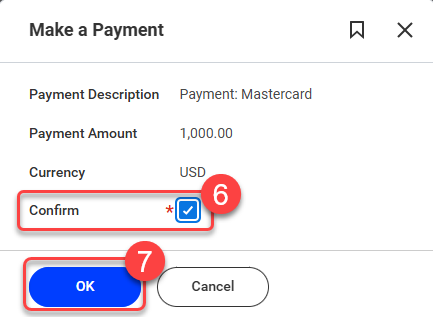
- On the next screen, review the payment details, select the Confirm checkbox if it is accurate, or select Cancel to start over.
- Select OK.
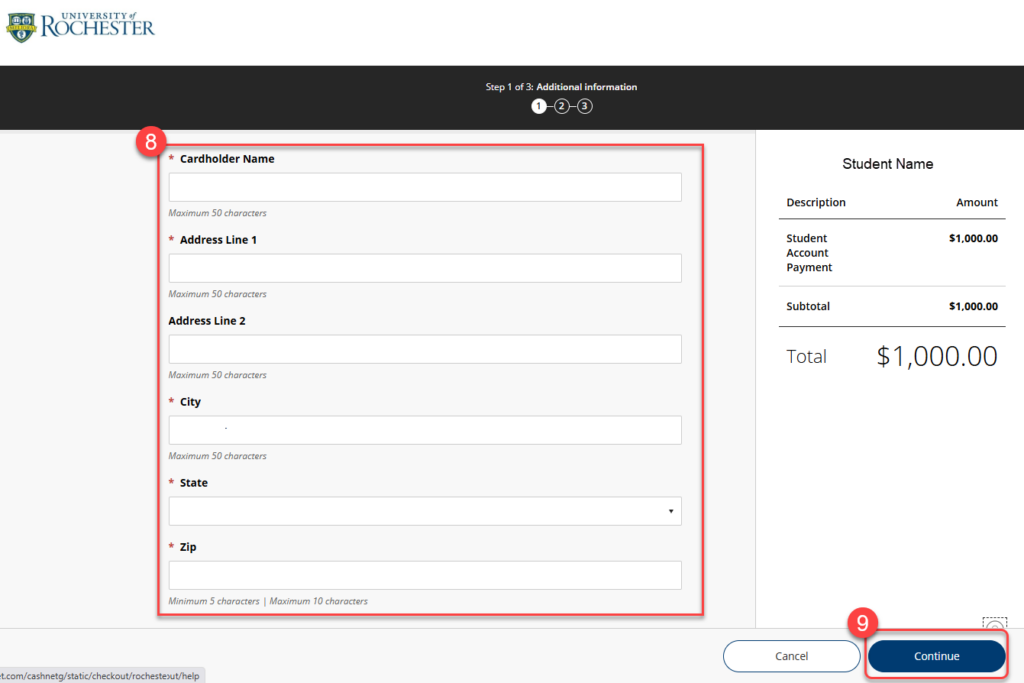
- You will be redirected to an external payment card transaction system where you will be asked to enter all of the Cardholder information including the billing address. The Student name and Payment amount that you confirmed to pay earlier will be indicated on the right-hand side of the screen. Once you have entered information in all required fields.
- Select Continue.
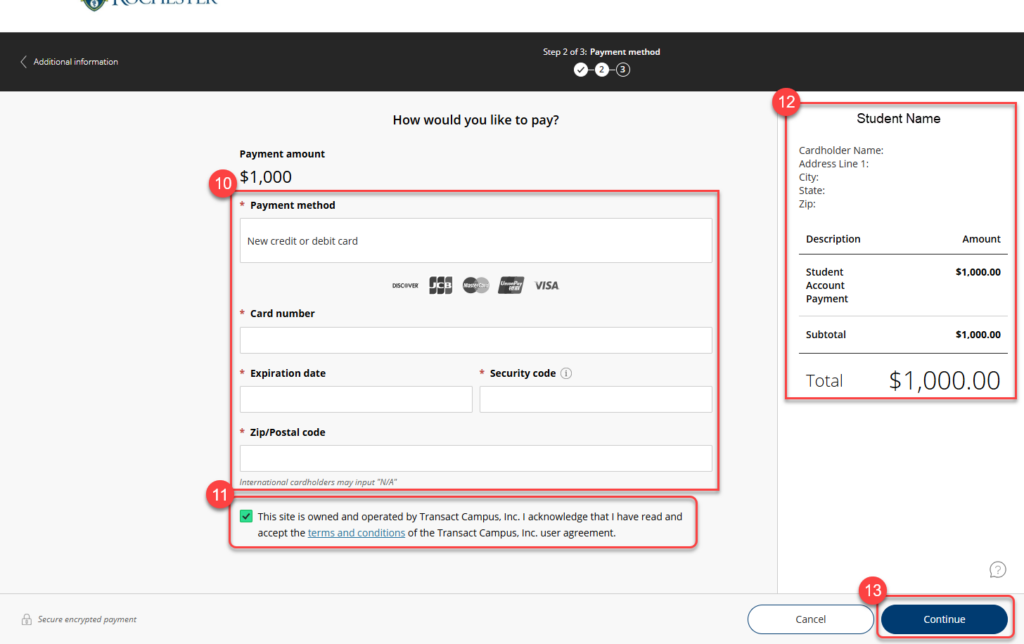
- Enter your payment card information into the required fields.
- Read the acknowledgement statement, then select the checkbox next to it.
- Confirm the student name, cardholder name, address, and payment amount.
- Select Continue.
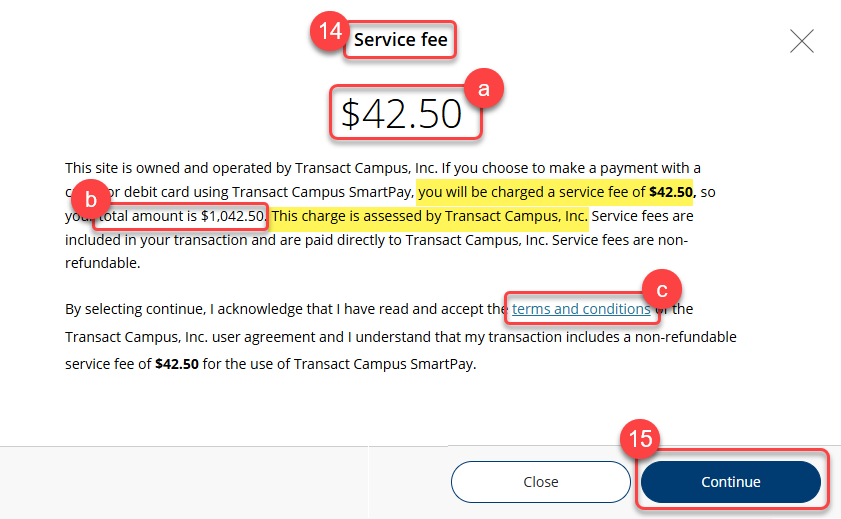
- A service charge will be included in your total as part of using a payment card. This service charge is assessed by the vendor, Transact Campus, for processing and does not go to the University of Rochester. This service charge is calculated based on the amount you are paying and the type of payment card used. The student account transactions page will not reflect the service charge. Should you wish to avoid a service fee, you can Set Up Student Payment Elections and ACH Refund Selections to pay from a bank account. Pay special attention to the following:
- The Service Fee amount, which is added to the payment amount you initially submitted.
- The Total Amount that will be charged to your payment card.
- The Transact Campus, Inc. terms & conditions link that you acknowledge by submitting your payment via a payment card.
- Select Continue.
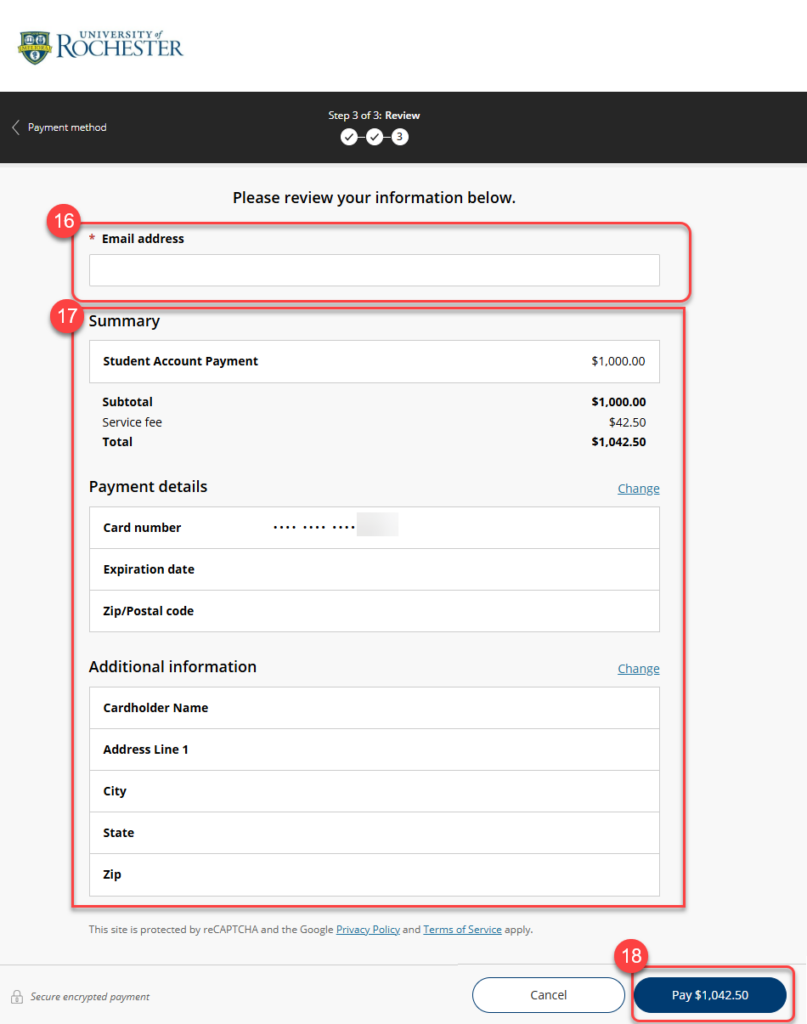
- On the Review screen, enter the email address to which you would like the payment receipt emailed.
- Review the Summary, Payment Details and Additional Information sections.
- Select the Pay button.
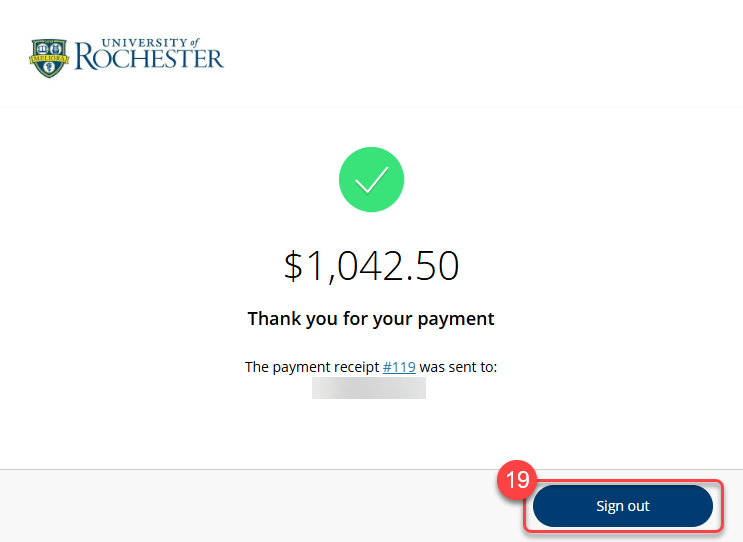
- You will receive a confirmation screen upon successful payment. Click the Sign out button to be redirect to UR Student.
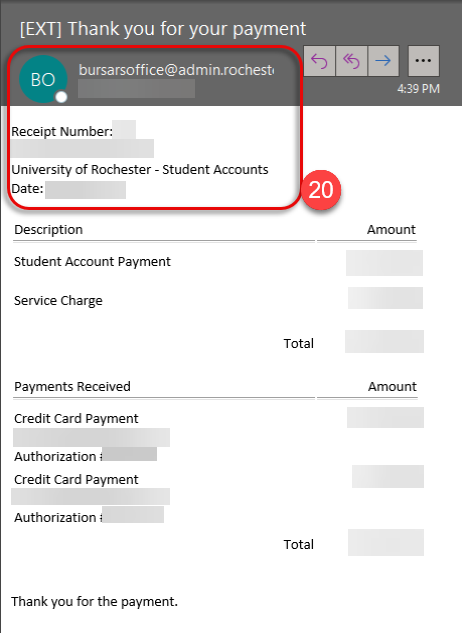
- Once the payment is successful, you will receive a payment receipt in your email from either bursar@admin.rochester.edu or bursaroffice@admin.urochester.edu. Your student account transaction page will also be updated to show a payment card payment was made with the payment amount indicated.
IMPORTANT: There may be a few seconds delay for the payment to post to your account. Refunds are sent back to either a bank account or via check, depending upon your Student Refund Rule Payment Election selection.