Page Contents
Overview
UR Student allows you to conveniently pay your bills online using direct debit and direct deposit transactions. Start by setting up your Payment Elections and Refund Elections. These can be modified at any time. See below for instructions to Set Up Payment Elections and Authorize Payment.
NOTE: These instructions are applicable for payments from US BANKS ONLY! For foreign bank payments, see International Payments on the Bursar website.
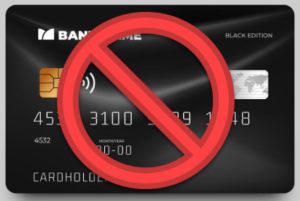
Do NOT use a payment card number in lieu of a bank account number. If you wish to make a payment via payment card, see How to Pay by payment card.
Set Up Payment Elections
You can do this right from your Home page. Please note that direct debit (ACH) payments are accepted from US Checking and US Savings accounts only. Payment elections are required for any direct debit or direct deposit transactions (automated funds transfer). Payment cards are also accepted, but do not require payment elections.
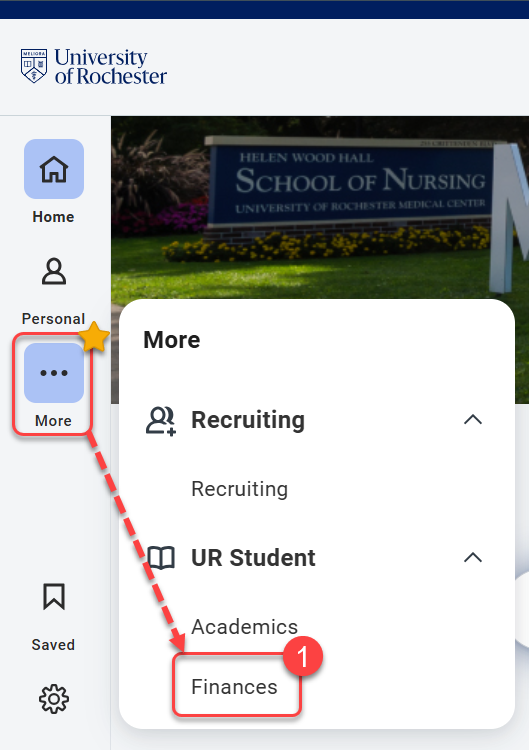
- Navigate to the Global Menu area, then select Finances under UR Student.
TIP: If you do not see UR Student in the Global Menu, select the “More” icon.
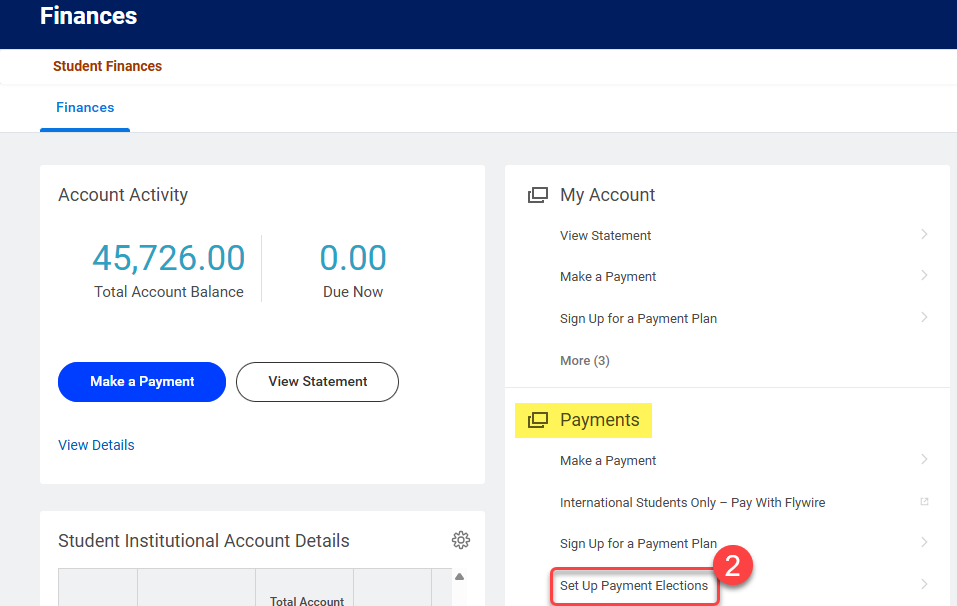
- Under Payments, select Set Up Payment Elections.
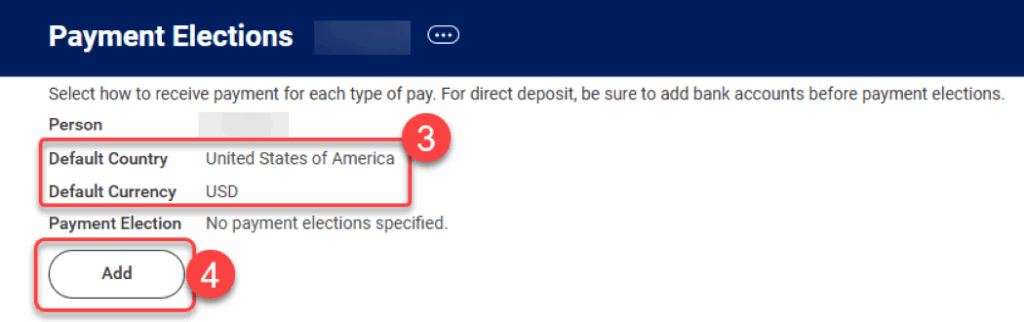
- Confirm that the Default Country listed is “United States of America” and that the Default Currency is “USD.”
- Select Add to add an account.
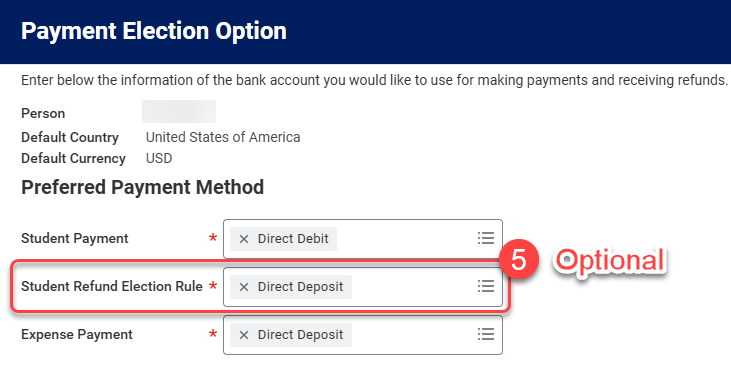
- Review the Preferred Payment Methods present and change the “Student Refund Election Rule” if you would prefer to receive any student refunds by check – this is optional.
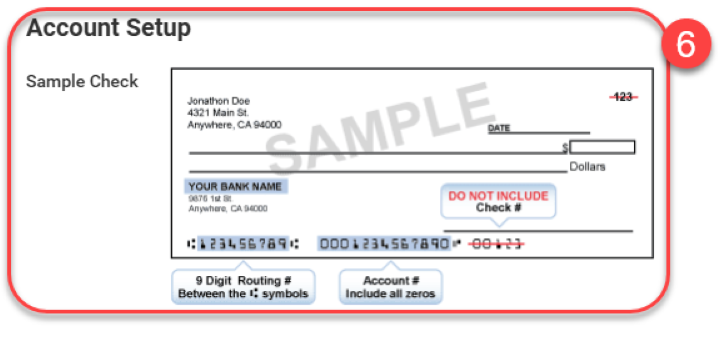
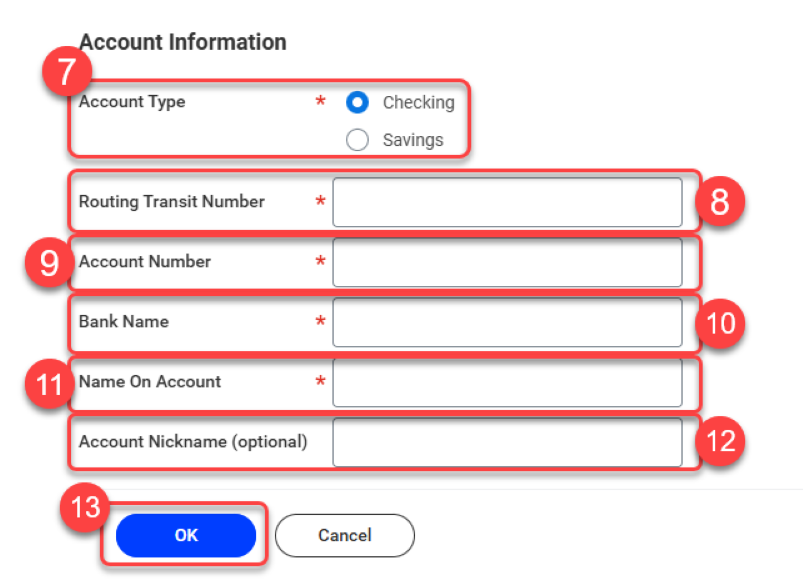
- Review the Account Setup information. This information is found on the bottom of a check or in the account details section of your online bank portal.
- Select Account Type.
- Enter the Routing Transit Number.
- Enter the Account Number.
- Enter the Bank Name.
- Enter the Name on Account.
- Enter the Account Nickname (optional).
- Select OK.
- Refresh your page, then continue to the Authorize Payment section for further required steps.
NOTE: For Online Student Payment, the only option is Direct Debit. For Student Refund Rule, the options are Direct Deposit or Check.
REMINDER: Do NOT use a payment card number in lieu of a bank account number. If you wish to make a payment via payment card, see How to Pay by payment card.
Authorize Payment
When you add a bank to your payment elections, you must complete the ACH Authorization Form. ACH stands for “Automated Clearing House” and this allows for Direct Debit from your bank to pay your bill through UR Student. This ACH form is automatically sent to your My Tasks when you add a new bank account. After you have completed the steps below, you will be able to make an Online Payment through UR Student.
Warning: If you try to submit a payment before completing the Authorization Form, the payment will fail.
- From any screen, select the My Tasks icon to view your messages.
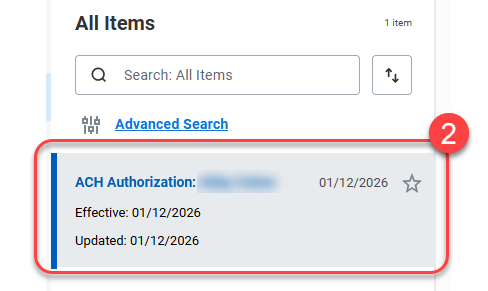
- Select the ACH Authorization message.
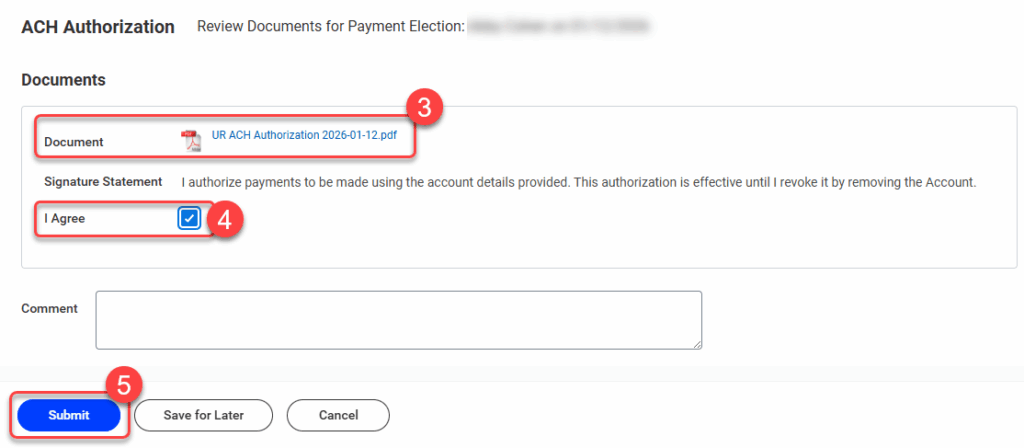
- To view the UR ACH Authorization YYYY-MM-DDD PDF, select the document hyperlink.
- Review the information in the PDF, then click the I Agree checkbox.
- Select Submit.
NOTE: If you do not see the ACH Authorization message in your My Tasks area, please refresh your browser and check again.