Overview
Once you set up your Student Payment Elections in UR Student as Direct Debit, your Student Refund Election Rule is automatically set for Direct Deposit. This means your refund will go directly to the bank you authorized for the “Student Payment” payment election. You can edit this at any time. Before you can edit this rule, you must have already set up your Student Payment Elections. See below for instructions to view or edit your Student ACH Refund Selection.
View or Edit ACH Refund Selection
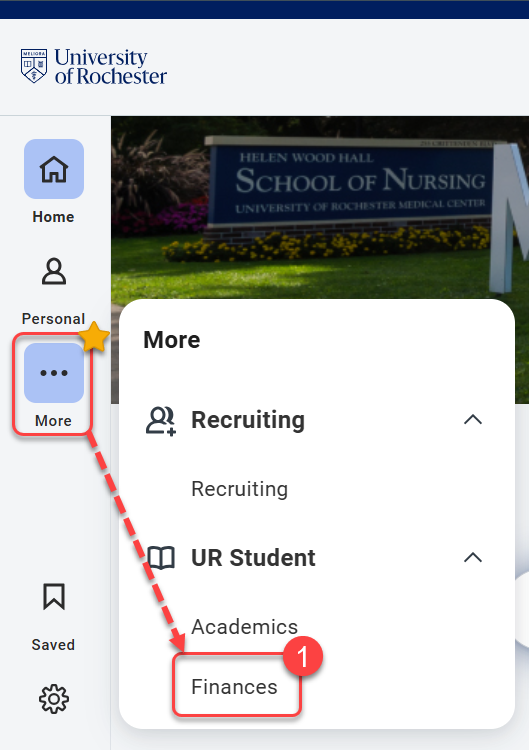
- Navigate to the Global Menu area, then click Finances under UR Student.
TIP: If you do not see UR Student in the Global Menu, click the “More” icon.
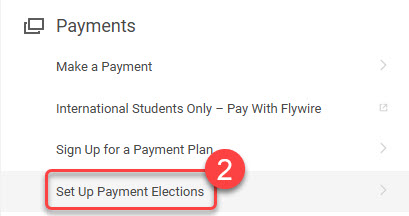
- Under the Payments section, select Set Up Payment Elections.
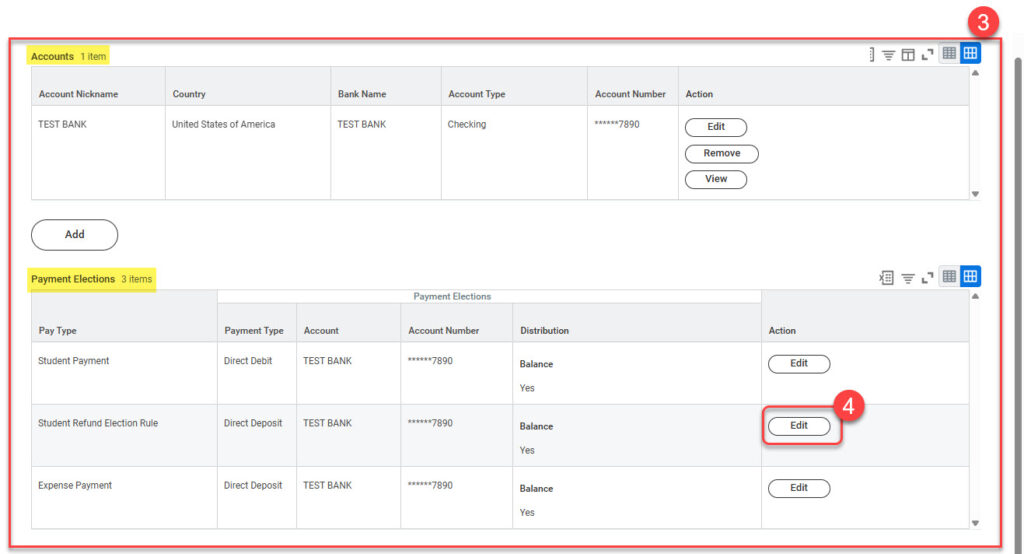
- View your Accounts and Payment Elections grids.
- To change the Student Refund Rule Election, select Edit.
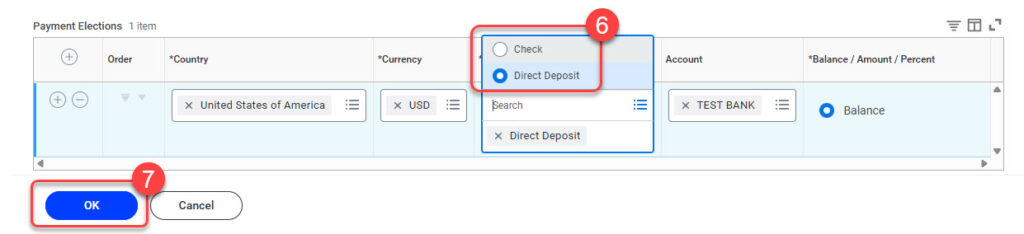
- Select the More icon in the “Payment Type” field.
- Select your desired Payment Type.
- Select OK.
Notice that Student Refund Election Rule matches Student Payment.