Overview
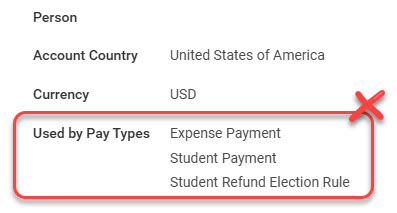
There may be a time when you need to delete a bank account after adding a new one. You cannot delete a bank account that is used in any Payment Election rule. You MUST add the new bank account and update your Payment Election rules before you can delete a bank account. Follow these instructions after you have added your new bank account and updated your Payment Election rules (See Add a New Bank Account and Edit Student Payment Elections for instructions).
Deleting a Bank Account
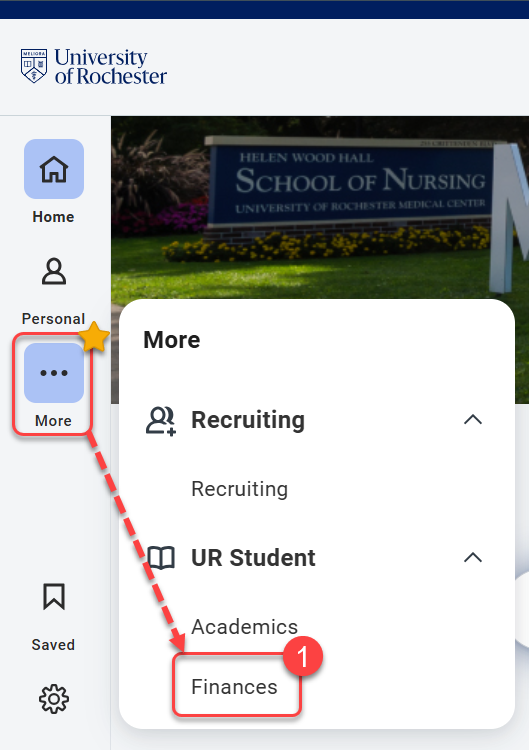
- Navigate to the Global Menu area, then click Finances under UR Student.
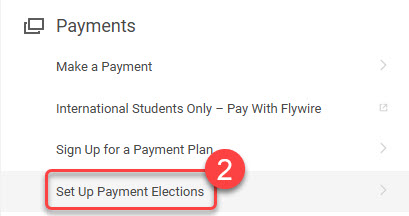
- Under the Payments section, select Set Up Payment Elections.
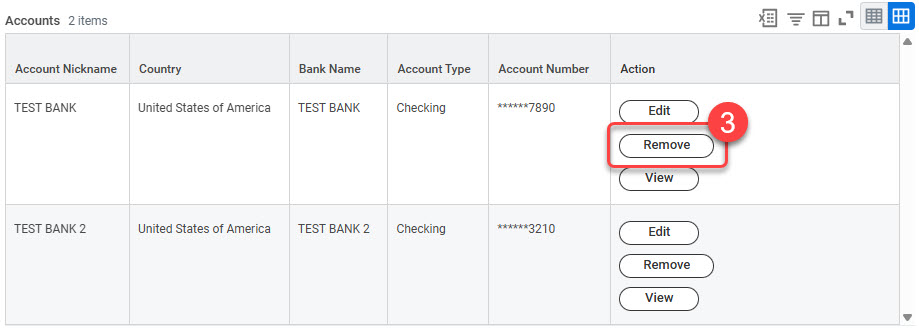
- In the Accounts grid, select the Remove button next to the account you wish to delete.
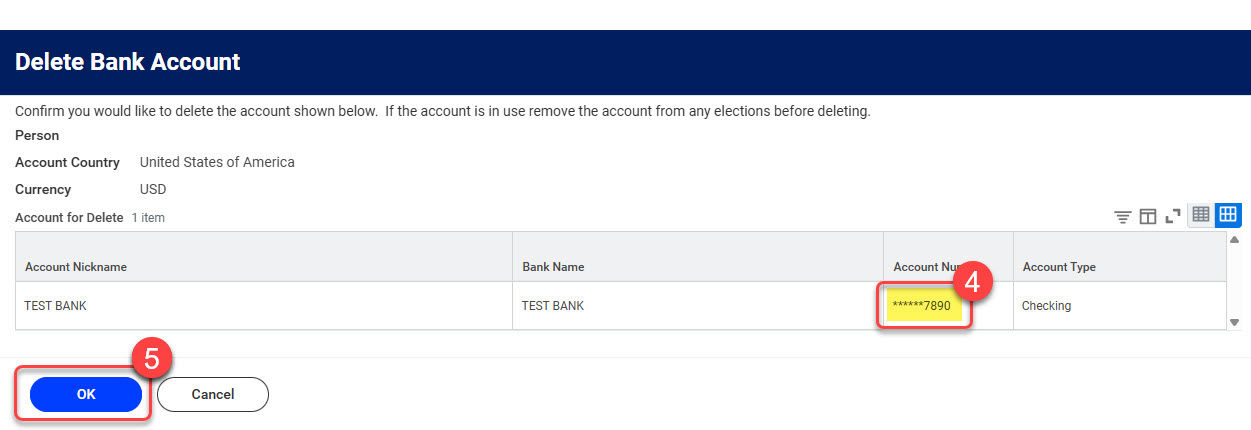
- Confirm the account you want to delete.
- Select OK.
TIP: If you do not see UR Student in the Global Menu, click the “More” icon.
IMPORTANT: If you see a section titled “Used by Pay Types,” you cannot delete the account. You must first replace the account on the referenced Pay Types then edit your Payment Elections to switch referenced bank accounts before you can delete the account. See the Add a New Bank Account & Edit Student Payment Elections and View or Edit Student ACH Refund Selections sections for instructions.