Step 1
Go to the URochester-hosted PaperCut website (print2.rochester.edu/user) to download the PaperCut Print Deploy Client. (Note: Download is only needed for personally-owned devices, not computer lab or department devices.) To access the website, you must be on UR WiFi network (UR_Connected5 or UR_Connected), the UR wired network, or on VPN.
Do not download the PaperCut mobile app from an app store, as it will not work.
Step 2
On the Entra ID sign in page, click the Sign in with Microsoft button and sign in with your Entra ID.
Note:
- For those with UR accounts, your Entra username format is ADusername@ur.rochester.edu
- For those with URMC accounts, your Entra username format is the URMC email address, such as First_Last@urmc.rochester.edu
- Entra passwords are the same password you use to log in to other University systems.
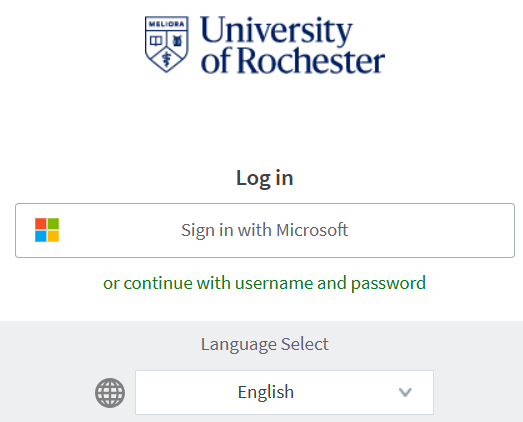
Note: Entra ID is also what you use to log in to Microsoft M365 Applications (Cloud and Desktop Clients).
Step 3
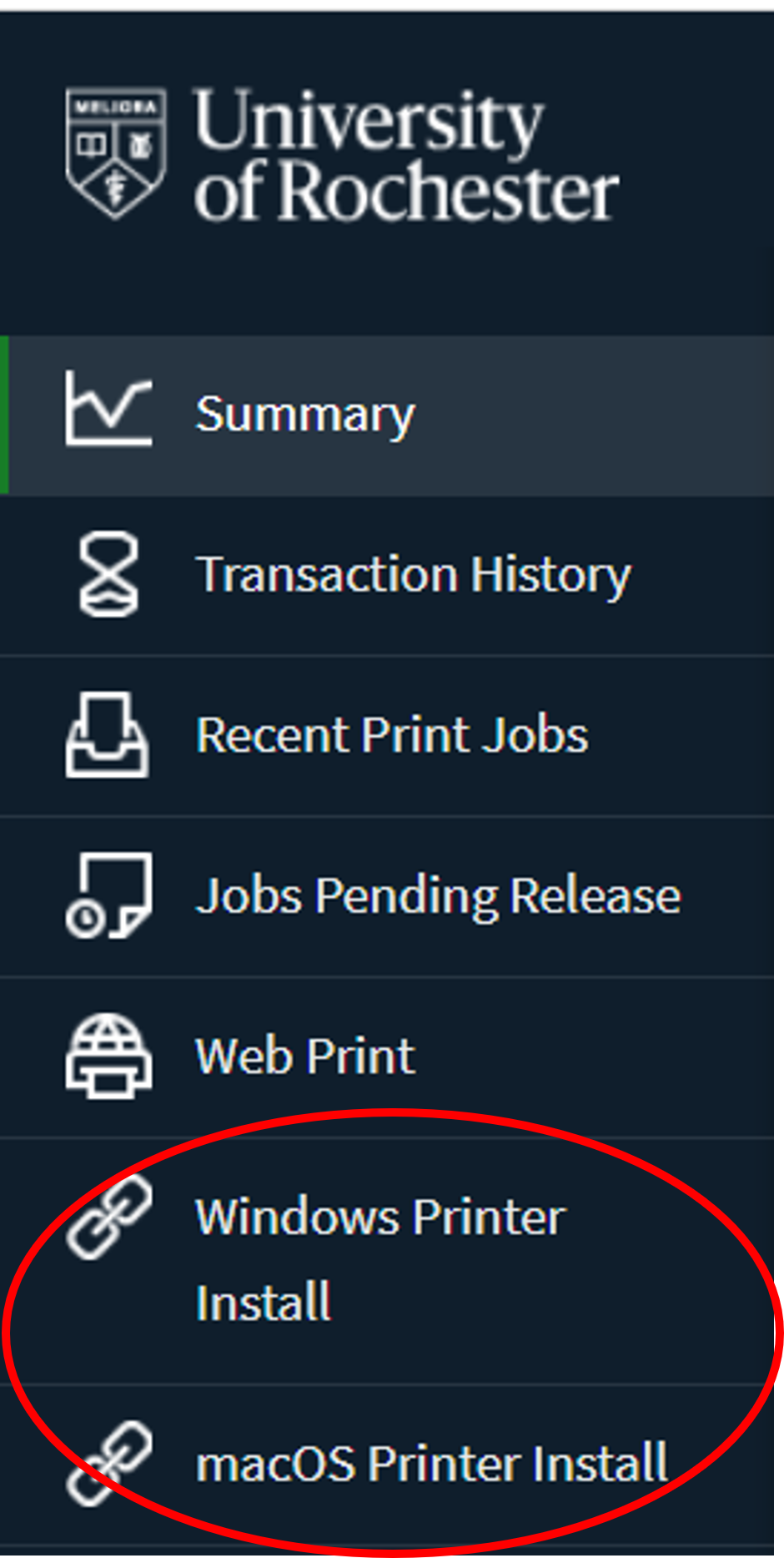
Once on the website, choose either Windows Printer Install or MacOS Printer Install to download the software from the bottom of the menu on the left.
Step 4
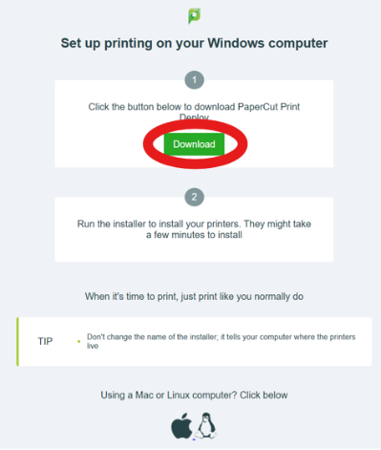
Click the green Download button. Open the download installer and follow the instructions to install PaperCut Print Deploy.
Step 5
Once installation is complete, the PaperCut icon  will appear in your system tray (Windows) or menu bar (MacOS). PaperCut Print Deploy will launch automatically and prompt you to sign in. The Secure-Print queue will be installed automatically. This new printer is how to print to PaperCut printers on campus.
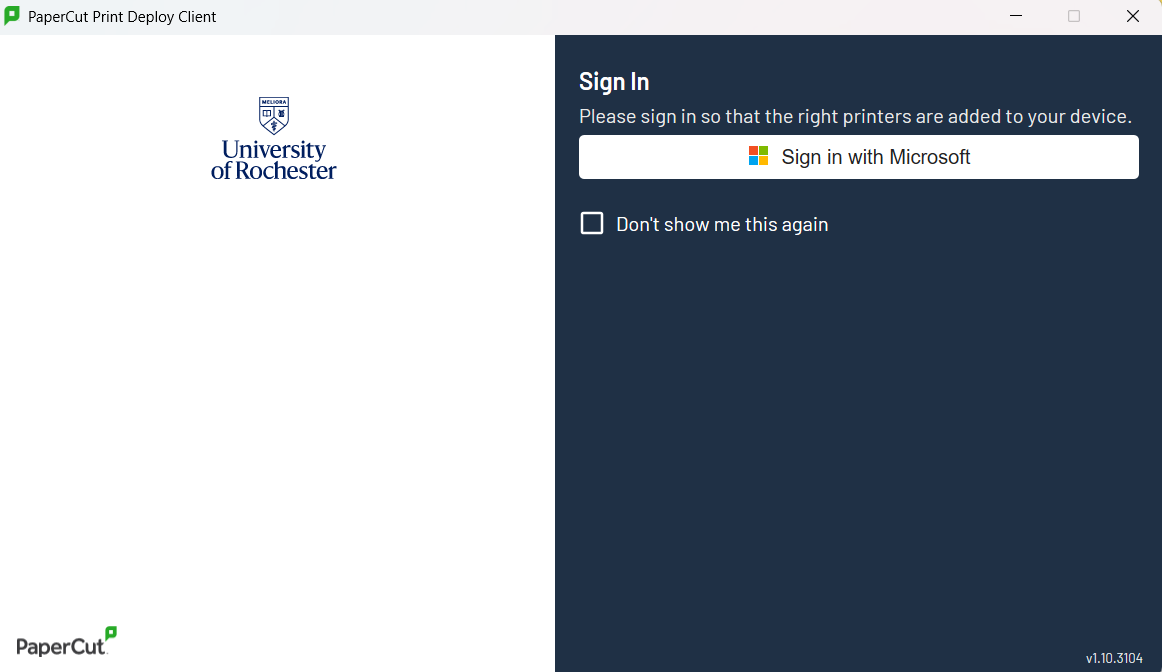
On personal computers, you’ll reauthenticate with your Entra ID occasionally when prompted. On public computers, you’ll need to reauthenticate every session.
The PaperCut Print Deploy application window does not need to remain open. Your installed printers will be available for use when you need to print from your device if you are on a University network.
Printing with PaperCut
Secure-Print is now available as a printer in all applications on your computer. You can now print your documents. Visit any PaperCut printer to release your documents. Tutorial