Options for accessing M365 Applications in a browser:
- On network: in the office, on a wired or wireless connection to the internal network
- On a virtual private network (VPN): UR AnyConnect, URMC GlobalProtect, Citrix, or VDI
- Using a Yubikey or Duo Verified Push
*Note: Access to email from a mobile device is not impacted by this requirement
To request access to email and all M365 apps in a browser, without VPN, complete the appropriate request form, based on your role.
Once you receive confirmation that your request has been completed, you will be able to log in to https://outlook.office365.com/mail/ without a VPN connection.
Step 1
1.Using a Yubikey or Duo Verified Push
When you log in to outlook.office365.com/mail, you will see a message that verified push is required. Click Continue.

Step 2
2. You will then see a six-digit code (example below):
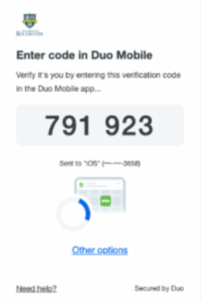
2a. If you are using a YubiKey, choose “Other options” on this screen
Step 3
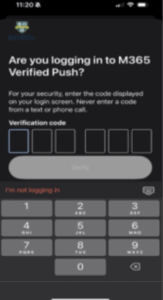
3. If you are set up with Duo Push, you will also receive a Duo alert notification on your mobile device inviting you to open the Duo mobile app and enter the 6-digit verification code provided. This will allow access to M365 in the browser.
Resources
- Learn about Duo Verified Push here
- Learn how to use a YubiKey with your Duo account here.
For additional assistance, contact your Help Desk:
University IT Help Desk
- 585.275.2000
URMC ISD Help Desk
- 585.275.3200