- All/Employees/Associates
- Where can I find out more about UKG Scheduling?
- How do I log in to UKG from a PC?
- How do I download/use the UKG mobile app?
- What are the UKG collaborative scheduling dates/periods?
- What training is available for UKG Scheduling?
- How do I make schedule requests, such as requesting my preferred shifts, making time off requests, changing availability, and swapping shifts?
- How can I see who I’m working with on the schedule?
- How do I print my schedule?
- Where can I add Comments for my manager/scheduler?
- How do I add a conflict day?
- Managers/Schedulers
- What is a Location query and how do I create one?
- What do the visual queues mean in the Schedule Planner's Table view?
- How are new users, including Travelers and Strong Staffers added to UKG?
- How are shifts generated in UKG?
- How do I schedule someone from another unit to my unit?
- How do I update Skills & Certifications in UKG?
- How do I move people around in the scheduling groups?
- What Pay Codes are used in UKG?
- Is there any way to hold or extend a balancing period?
- How do I indicate someone is an Orientee?
- Is there any way to prevent staff from accidentally picking up too many hours in a 24 hour period?
- What should I do when scheduling someone on-call?
- As a manager/scheduler, how can I see employee’s schedules in a weekly calendar view?
- How do I transfer a portion of a shift using Segments?
- How do I manually create an open shift on the schedule?
- How do I evaluate daily coverage?
- Does an employee’s approved time off request override an existing shift on their schedule?
- How do I use Schedule Tags in UKG?
- How do I create a schedule pattern?
- How do I run reports in UKG?
- What is the best way to view operational data/detail?
- Who receives notifications for requests in and how are they managed in UKG?
- How do I locate and manage my employees’ time-off requests?
- Why are there exceptions (red exclamation marks) appearing on salaried employee timecards?
All/Employees/Associates
Where can I find out more about UKG Scheduling?
Please watch this introduction to UKG Scheduling video to learn about its core capabilities: You Tube Video (25:30)
How do I log in to UKG from a PC?
Choose the appropriate link from this page and log in with your Active Directory username and password.
How do I download/use the UKG mobile app?
Follow the steps in the Download the Mobile App Job Aid.
Use a PC for tasks such as creating schedules or viewing large units.
The Mobile App is better suited for checking your daily schedule, submitting requests, or responding to requests from the Control Center. If you wish to receive notifications from UKG, you will need to enable them in your phone Settings.
What are the UKG collaborative scheduling dates/periods?
See below for the following schedules:
What training is available for UKG Scheduling?
Log in to MyPath, then click here to view the available UKG Scheduling eLearning and instructor-led training courses.
How do I make schedule requests, such as requesting my preferred shifts, making time off requests, changing availability, and swapping shifts?
Review the following Job Aids for instructions:
How can I see who I’m working with on the schedule?
The Location Schedule feature allows you to see the schedule for those working within your Location. Follow this Job Aid for instructions.
How do I print my schedule?
Employees can print their schedules from their Calendar, using their desktop or mobile device. Please follow this Job Aid.
Where can I add Comments for my manager/scheduler?
Staff cannot put comments in Availability. Comments can be entered with time off requests, such as vacation, conflict days, etc.
How do I add a conflict day?
Each unit has their own rules for how employees can/should use conflict days. Please ensure you speak with your Manager and understand your unit’s policy prior to requesting any conflict days.
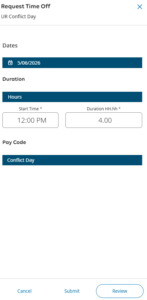
A conflict day can be requested in UKG as a Time Off Request. On the My Schedule screen, select Request > Time Off > Type of Time Off > Conflict Day > Apply. Select the date on the Calendar then Apply. Enter the hour the shift starts or, when the conflict time begins if not at the start of your shift. Enter the number of hours needed. Review, then Submit.
Managers/Schedulers
What is a Location query and how do I create one?
Location queries are created by you for your view only, to assist in viewing employees frequently accessed and scheduled in a certain location or job. As this is for your view only, it can assist in viewing your team down to the job level in groups. Follow this Job Aid for instructions.
What do the visual queues mean in the Schedule Planner's Table view?
Please review this Job Aid.
How are new users, including Travelers and Strong Staffers added to UKG?
Each morning, UKG receives a feed from the HR system. Staff flows in via this feed when their information is activated in the HR system. Please note that there may be a 1-day delay in the staff member appearing on your schedule. Travelers are not onboarded by the UKG Scheduling Support team. Please contact Nurse Recruitment with any questions and further support.
It is recommended that schedulers use a schedule tag to indicate the current staff member who will be acting as their Preceptor. When the new employee is active in UKG, a manager/scheduler can copy the preceptor’s schedule and tag the preceptee to match. Learn about schedule tags in the Use Tags Job Aid.
How are shifts generated in UKG?
Available shifts created in preparation for the collaborative self-scheduling period are generated based on a variety of building blocks and the overall needs of the unit, which may be different from individual requests.
Once the optimized shifts are created for the unit and collaborative scheduling begins, staff can only pick-up from the shifts available.
There is no overscheduling – unless a Scheduler chooses to manually add or schedule above the coverage need during the balancing process.
How do I schedule someone from another unit to my unit?
When an employee does not work on your unit and needs to pick up time (second appointment), the first shift that employee works must be created by the UKG Scheduling team.
To do this, open a ticket requesting a Transfer for that employee. Please provide the information below:
- Date of first shift
- Shift start time
- Shift end time
- Employee full name
- Scheduling unit name where the transfer shift is needed
Once the transfer shift is created, you will see the employee on the unit schedule and can add additional transfer shifts by following the steps in the Transfer a Shift Using Quick Action Job Aid.
If the individual has worked a shift on your unit before, include a date in the top right of your Schedule view that includes one of the shifts they’ve worked in your unit previously. Once loaded, you will be able to see the person and can complete the remainder of their scheduled shifts on your unit. However, by default, when you insert a shift template the person will still be assigned to their home unit. When you insert the person’s shift, be sure you also transfer them to your unit before you hit Save. Not doing so will cause an error if you try to edit afterwards as you don’t have access to their home unit. The easiest way to do this to follow these directions via the Transfer a Shift Using Quick Action Job Aid.
How do I update Skills & Certifications in UKG?
Follow the steps in this Job Aid to update Skills and Certifications in UKG. You can also remove the Charge Staff Management skill in UKG by following the Remove Chrg Staff Mgmt Skill Job Aid.
How do I move people around in the scheduling groups?
If you move people in and out of groups, be sure to modify both the group you are ending/modifying for the period and the new one you are adding the person to.
Please note: The employee you are moving will not be able to build their schedule from their new group until the system refreshes behind the scenes, which happens twice a day. If an employee is left “ungrouped”, they will be automatically placed in their original schedule group during the morning import. See Job Aid for more details.
What Pay Codes are used in UKG?
The following Pay Codes are in UKG:
- Holiday (Note: Be sure to put the shift in and add the Holiday Pay Code for the shift the individual is scheduled to work.)
- Conflict Day
- 1st Call
- 2nd Call
- Absent
- Education
- Jury Duty
- Leave of Absence
- Military Leave
- School Conflict
- Union Time Off
- PTO
- Vacation
- Sick
- Contagion
The following are “Comments” in UKG. You would use a Pay Code from the list above with a Comment from below.
For example:
- Absent – Death in Family
- Absent – Family Emergency
- Absent – No Call No Show
- Absent – Permission
- Absent – Unapproved
- Educ – Class
- Educ – Competencies
- Educ – Retreat Day
Is there any way to hold or extend a balancing period?
No, this is a standard, automated process across multiple locations.
How do I indicate someone is an Orientee?
Orientees should be transferred to the Orientation Job Code (“ORIENT”). The individual’s assigned shift should be transferred to the Orientation Job by inserting a shift transfer or performing a Business Structure transfer.
Is there any way to prevent staff from accidentally picking up too many hours in a 24 hour period?
There is nothing in the system to prevent this.
What should I do when scheduling someone on-call?
On-call shift templates start with the letters “OC”. A best practice for on-call is to use an OC shift template AND to schedule the shift in the “OC” or “OC RN” job(s). Doing so will remove the shift hours from the numbers. Using the pre-built OC shift templates will also ensure the shift shows in on-call reports you may run.
If you don’t currently have OC shift templates, there are two options:
- Email the support team at WFDPT@ur.rochester.edu to request an OC template/templates, or
- Use the templates you do have and then complete a work rule transfer (to remove the shift hours from the numbers). You can do this in multiple ways:
Job Aid: Transfer a Shift Using Edit Shift
Job Aid: Transfer a Shift Using Quick Actions
Job Aid: Transfer a Shift Using Transfer
As a manager/scheduler, how can I see employee’s schedules in a weekly calendar view?
Managers/Schedulers can look at their employee’s schedules in a weekly calendar view by running a report called: Employee Schedule – Weekly, which can be found under Scheduler. Follow this Job Aid for instructions.
How do I transfer a portion of a shift using Segments?
Nurse Managers, Assistant Nurse Managers, and Schedulers can transfer part of an employee’s shift (or a segment) to work something other than regular hours. Follow this Job Aid for instructions.
How do I manually create an open shift on the schedule?
Shifts can be manually added to the schedule. The easiest way to do this by Job. Follow this Job Aid for instructions.
How do I evaluate daily coverage?
Daily Coverage shows how a schedule differs from staffing requirements by comparing the daily variance between the staffing plan and the current schedule for a shift or schedule zone, for one or all jobs. It shows the difference between the number of employees required and the number of employees who are scheduled for a job, for a selected time span within the time period of Scheduler. Review the following job aids for instructions:
Does an employee’s approved time off request override an existing shift on their schedule?
Unfortunately, approved time off requests do not remove or un-assign any corresponding existing shift from the employee’s schedule. The manager/scheduler will need to do this manually.
How do I use Schedule Tags in UKG?
Use schedule tags to identify a date cell or a portion of a date cell that has specific characteristics that apply to that employee for that period (Preceptor, Preceptee, for example). A schedule tag is not related to a shift. Follow this Job Aid for instructions to add a schedule tag.
How do I create a schedule pattern?
Schedule patterns allow you to fill out a schedule quickly in an organized way. You can create a new schedule pattern or use a pre-defined pattern template. You can assign patterns to any employee or group of employees. Follow this job aid for instructions.
What is the best way to view operational data/detail?
Dataviews in UKG provide managers/schedulers with real-time access to operational data and are displayed in an Excel-like format. Dataviews can be sorted, filtered, and grouped in various levels of detail. To access dataviews, follow this Job Aid.
Who receives notifications for requests in and how are they managed in UKG?
The unit manager is the “Reports To” manager in the HR system and the system default is to send requests to that person. Because we have a wider range of individuals that need to review requests, Dimensions has “Symbolic Reviewers,” who can also be set up to receive notifications.
Reach out to the UKG team at WFDPT@ur.rochester.edu if you or someone on your team needs to be set up as a Symbolic Reviewer. Once the set-up is complete, as a symbolic reviewer, you may receive a wider set of requests due to your system group access. You’ll need to leverage the hyperfind filter at the top of the Control Center to filter the requests to those that you need to act upon.
If you don’t have a hyperfind available in the picklist for your unit, please email WFDPT@ur.rochester.edu and we can have one created for you.
See how to manage requests in this Job Aid.
How do I locate and manage my employees’ time-off requests?
Please follow this Job Aid for instructions.
Why are there exceptions (red exclamation marks) appearing on salaried employee timecards?
Though salaried employees do not punch in/out to track their time, those who have schedules in UKG (Dimensions) may notice unexcused absence notes or exceptions (red exclamation marks) on their timecards. These exceptions can be ignored and do not impact the salaried person’s pay or hours. Timekeepers/managers do not need to take any action on these exceptions.
The reason the exceptions appear is because schedules without timecard entries do not have a way to confirm that the individual reported in for their scheduled shift/pattern. Scheduling departments can decide whether or not to continue schedule patterns for salaried employees. If it’s necessary/helpful for viewing or planning for coverage, scheduling departments should keep the schedule and ignore the exceptions. If it’s not beneficial, scheduling departments could consider not inputting schedules for salaried employees and only recording Time-Off/Out of Office.