- How do I add printing money to my URochester ID Badge?
- Why is my job printing in black and white, and double-sided?
- I forgot my University ID badge. How can I print?
- How can I look up my URID?
- I have access to multiple accounts. What if I charge a job to the wrong one?
- How do I release a print job?
- I am not seeing my job when I swipe at a printer. What can I do?
- What happens if I print something by mistake? Can I get a refund?
- I sent a job to the printer but decided I no longer want to print it. What do I do?
- I released my print job at a printer, but it failed to print.
How do I add printing money to my URochester ID Badge?
See Printing Rates for further details
Online:
Visit eAccounts to add to your Rocky Bucks balance.
Grad Students and University employees can sign in and fill out this form to request a Transact account and get Rocky Bucks added to their badge.
On River Campus:
Purchase prepaid $5 Visitor Cards from Q&i desks with credit card only. Important note: Visitor Cards can only pay for printing submitted from public/lab computers.
Visit any Transact Kiosk location to add funds from cash or credit to your Rocky Bucks or to purchase a Visitor Card. There is a minimum funding amount of $25.
At Eastman School of Music:
Purchase prepaid $5 Visitor Cards at Sibley Music Library with cash only.
Why is my job printing in black and white, and double-sided?
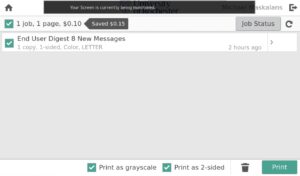
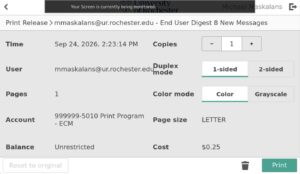
In order to save money, printers are configured to adjust most jobs to print in black & white (grayscale), and 2-sided (duplex). Adjust the checkboxes at the bottom of the print release screen, or click the > button to adjust any job’s options, including number of copies, color, and duplexing. All prices shown on the printer’s screen should reflect pricing for the current options, and money saved versus how it was submitted.
I forgot my University ID badge. How can I print?
You can sign in to your PaperCut account online at print2.rochester.edu, and add a PIN under the Change Details section. Once a PIN is set, you can log in at a printer with your numeric URID and that PIN, using the touchscreen. You will see your own jobs and any accounts you have access to at that point.
Alternatively, you can buy a Visitor Card and use that to print only from a University-managed lab computer via the Visitor queue. You will not have access to emailed nor uploaded jobs, nor prints sent from your own computer, nor can you access any accounts associated with your URochester ID badge via Visitor Card.
How can I look up my URID?
- Log in to Workday.
- From the Home Page, click on your profile picture at the top right of the screen and select View Profile from the drop-down.
- Click on Personal in the left side menu under your picture.
- Click on IDs on the horizontal menu across the top of the page.
- Your URID will be visible near the bottom of the page in the Other IDs grid. It will be on the URID row in the Identification # column.
I have access to multiple accounts. What if I charge a job to the wrong one?
Please submit a request online describing the transaction: who printed, when, what device, what account was charged, and what account it should be moved to.
Please be mindful this is a manual process that will follow the initial billing period.
I am not seeing my job when I swipe at a printer. What can I do?
Did you swipe your URochester ID Badge?
If you are swiping a Rocky Bucks card or entering a Visitor Print & Copy Card number, you will not see any jobs sent by email or upload. The only way to pay for jobs with a Visitor Card is to submit them from a public/lab computer via the Visitor-Print queue. See Visitor Queue for further details.
What happens if I print something by mistake? Can I get a refund?
You should preview your work by using the application’s Print Preview capability before sending it for printing to determine if there are any errors.
You cannot cancel a job once you have authorized it at a Print Release Station. However, you can choose not to release unwanted jobs. Jobs not released will be deleted after 2 hours and you will not be charged.
For River Campus: Refunds are not offered by University IT or the River Campus Libraries. If the Help Desk is contacted within eight hours of the print job having been sent, the document can be re-printed at no additional charge if the reprint request is due to poor or damaged output (faded output or lost pages due a jam), or a system error.
If pages are lost due to a corrupted PDF or image printing issue, you will need to visit the Help Desk in the IT Center in the ground floor of Rush Rhees Library for assistance or the ECM Help Desk in Hoyt Hall.
For other URochester Campuses: Contact the University IT Help Desk at univithelp@rochester.edu or (585) 275-2000
I sent a job to the printer but decided I no longer want to print it. What do I do?
You do not need to do anything. The job will be deleted automatically from the queue after 2 hours. Additionally, your print job(s) are only visible to you, so no one else can print your documents.
You can also select the job in the queue and choose Delete.
I released my print job at a printer, but it failed to print.
Failed print jobs that are the result of a corrupted pdf, mobile print failure, or an image printing issue can be resolved by visiting the help desk in the IT Center. If a re-print request is due to printer error (poor or damaged output, such as; faded print jobs, streaky output, or lost pages due to a jam) or a system error, the document can be re-printed at no additional charge.
Please visit the IT Center Help Desk for assistance.
Note that in most cases, the PaperCut system will automatically correct for missing pages and refund your account. You can check your transaction history by logging into PaperCut at print2.rochester.edu.