Authentication Method: Entra ID
Authentication is done using your Microsoft Entra ID, a cloud-hosted account based on your University Active Directory (AD) account, which is your first initial, last name, sometimes with a number (example: jsmith3).
- For those with UR accounts, the Entra username format is ADusername@ur.rochester.edu (example: jsmith3@ur.rochester.edu)
- For those with URMC accounts, the Entra username format is your URMC email address, such as First_Last@urmc.rochester.edu (example: jsmith3@urmc.rochester.edu)
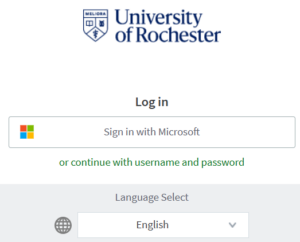
The Entra sign in page looks like the image below. You will click the Sign in with Microsoft button and sign in with your Entra ID. Your password is the same password you use to log in to other University systems.
Note: Entra ID is also what you use to log in to Microsoft 365 Applications (Cloud and Desktop Clients).
Students
PaperCut is used for printing, copying, and scan to email. Students can use their Rocky Bucks balance or Visitor Cards* for payment at the printer. Important note: Visitor Cards can only pay for printing submitted from public/lab computers.
Students have four options for using PaperCut:
- Install the PaperCut Print Deploy Client on student-owned computers. (Public/lab computers already have the app installed.) Installing the client allows you to manage printers and print queues and use advanced features. Tutorial Note: Do not download the PaperCut mobile app from an app store, as it will not work.
- Email your print job(s) to papercutprint@ur.rochester.edu | Tutorial
- Upload your print job(s) via web browser: print2.rochester.edu | Tutorial
- Use a University-managed public/lab computer. These computers will have PaperCut pre-installed. Tutorial
This is the only way to pay with a Visitor Card.
Once you submit your print job(s), you have two hours to release your print job(s) at the printer. Tutorial
Department Staff/Faculty
University-managed computers will have PaperCut Print Deploy installed for departments using PaperCut for printing. Prior to installation, support staff will be reaching out to department contacts.
Immediately after installation, the PaperCut Print Deploy Client will prompt you to sign in with your Entra ID. Tutorial
- To print to PaperCut, select Secure-Print
- If you need advanced finisher features, install the optional model-specific Secure-Print Tutorial
- Note: If you previously used Pharos, Pharos queues specific to your department printers will no longer work and can be removed.
- At the printer, swipe your URochester ID badge
- Choose the appropriate FAO. Note: To assign an FAO with a user, complete this form.
Other options for printing to PaperCut printers:
- Upload the documents you want to print to print2.rochester.edu Tutorial or,
- Email the documents to papercutprint@rochester.edu Tutorial
Once you submit your print job(s), you have two hours to release your print job(s) at the printer. Tutorial
Visitors
- Visitors can purchase a Visitor Card Tutorial
- Request a Visitor computer sign in
- Use the Visitor queue Tutorial
- Visitors will use a public/lab computer that is configured for visitor printing.
- When printing from any application, choose the printer Visitor-Print-Color or Visitor-Print-BW, as applicable
- After printing, the computer will prompt for a URID or Visitor Card Number to assign the job to
- Enter the Visitor Card Number
- This prompt will also accept your URID if you have funds or FAO access on your URochester ID badge
- At the printer, enter the Card Number and PIN or swipe the mag stripe Visitor Card, as applicable, select your job(s) and release Tutorial
Once you submit your print job(s), you have two hours to release your print job(s) at the printer Tutorial
System Administrators
Search Confluence for further information.